Quotations
Where: Operations → Sales → Quotations.
The Quotation Hub
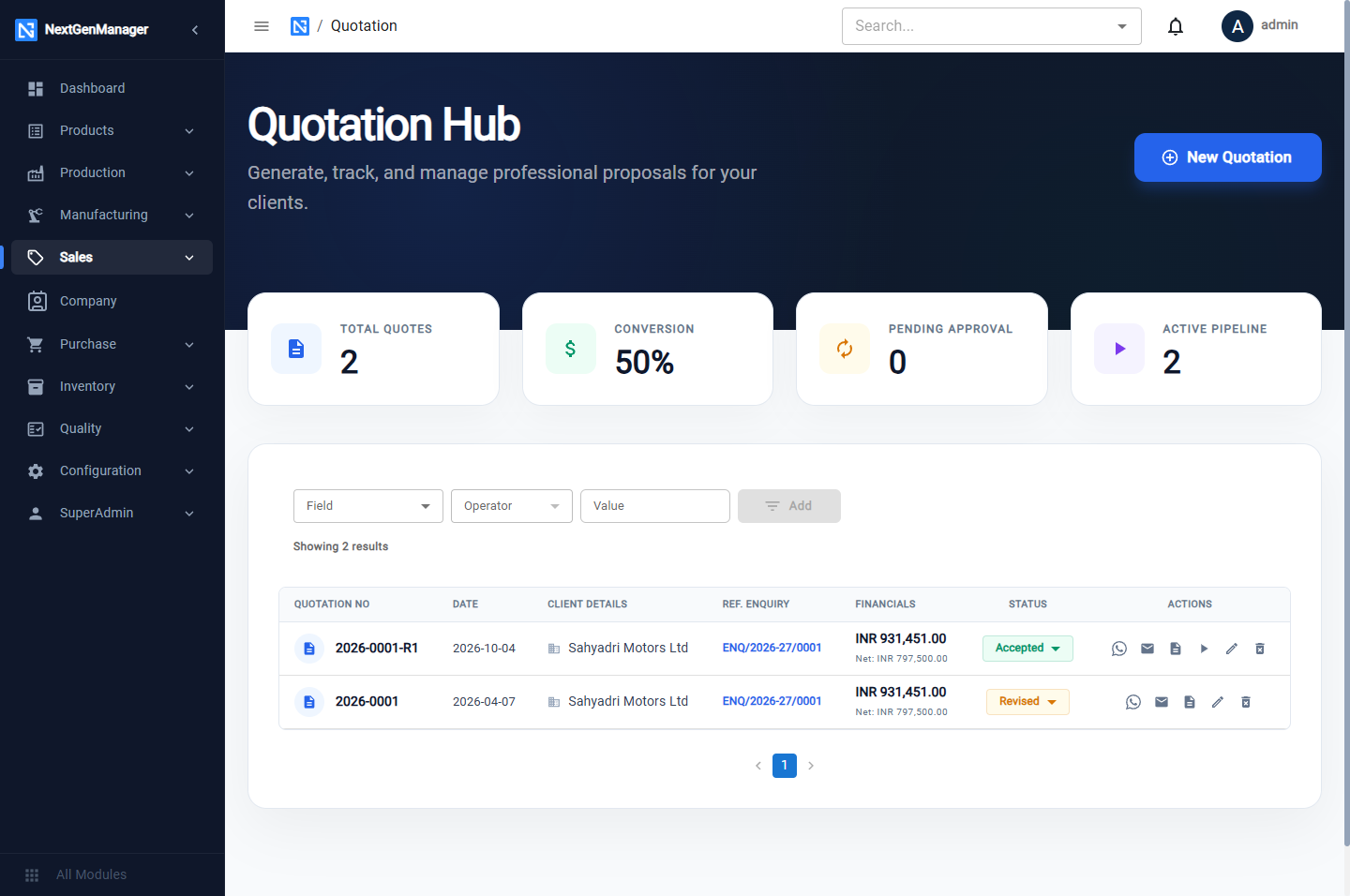
Tiles: Total Quotes, Conversion, Pending Approval, Active Pipeline. Each row shows the quotation number, date, client, the enquiry it came from, the value and the status.
Row buttons: message, e-mail, Download PDF, Convert to Sales Order (on accepted quotations only), edit and delete.
Create a quotation
Click New Quotation, or Convert to Quote on an enquiry.
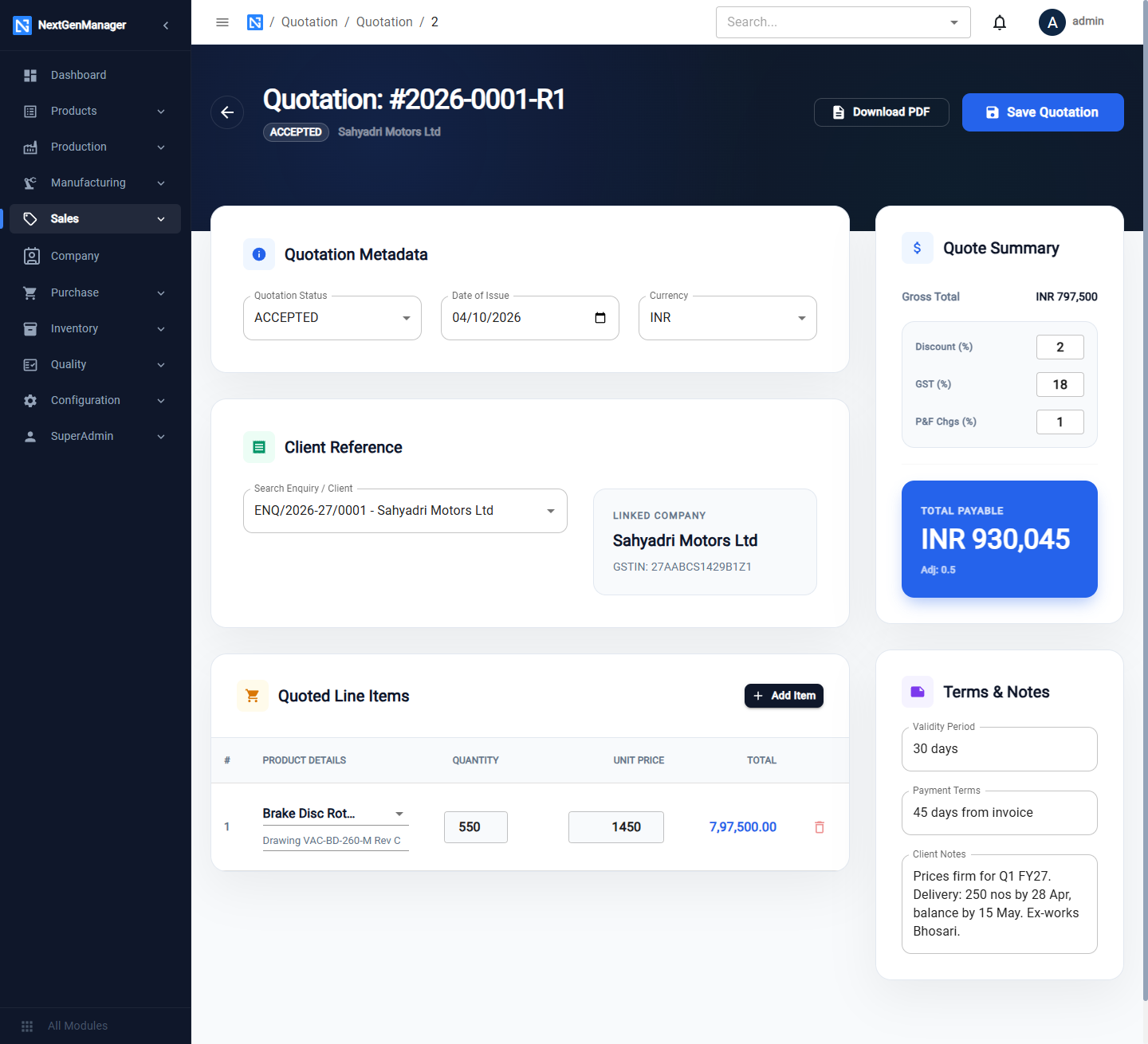
| Section | Fields |
|---|---|
| Quotation Metadata | Quotation Status, Date of Issue, Currency (INR, USD, EUR, GBP, AED) |
| Client Reference | The enquiry or client. The linked company and its GSTIN are shown |
| Quoted Line Items | Add Item: product, requirement notes, quantity, unit price |
| Quote Summary | Gross total, Discount (%), GST (%), P&F Chgs (%) and the total payable. Packing and forwarding is part of the supply, so it carries GST |
| Terms & Notes | Validity Period, Payment Terms, Client Notes |
Click Save Quotation. Download PDF gives the document to send.
Statuses
| Status | Meaning |
|---|---|
| DRAFT | Being prepared |
| SENT | Given to the customer |
| ACCEPTED | The customer agreed |
| REJECTED | The customer declined |
| REVISED | Replaced by a newer revision |
Change the status with the Quotation Status dropdown and save.
A revised quotation keeps the same number with a suffix: 2026-0001 becomes 2026-0001-R1, and
the original is marked Revised.
Convert an accepted quotation to a sales order
- Set the quotation's status to ACCEPTED and save.
- In the Quotation Hub, click Convert to Sales Order on its row.
A new sales order opens, already filled with the customer, the link to the quotation, the lines, the rate, the GST and the discount. Check it, add the customer's PO number and delivery details, and save. See Sales orders.
:::tip Use Convert, not the link field Starting the sales order from Convert to Sales Order is what copies the lines and prices. Choosing a quotation in Link Reference Quotation on a blank sales order only records the link. :::