Purchase requisitions
Where: Operations → Purchase → Requisitions.
A requisition is an internal request to buy. Someone on the floor or in stores raises it, a manager approves it, and purchasing turns it into a purchase order.
Draft → Pending Approval → Approved → Converted
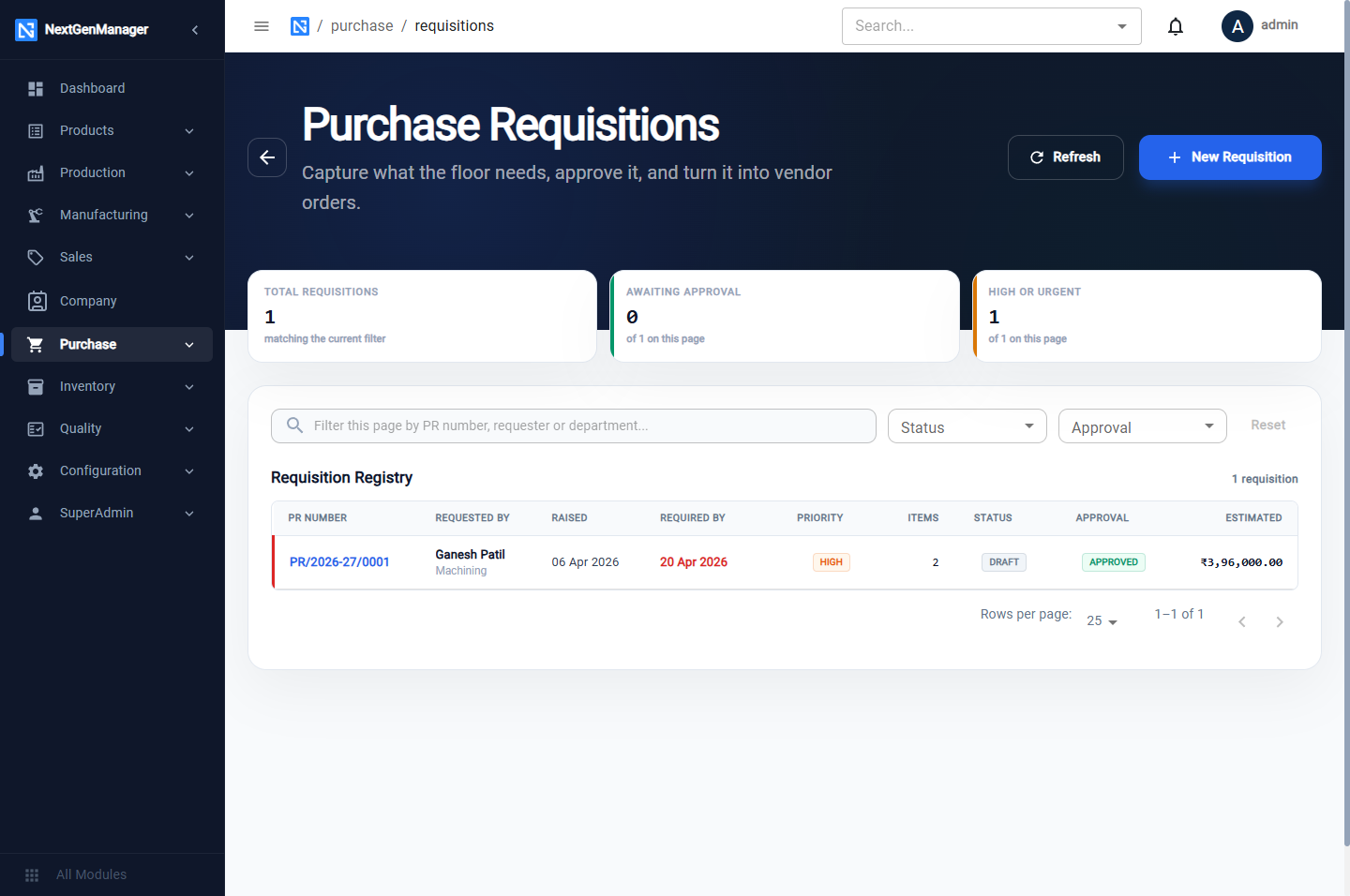
The tiles count Total Requisitions, Awaiting Approval and High or Urgent.
Raise a requisition
Click New Requisition. The number, for example PR/2026-27/0002, is shown at the top before
you save.
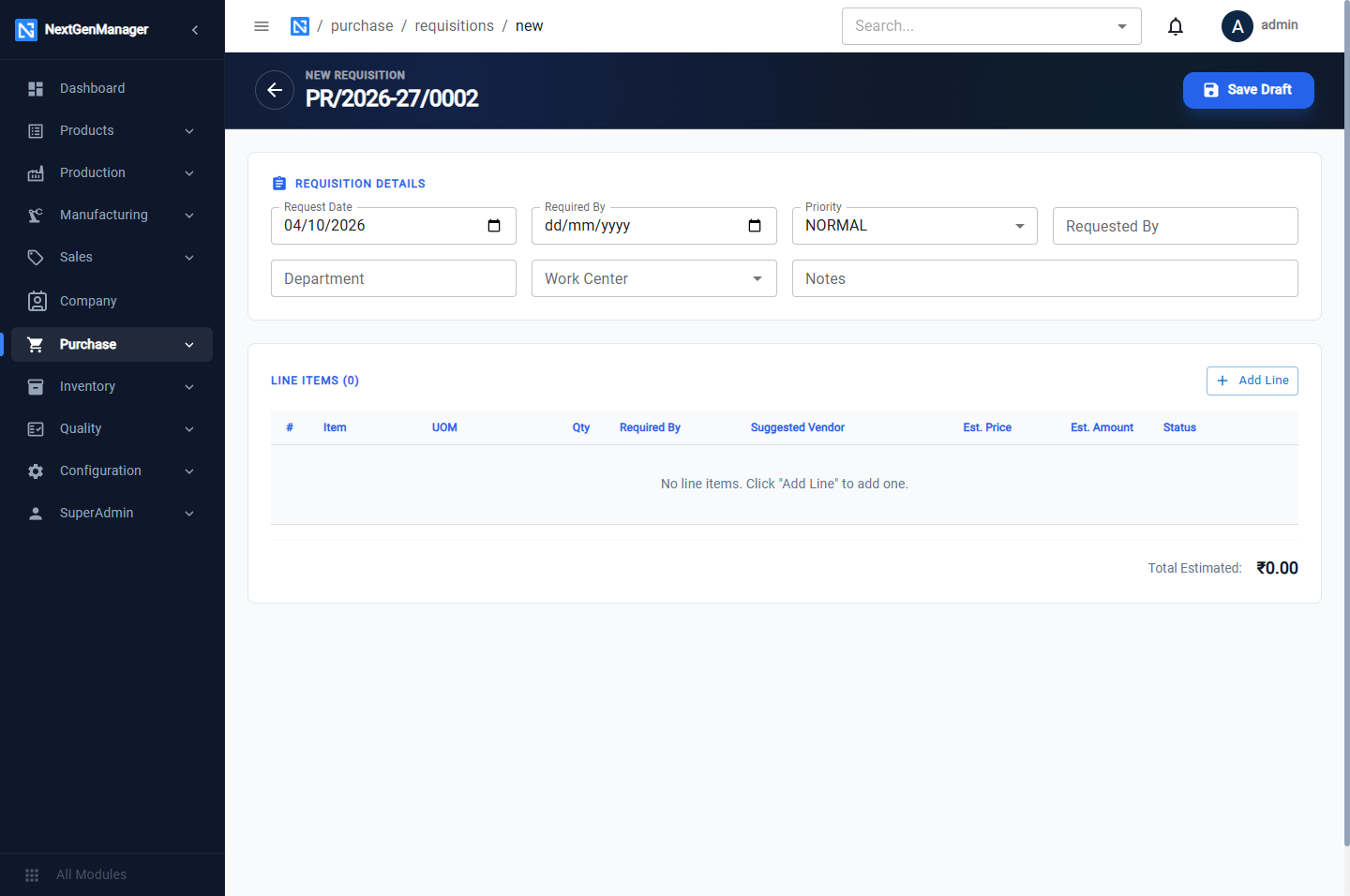
| Field | Notes |
|---|---|
| Request Date, Required By | When it was asked for and when it is needed |
| Priority | LOW, NORMAL, HIGH or URGENT |
| Requested By, Department, Work Center | Who needs it |
| Notes | Free text |
Click Add Line for each item: choose the Item (search by name), enter Qty, Required By, a Suggested Vendor and an Est. Price. The estimated amount is worked out for you. Every line must have an item.
Click Save Draft.
Submit and approve
-
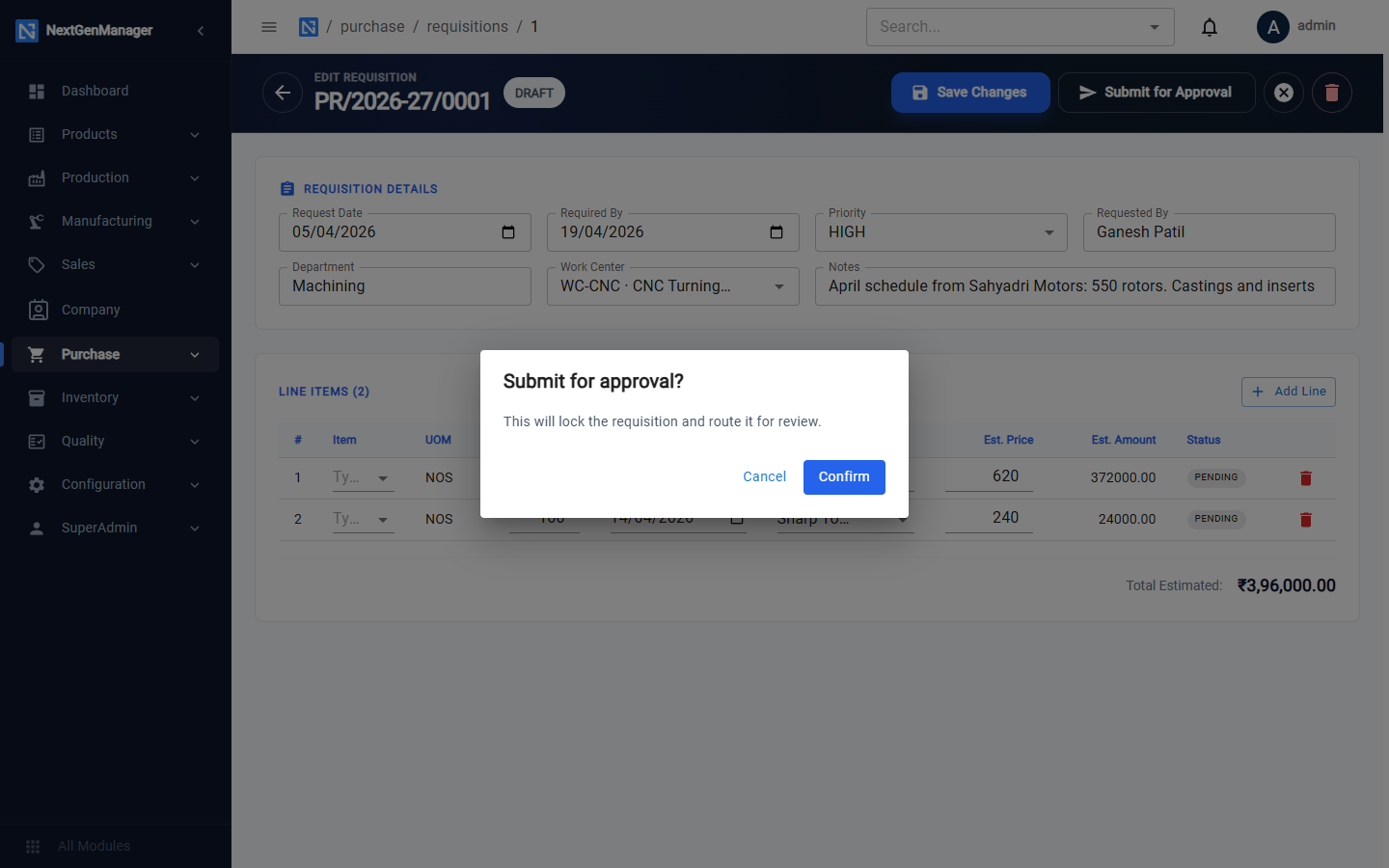
Open the draft and click Submit for Approval. The box warns that this will lock the requisition and route it for review.
-
The approver opens it and clicks Approve, or Reject with a reason that the requester will see.
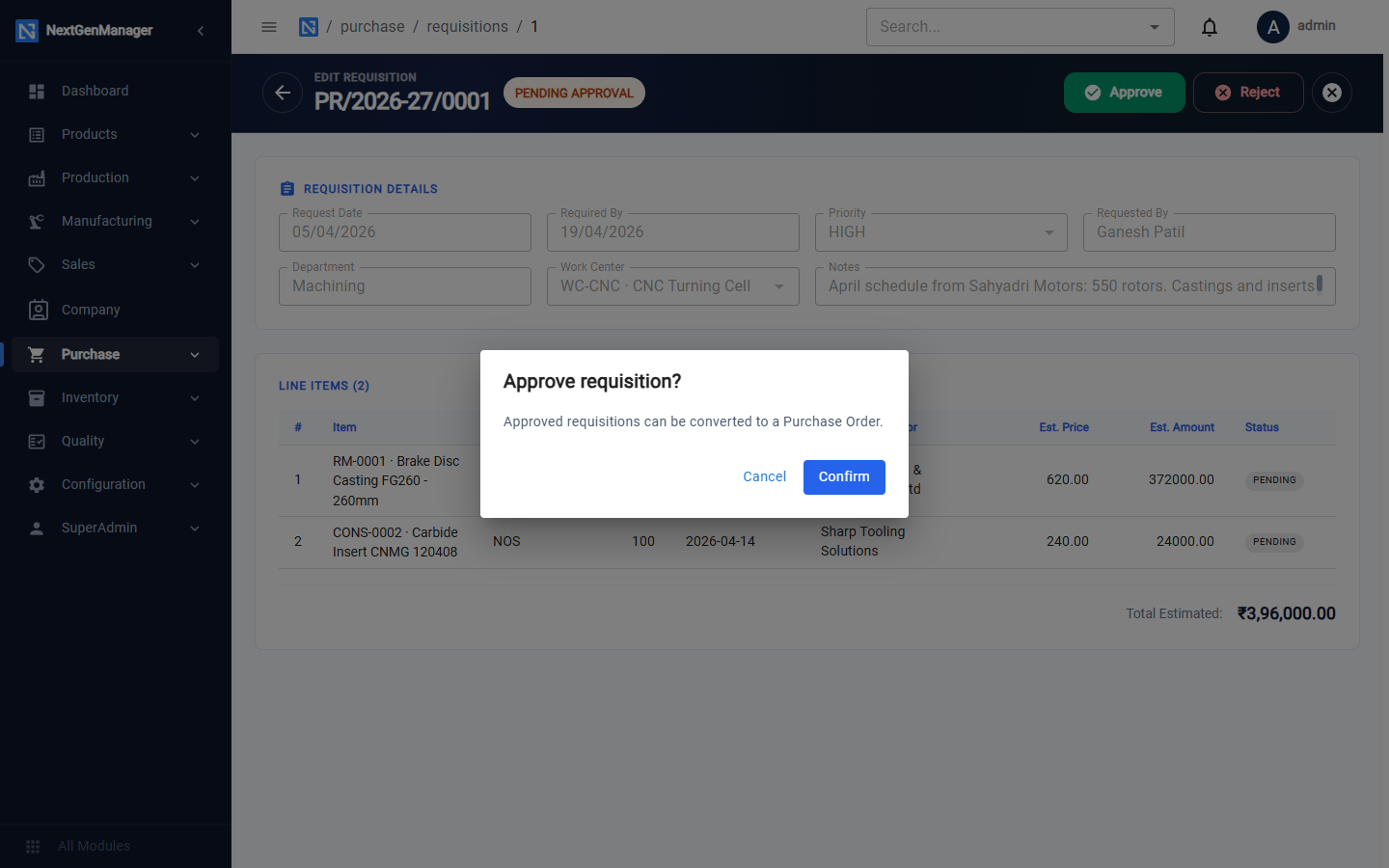
While a requisition is still open you can also Cancel Requisition or Delete it.
Convert to a purchase order
On an approved requisition click Convert to PO.
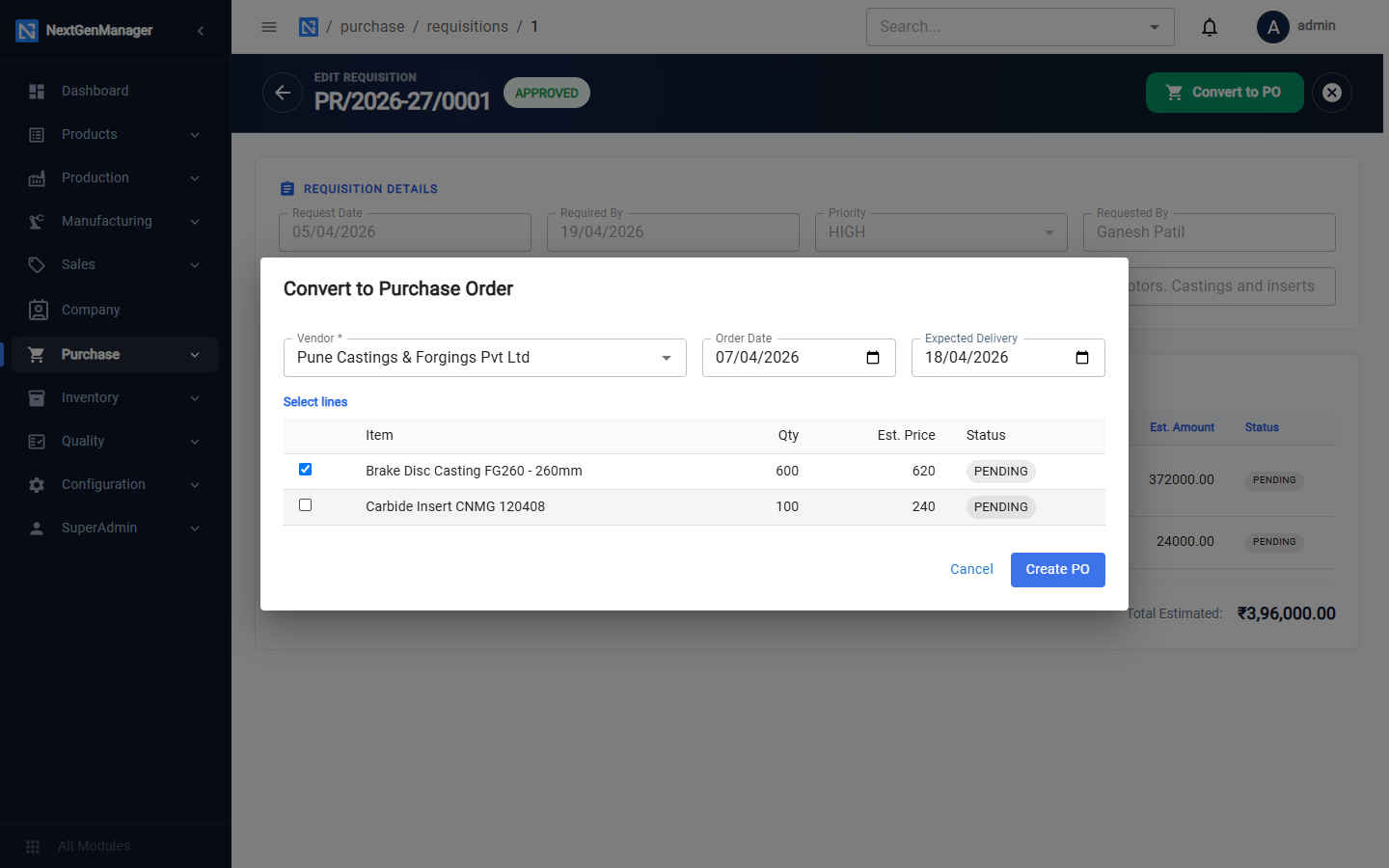
| Field | Notes |
|---|---|
| Vendor | Required |
| Order Date, Expected Delivery | Carried to the purchase order |
| Select lines | Tick the lines to put on this order |
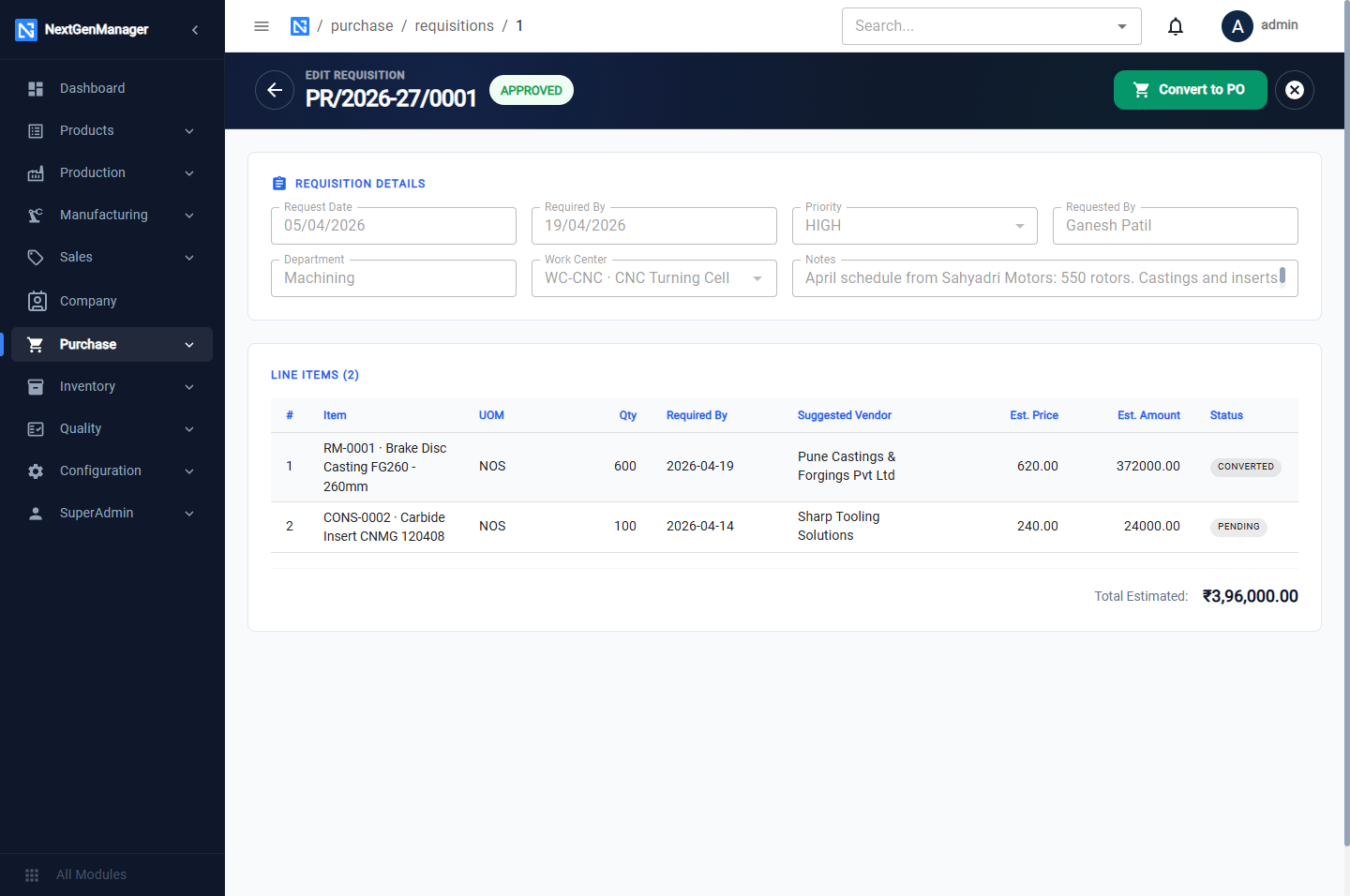
Click Create PO. A draft purchase order opens with those lines on it. Lines you did not tick stay on the requisition and can be converted later, for a different vendor if you wish.
Continue with Purchase orders.