Purchase orders
Where: Operations → Purchase → Purchase Orders.
The list
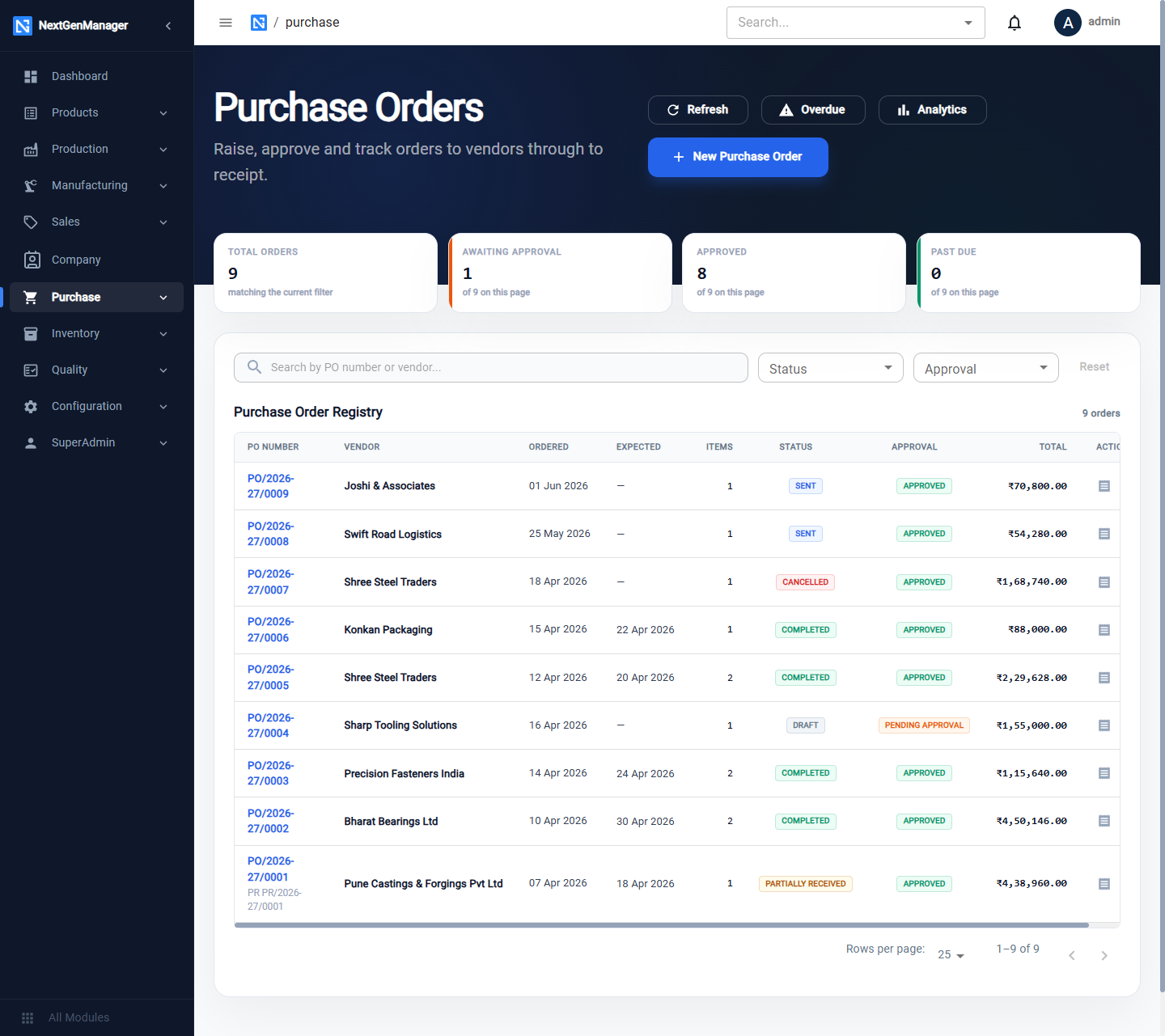
- Tiles: Total Orders, Awaiting Approval, Approved, Past Due.
- Search by PO number or vendor; filter by Status and by Approval.
- Overdue and Analytics open the two reports described at the end of this page.
Create a purchase order
Click New Purchase Order, or convert an approved requisition.
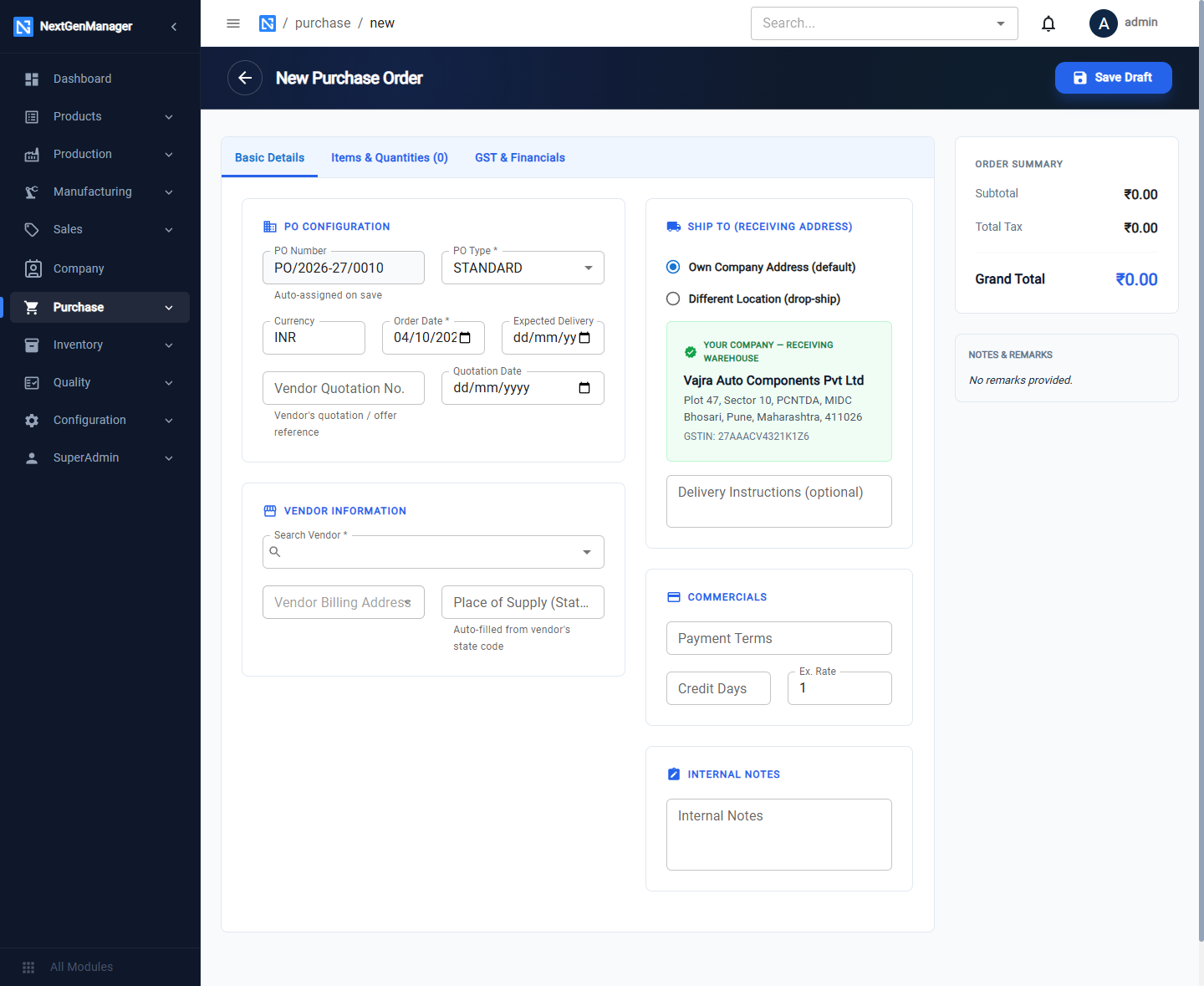
Basic Details
| Field | Notes |
|---|---|
| PO Number | Assigned on save, for example PO/2026-27/0001 |
| PO Type | STANDARD, BLANKET, SUBCONTRACT, SERVICE or IMPORT |
| Currency, Ex. Rate | INR by default |
| Order Date, Expected Delivery | Expected Delivery drives the overdue report |
| Vendor Quotation No., Quotation Date | The vendor's offer you are ordering against |
| Search Vendor | Required. The vendor's GSTIN, GST type and MSME status are shown |
| Vendor Billing Address | From the contact |
| Place of Supply (State Code) | Filled from the vendor's state |
| Ship To | Own Company Address or Different Location (drop-ship) |
| Delivery Instructions | Printed on the order |
| Payment Terms, Credit Days | Commercial terms |
| Internal Notes | Not printed |
The Order Summary on the right totals the order as you go.
Items & Quantities
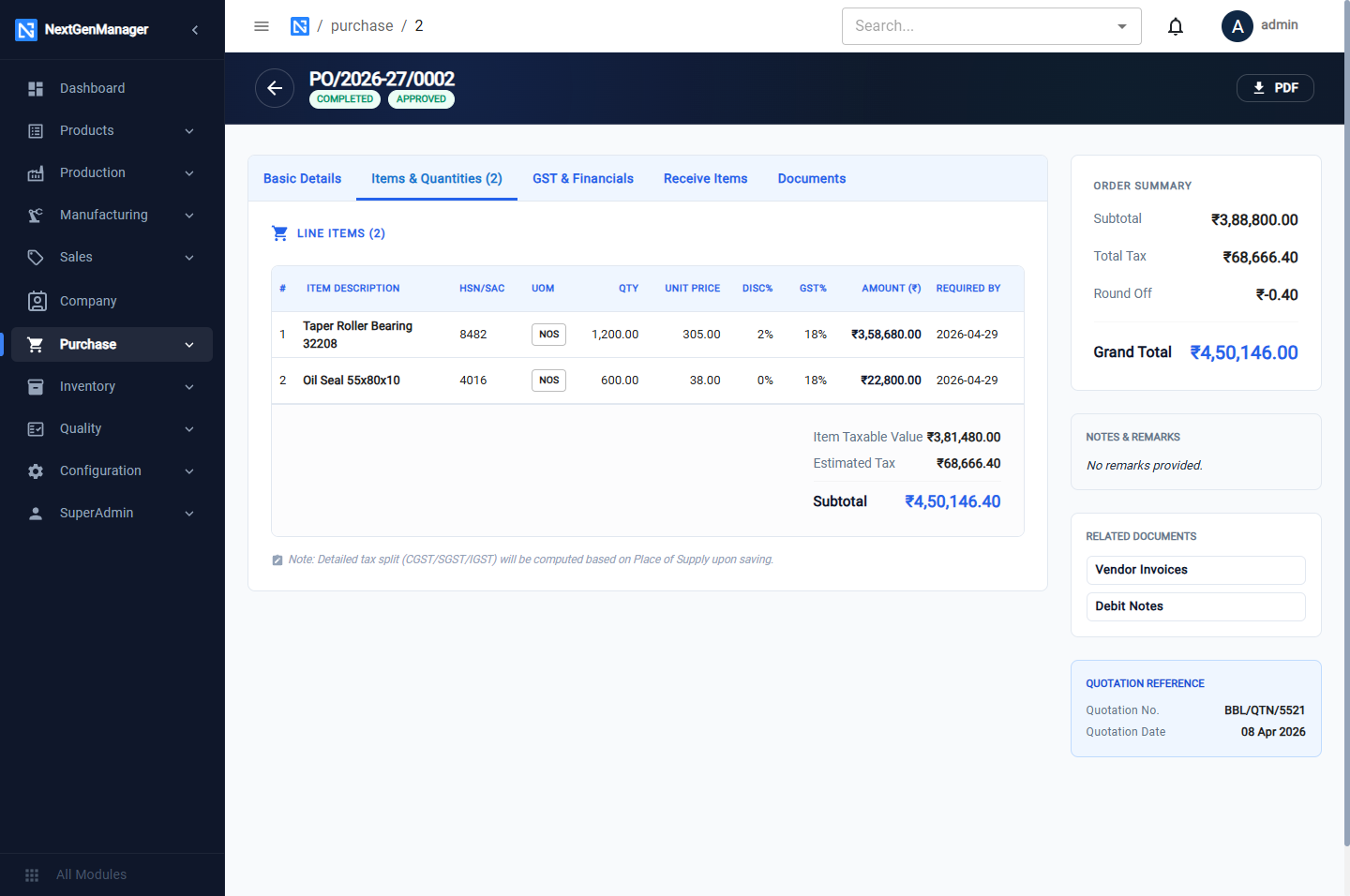
Click Add New Item for each line: the product, HSN/SAC, UOM, Qty, Unit Price, Disc %, GST % and Required By. The amount is calculated.
GST & Financials
Shows the Items Subtotal, discount, Net Taxable Value, the tax, Round Off, the Payable Amount and the amount in words, with an item-wise tax analysis.
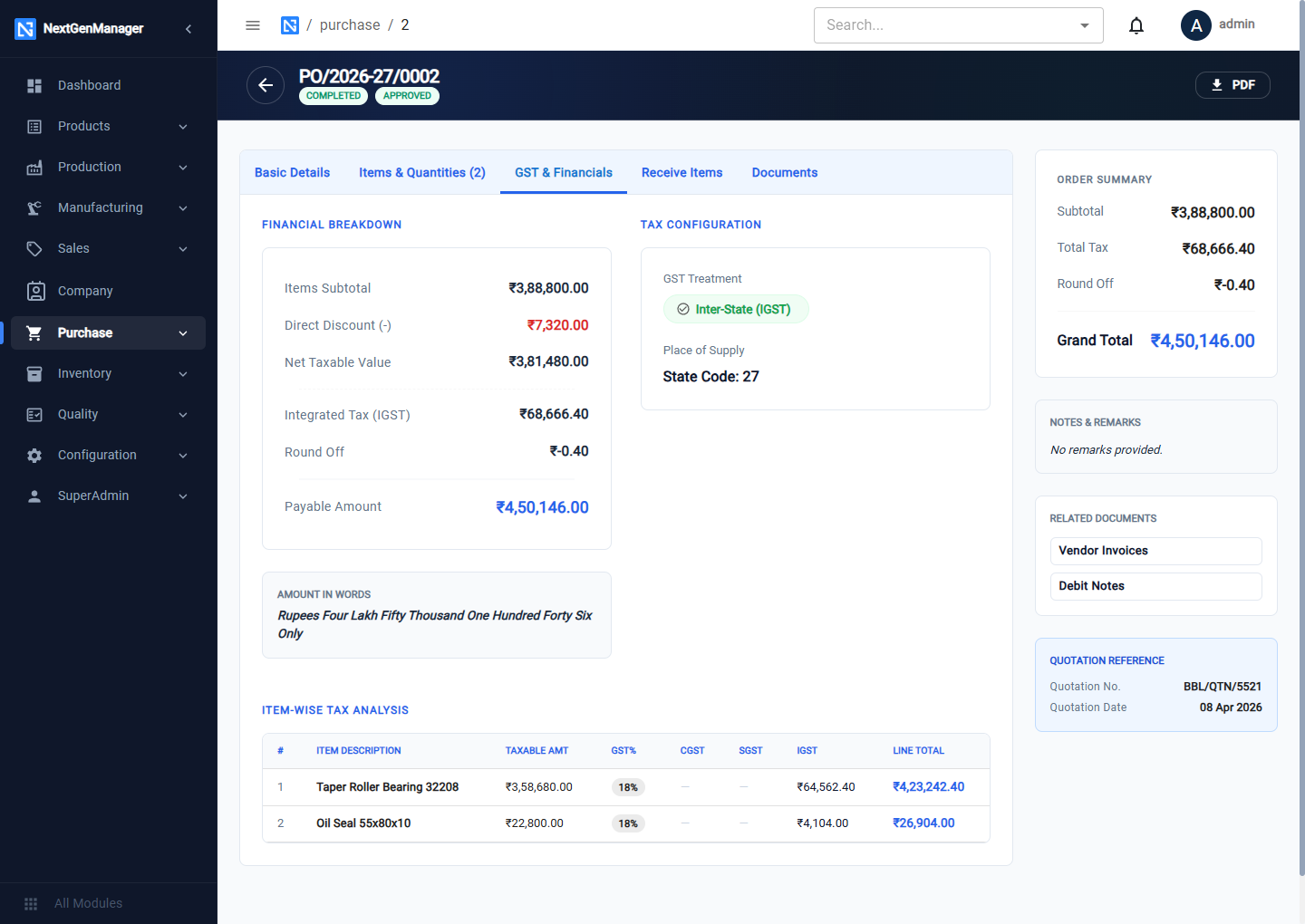
:::info Which tax is charged The tax follows the vendor's state. A vendor in your own state is charged CGST + SGST; a vendor in another state is charged IGST. For an unregistered or composition vendor, enter GST 0 on the lines. :::
Documents
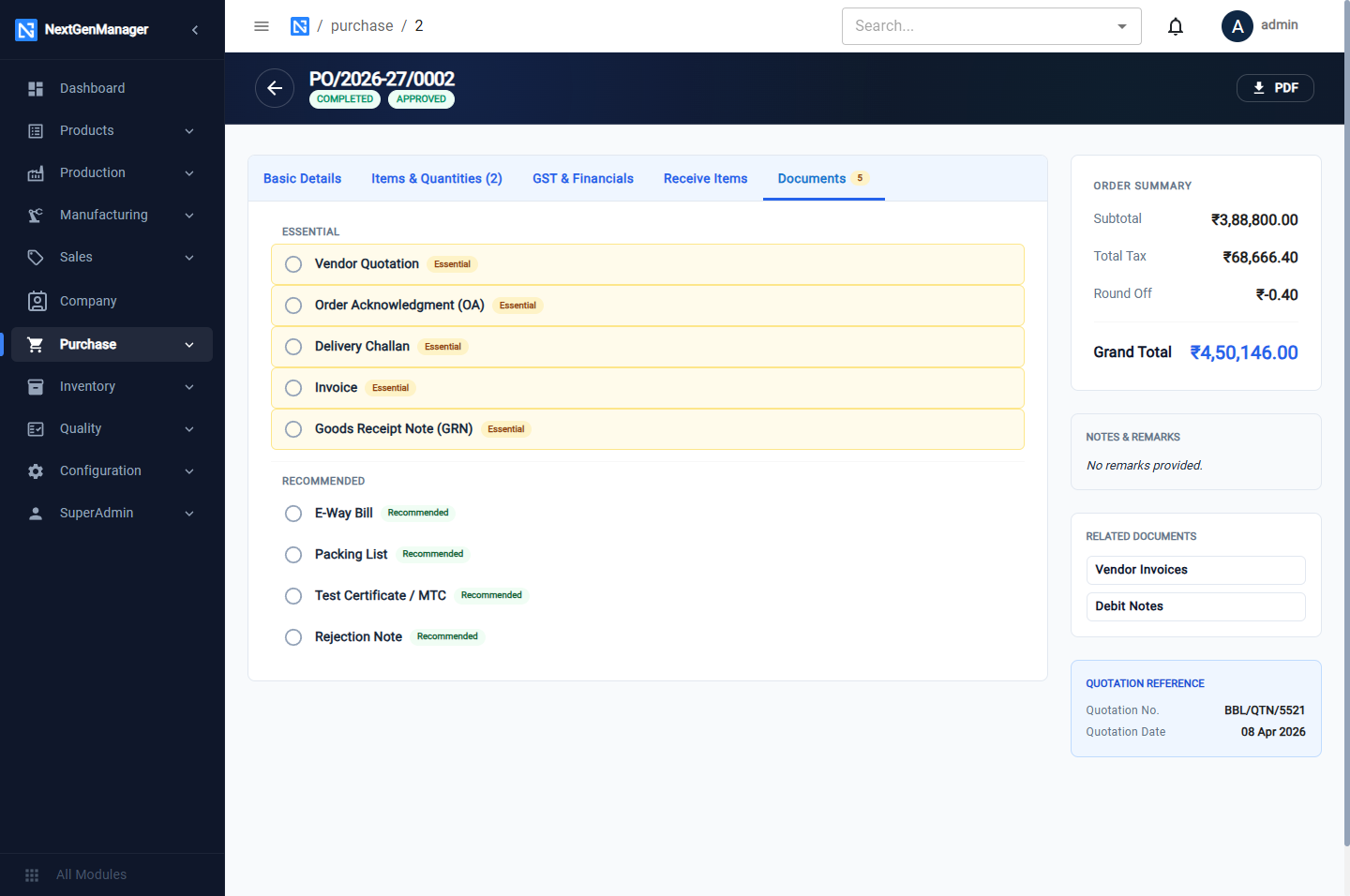
A checklist of the paperwork an order should collect. Essential: Vendor Quotation, Order Acknowledgment, Delivery Challan, Invoice, Goods Receipt Note. Recommended: E-Way Bill, Packing List, Test Certificate / MTC, Rejection Note. Each has an Upload button, and Add document adds your own.
Click Save Draft.
From draft to received
| Status | What you can do |
|---|---|
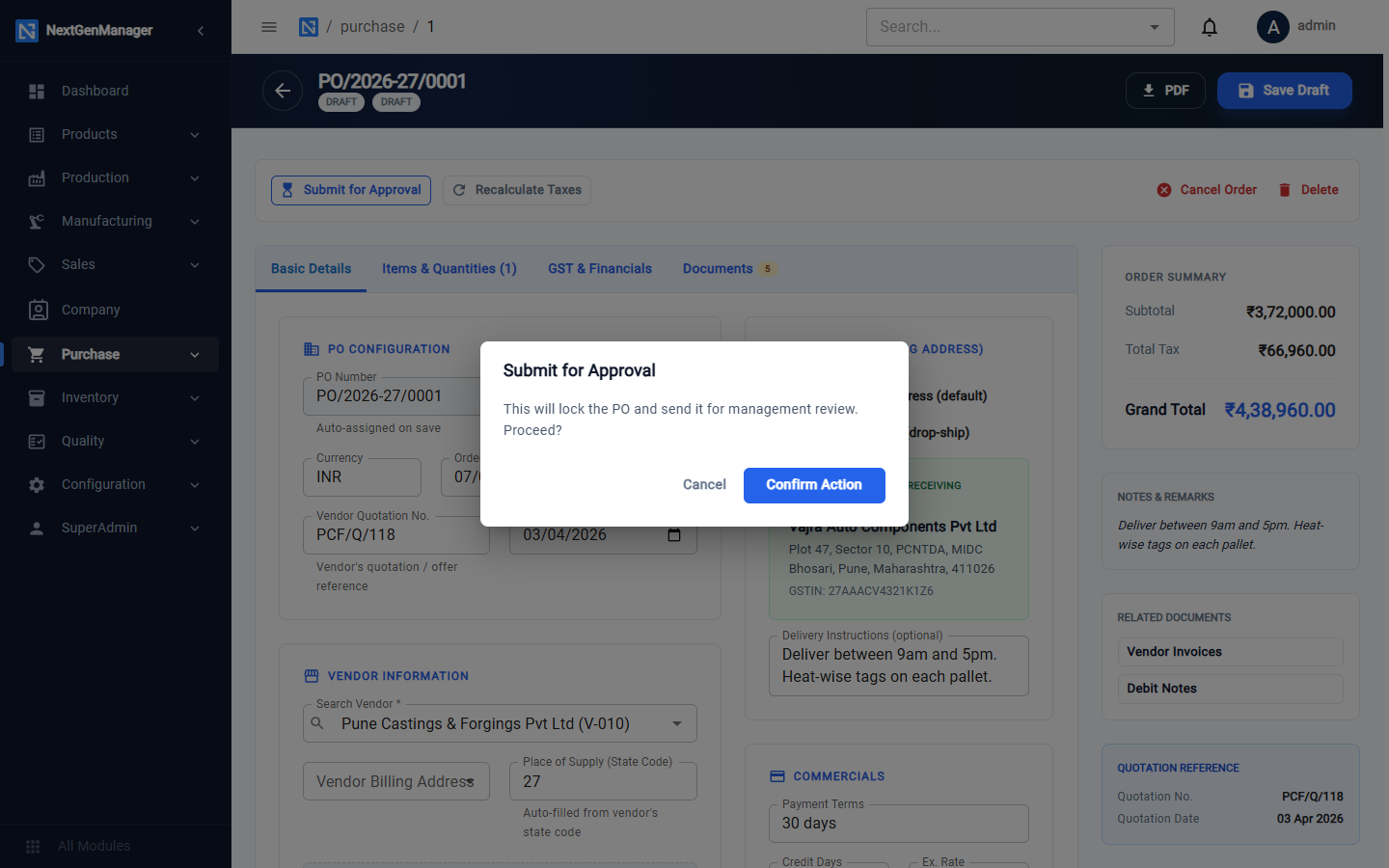
| DRAFT | Save Draft, Submit for Approval, Recalculate Taxes, Cancel Order, Delete |
| PENDING APPROVAL | Approve PO, or Reject PO with a reason |
| APPROVED | PDF, Mark as Sent, Email PO, WhatsApp |
| SENT | Receive Items — see Goods receipt |
| PARTIALLY RECEIVED | Receive more, or Mark as Completed |
| RECEIVED / COMPLETED | The order is closed |
Submit
Approve or reject
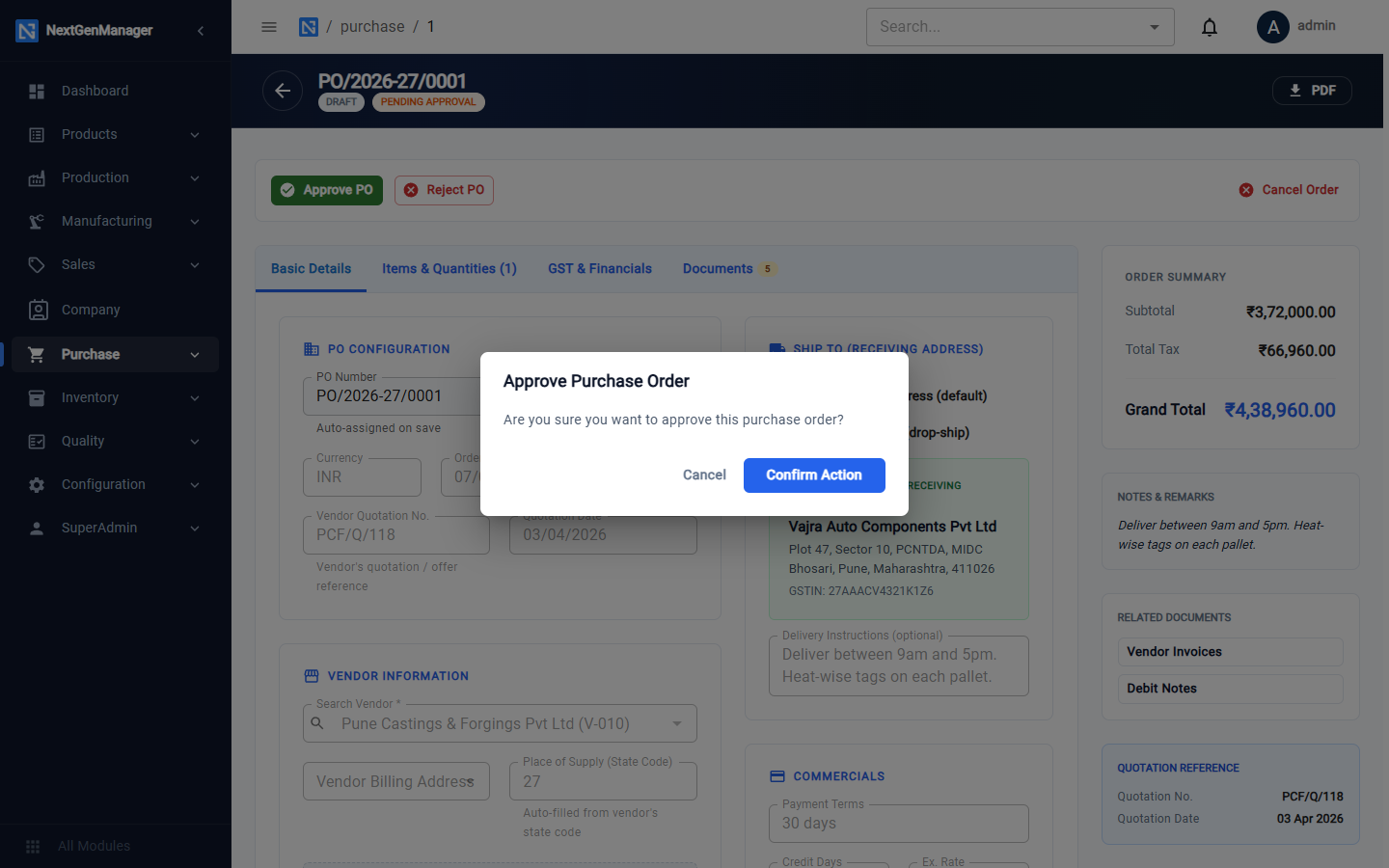
Reject PO needs a reason; the Confirm button stays grey until you type one. A rejected order goes back to Draft, where it can be corrected and submitted again.
Send to the vendor
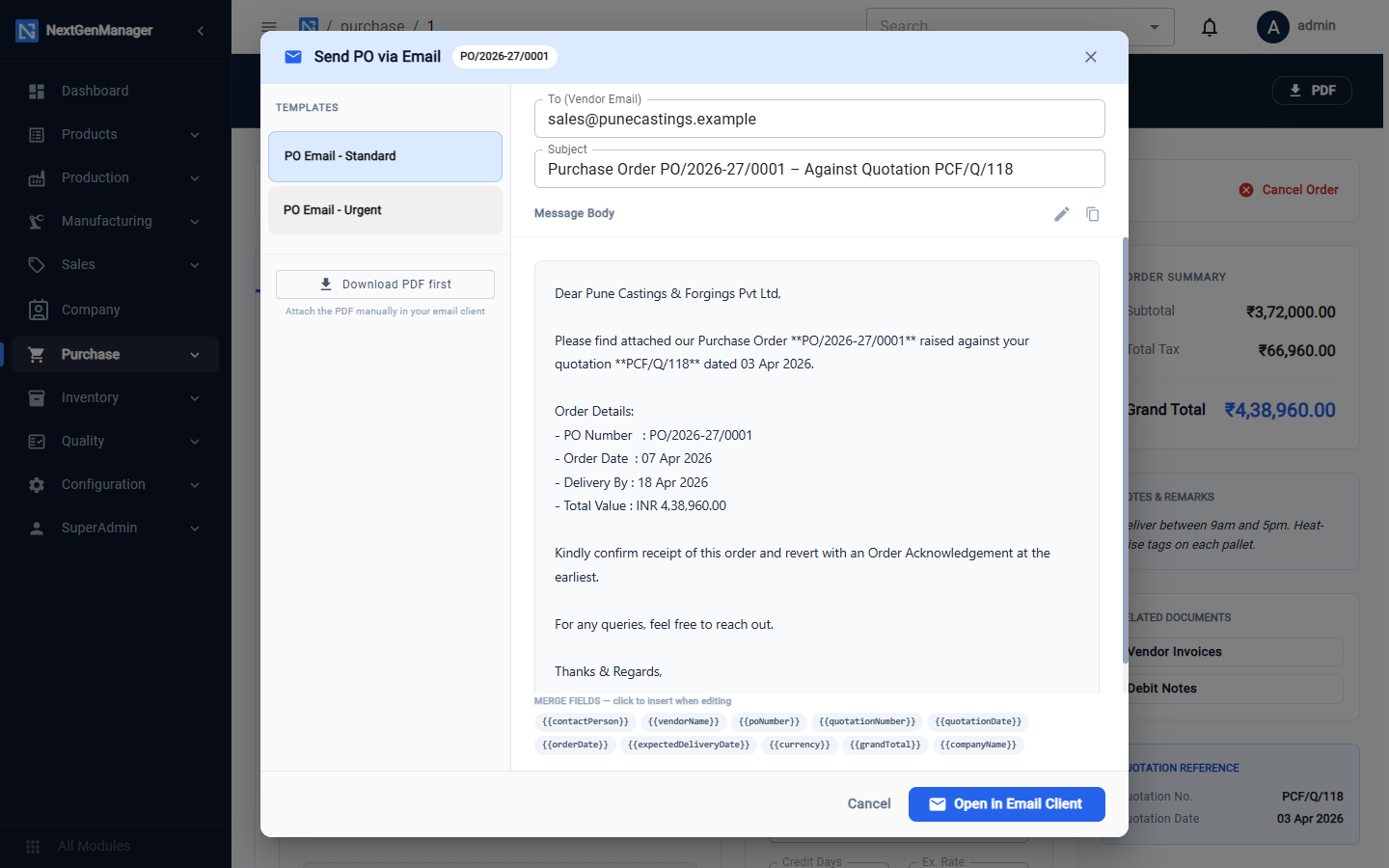
Email PO and WhatsApp open a message already written from a template (PO Email – Standard or PO Email – Urgent). You can edit it, then Open in Email Client, copy the text, or Download PDF first to attach the order.
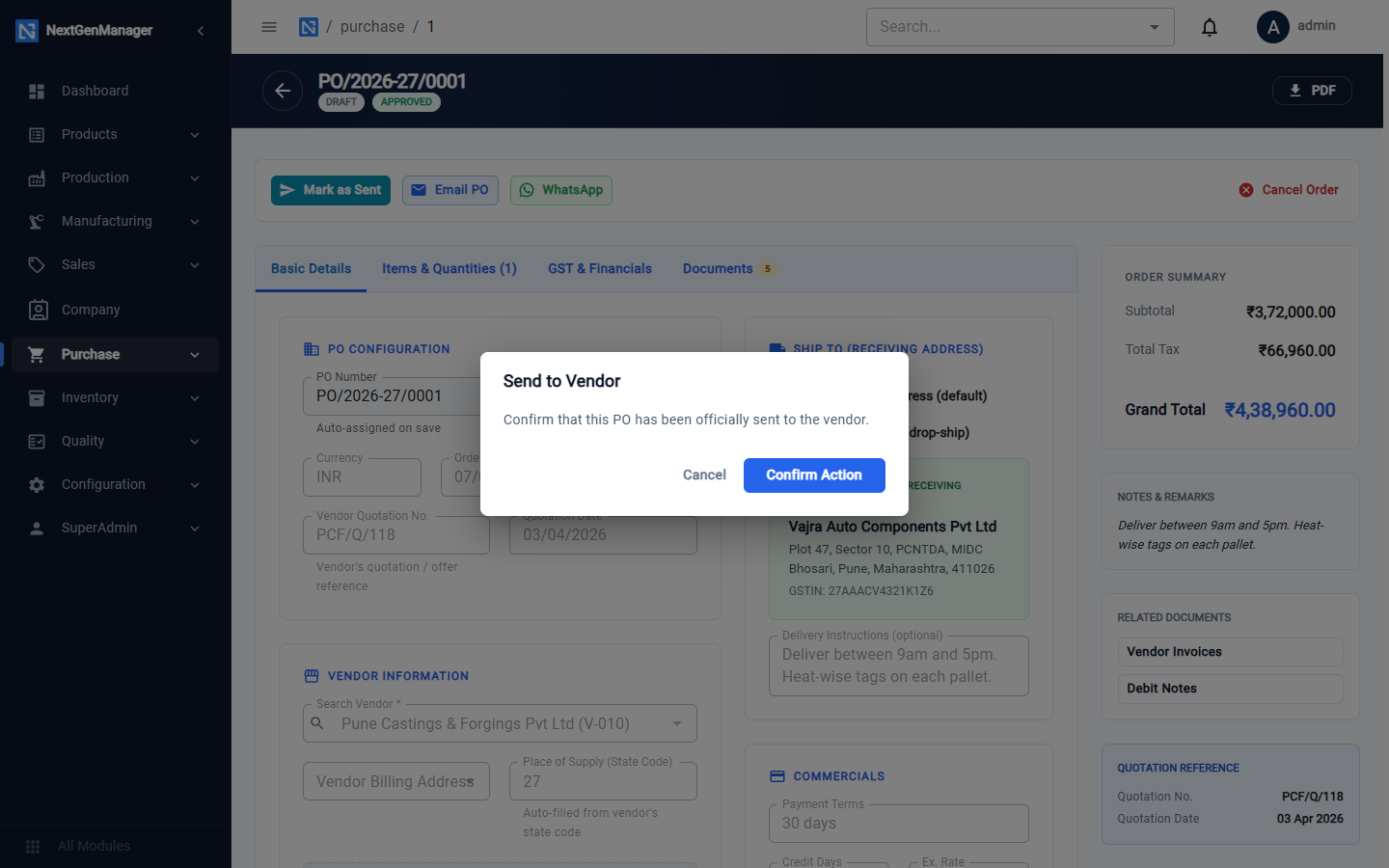
When the order has gone, click Mark as Sent. Stock can only be received against a sent order.
A finished order
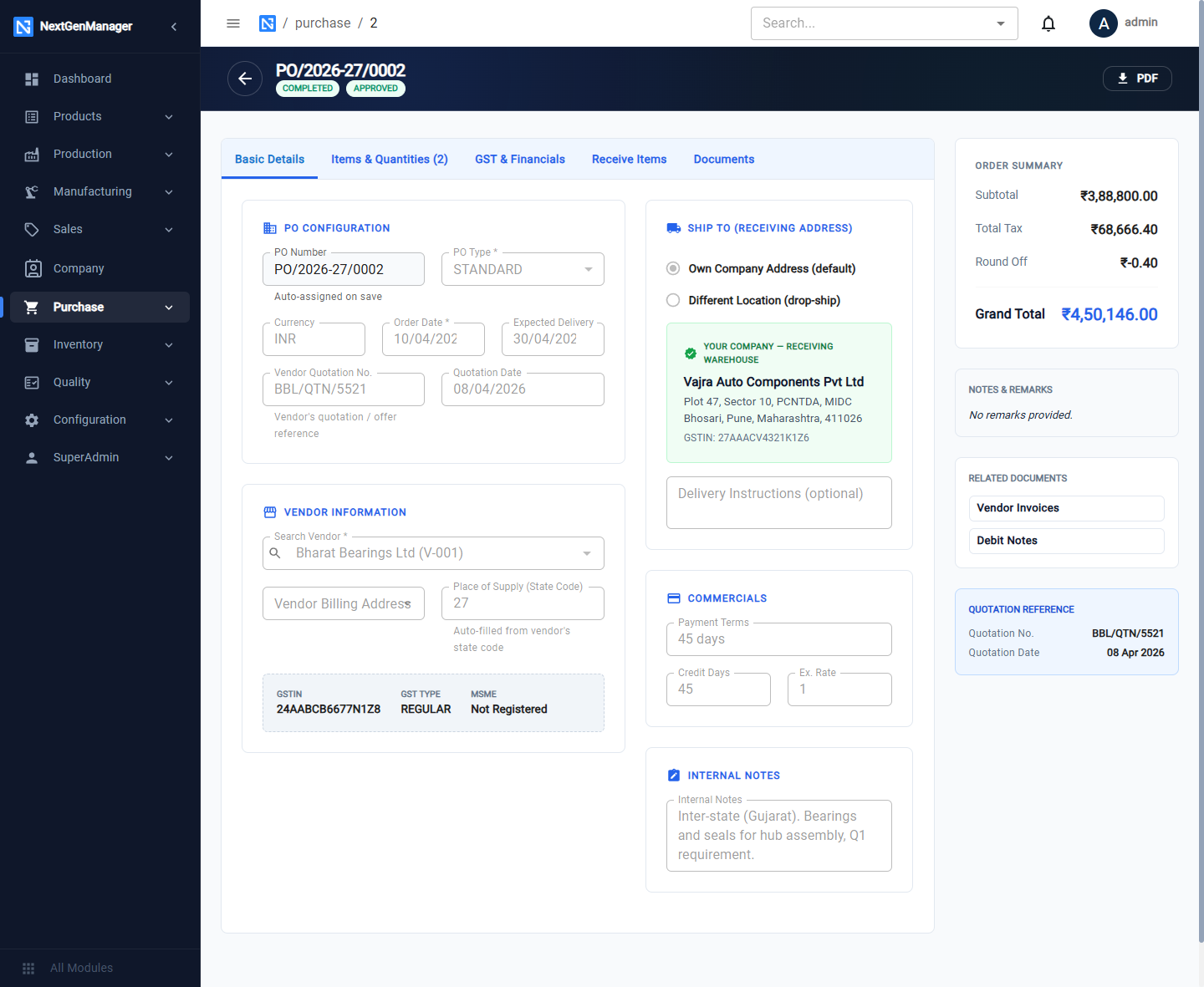
The Related Documents card on the right links to the order's Vendor Invoices and Debit Notes.
Mark as Completed
Use Mark as Completed on a partially received order when the vendor will not deliver the rest. The order closes with the quantity received so far.
Cancel
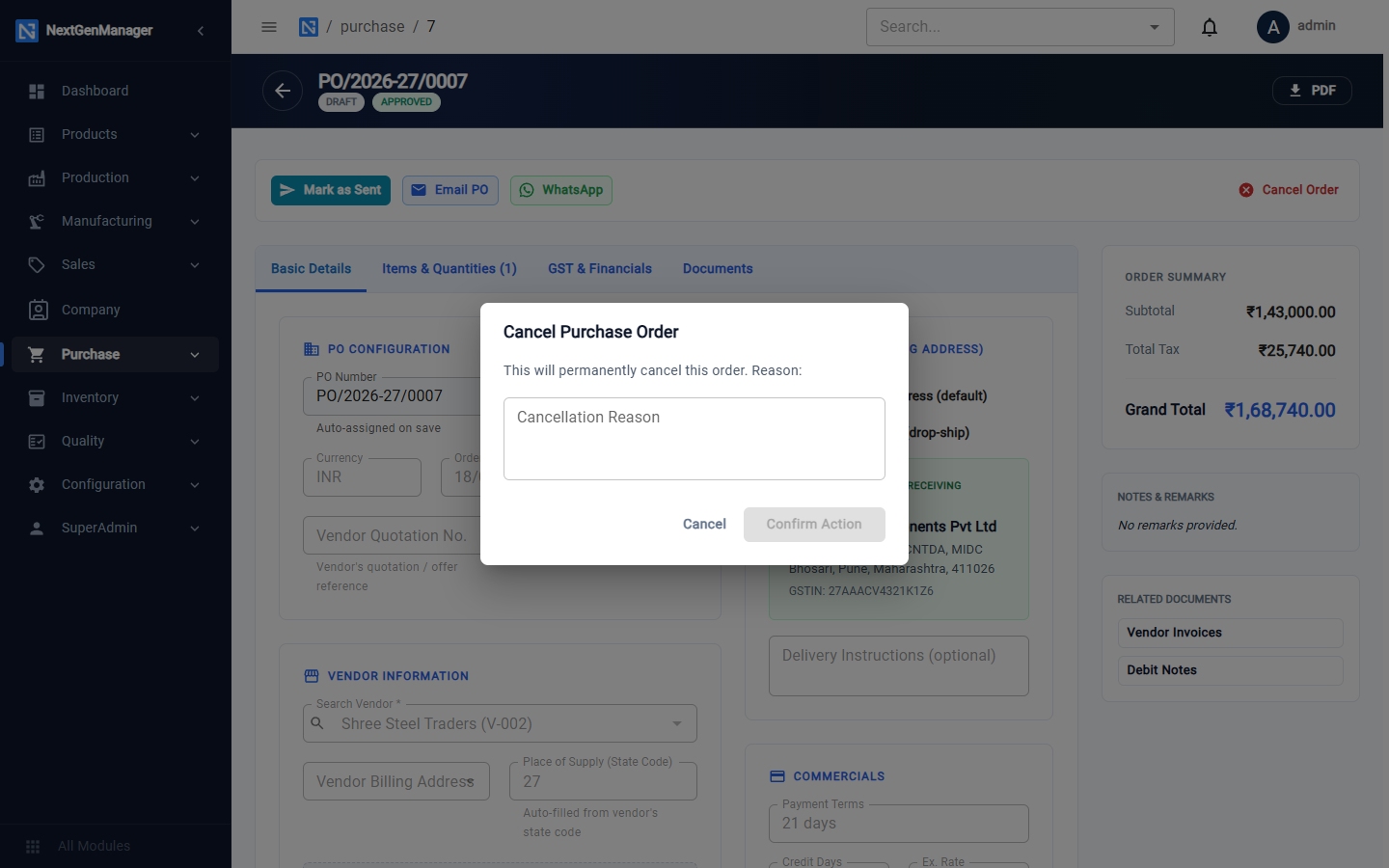
Cancel Order needs a reason and warns that this will permanently cancel this order. A cancelled order can only be printed.
Overdue orders
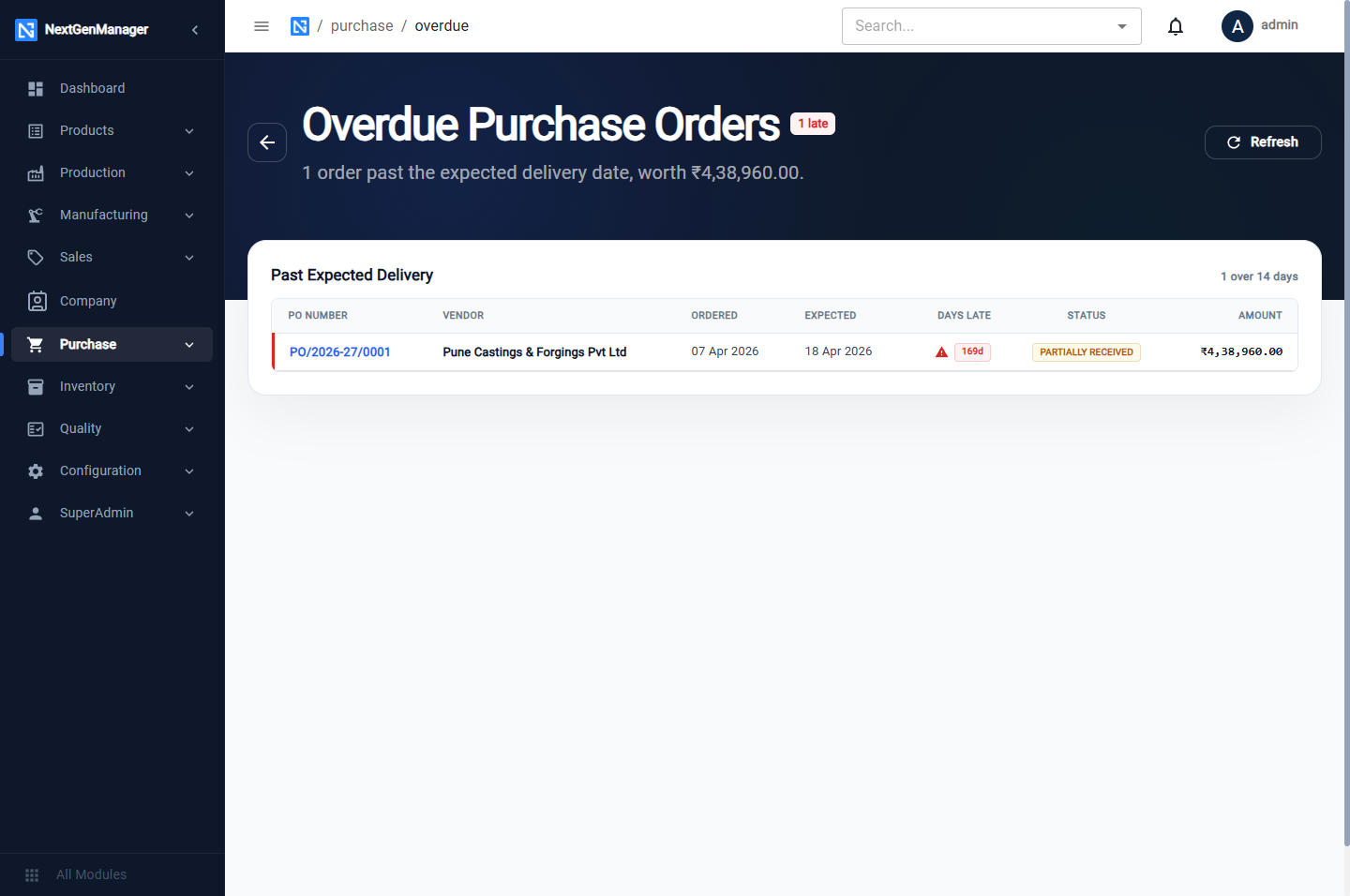
Overdue lists orders past their Expected Delivery, with the number of days late and their value.
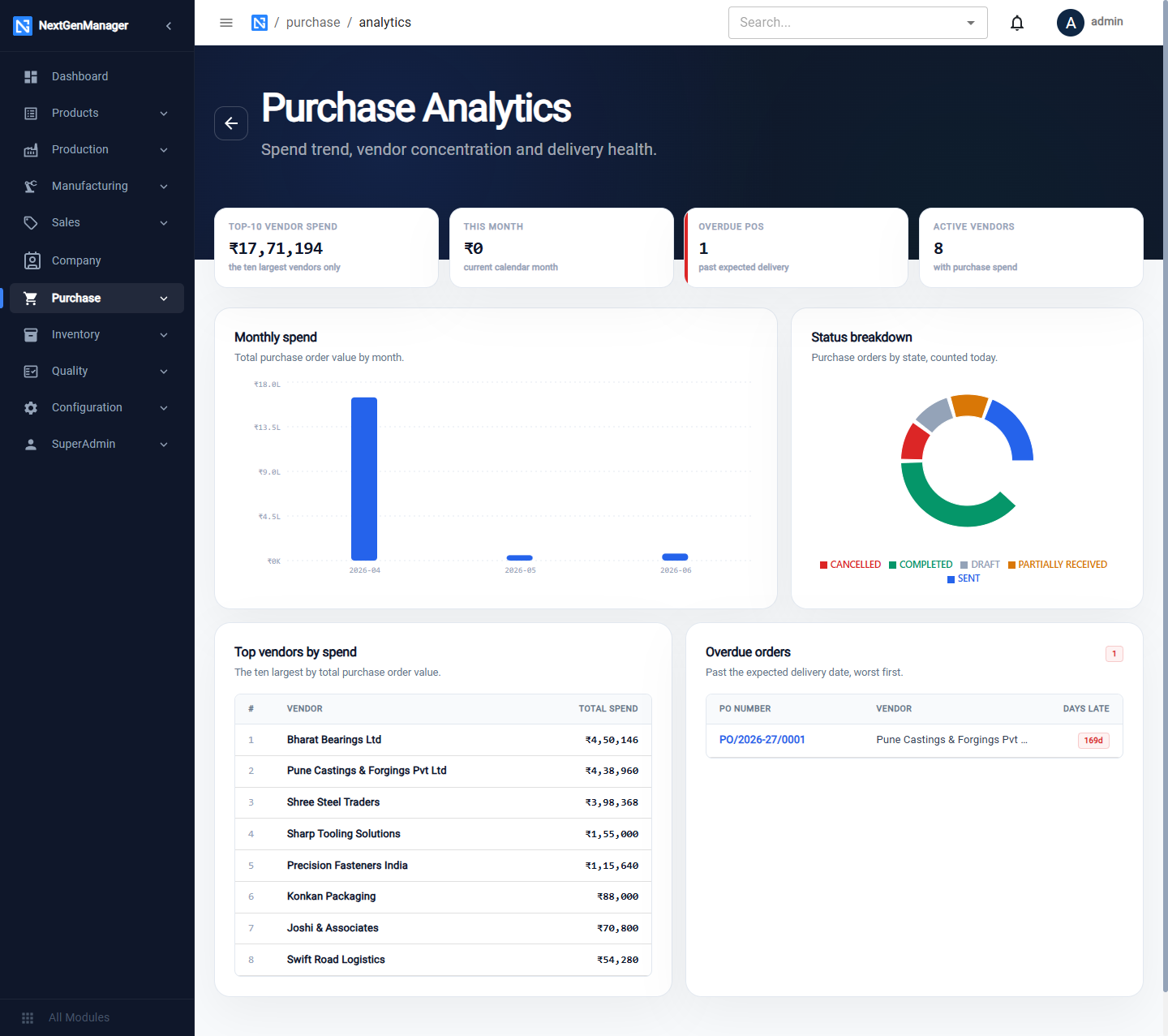
Purchase analytics
Analytics shows spend with your top ten vendors, this month's spend, overdue orders, active vendors, a monthly spend chart, a status breakdown and the top vendors by spend.