Running a work order
This page follows a work order from release to close.
| Step | Who | Where |
|---|---|---|
| 1. Issue the order | Production | Work order → Actions → Issue WO |
| 2. Approve the material | Stores | Inventory → Material Requests |
| 3. Issue materials to the floor | Production | Materials & Scrap tab |
| 4. Record each operation | Shop floor | Operations Log tab |
| 5. Deal with rejections | Quality / production | Rejections & Yield tab |
| 6. Complete and close | Production | Actions → Complete WO, Close WO |
1. Issue the order
On a CREATED order choose Actions → Issue WO. The box explains that this changes status from CREATED to RELEASED.
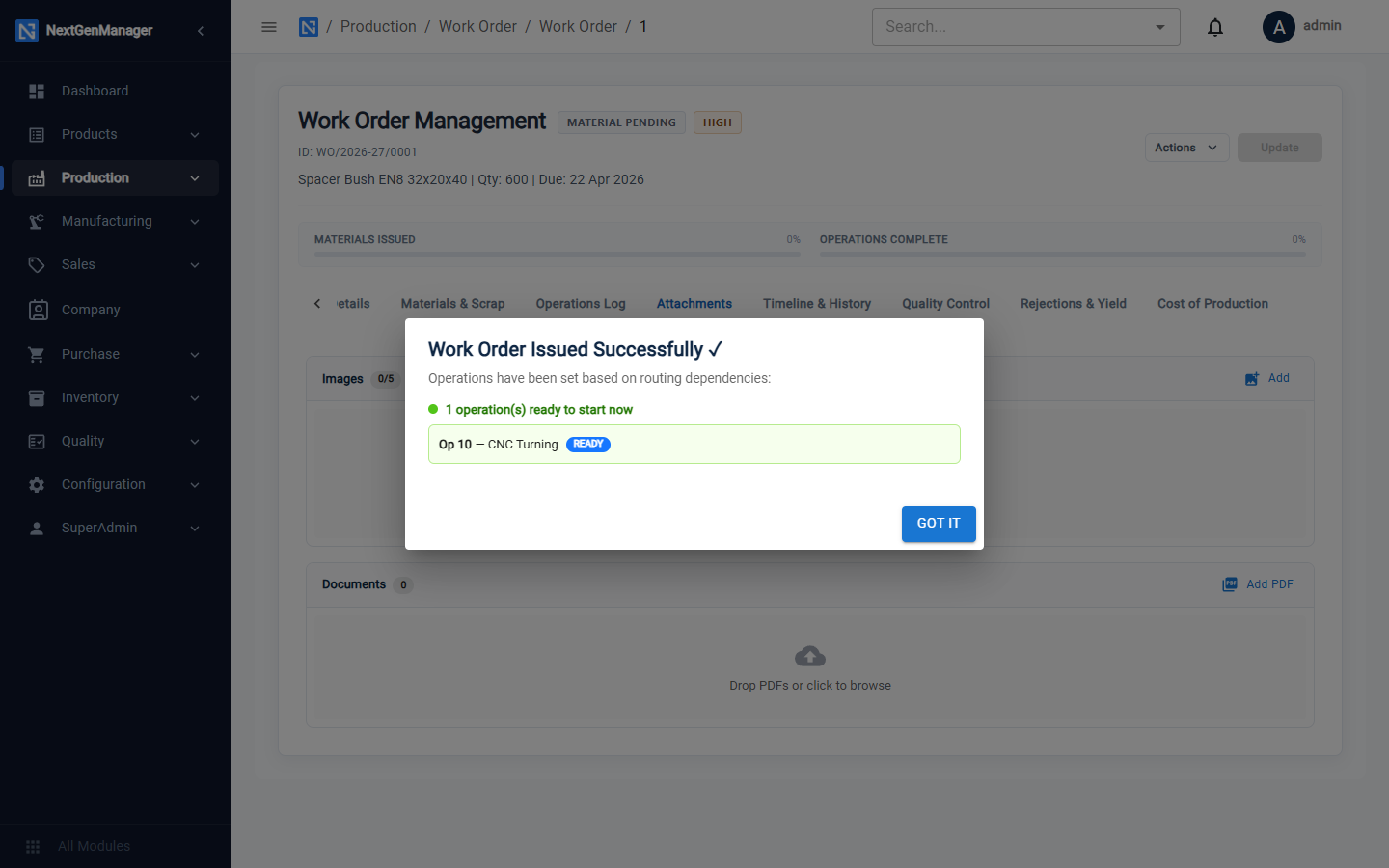
A notice lists the operations that are now ready. The order shows MATERIAL PENDING, and a material request is raised for every component.
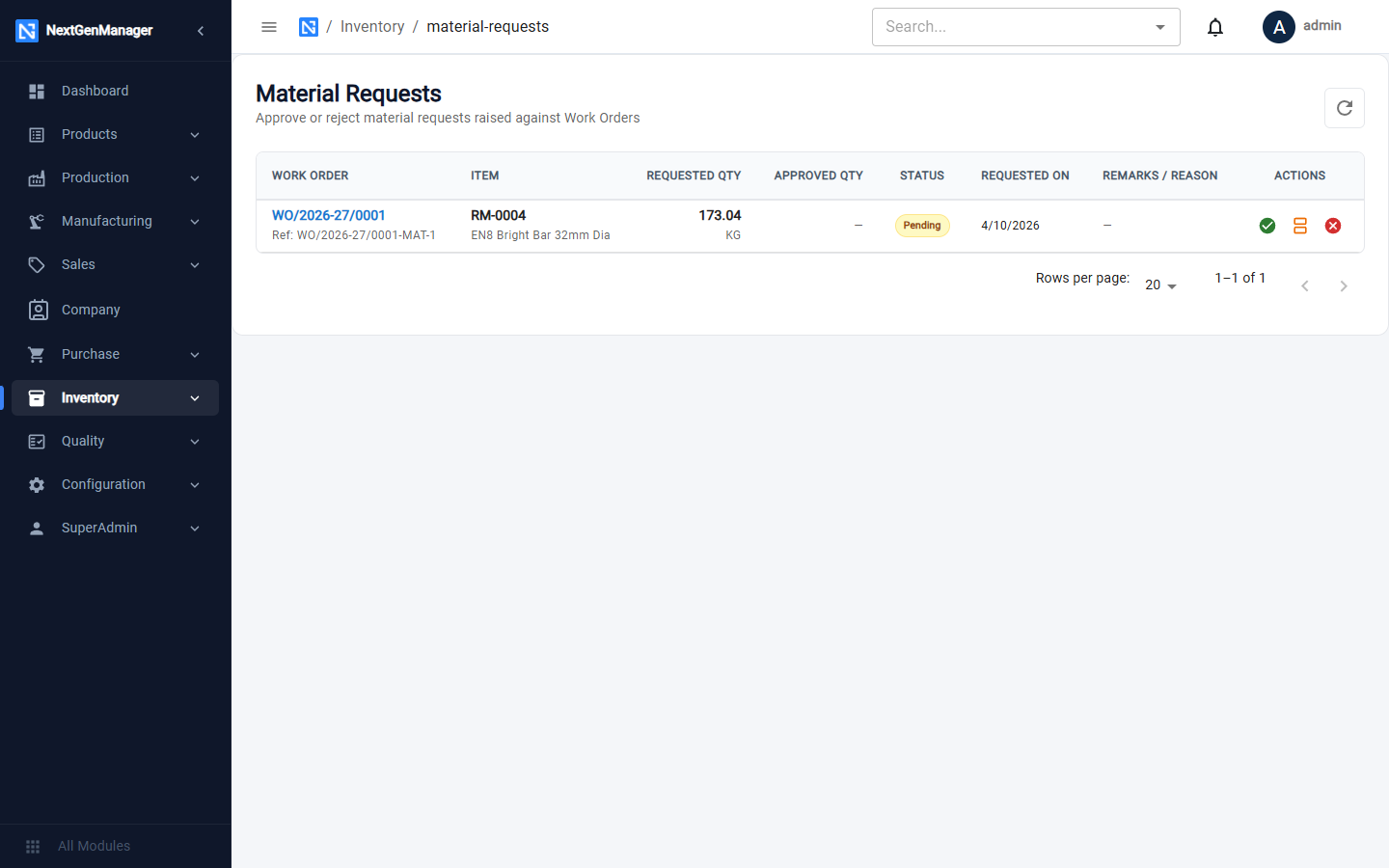
2. Stores approves the material
Stores opens Inventory → Material Requests and approves, part-approves or rejects each request. See Material requests. Approved stock is reserved for the order, and the order becomes READY FOR PRODUCTION.
3. Issue materials to the floor
Open the Materials & Scrap tab. For each component, type a quantity in Issue (or use Auto-fill Remaining) and click Issue.
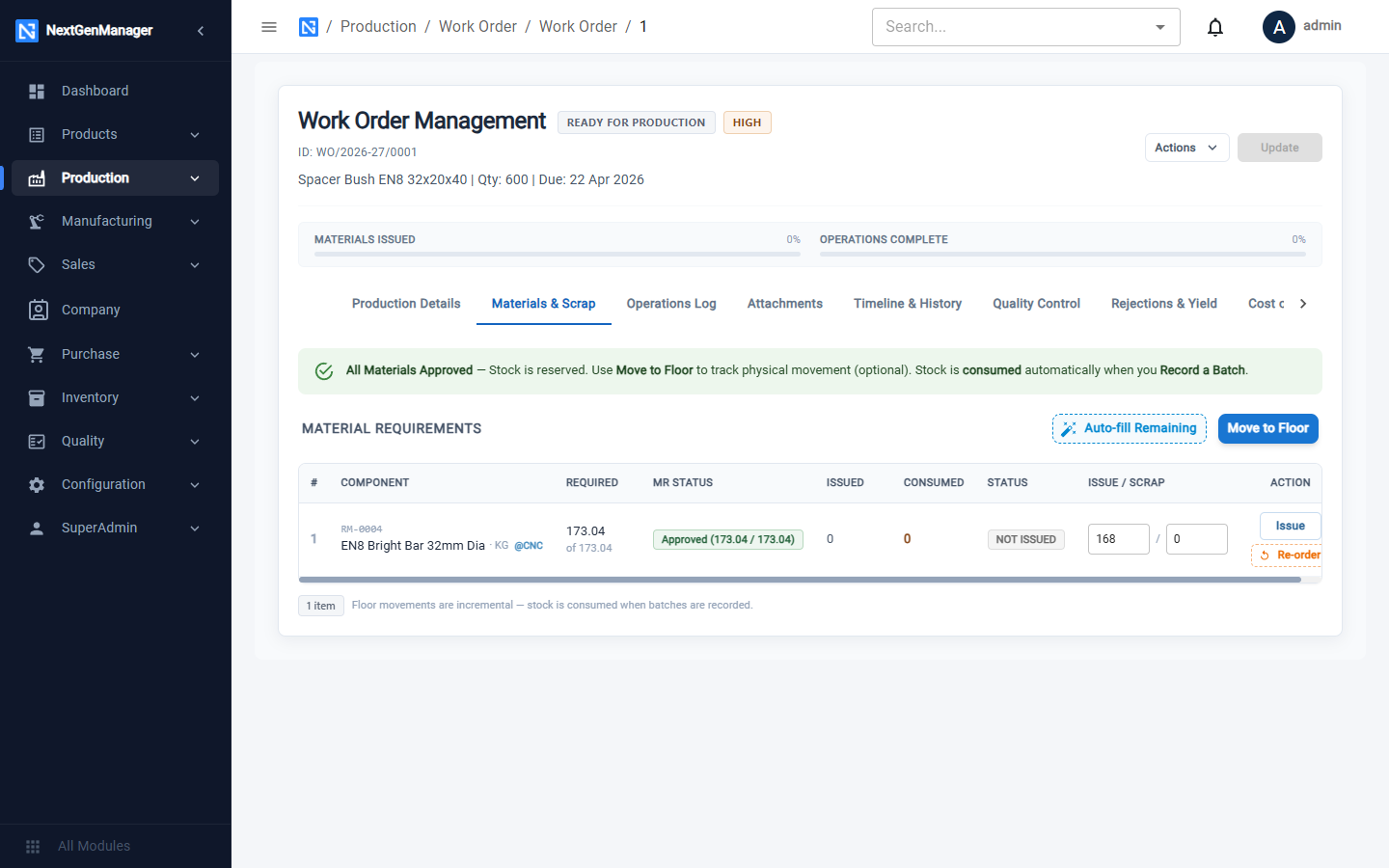
The message Materials moved to floor confirms it, and the Materials Issued bar moves.
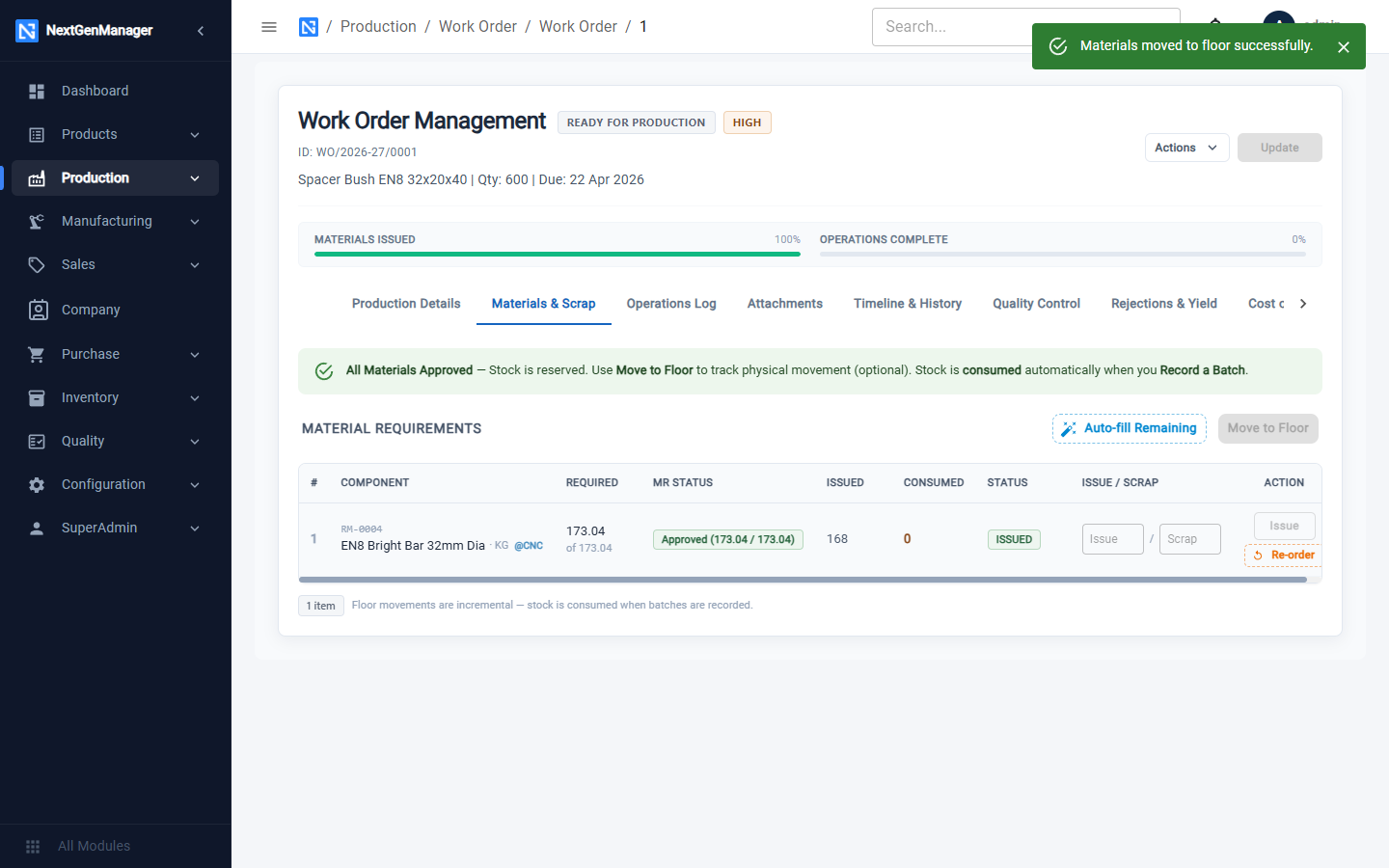
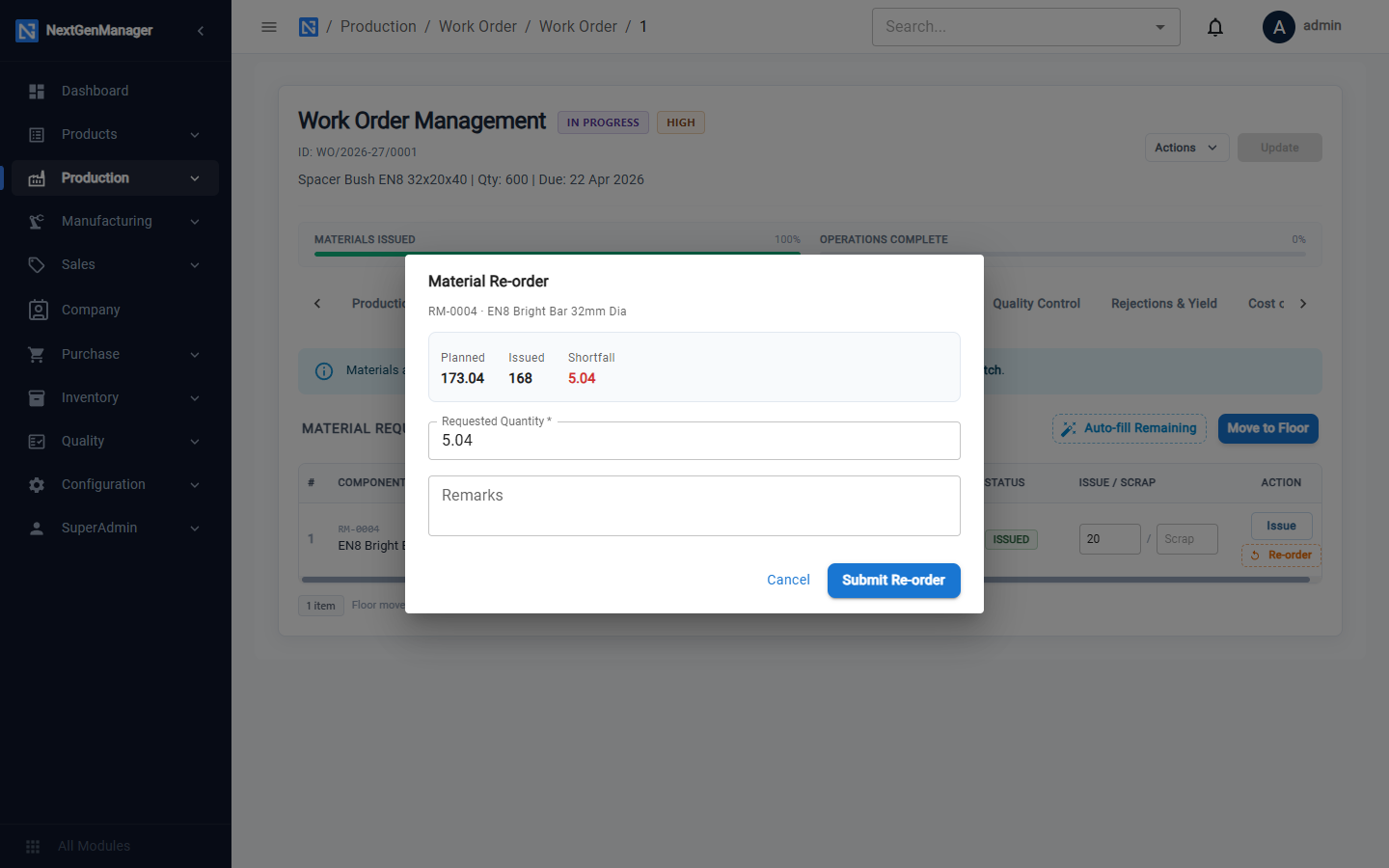
You cannot issue more than was planned and approved. If production needs more — because of scrap, for example — click Re-order. That raises an extra request for stores to approve.
:::info Reserved, issued, consumed Material is reserved when stores approves the request, issued when you move it to the floor, and consumed automatically each time you record a batch of output. :::
4. Record each operation
Open the Operations Log tab. Every operation shows its status, progress and losses.
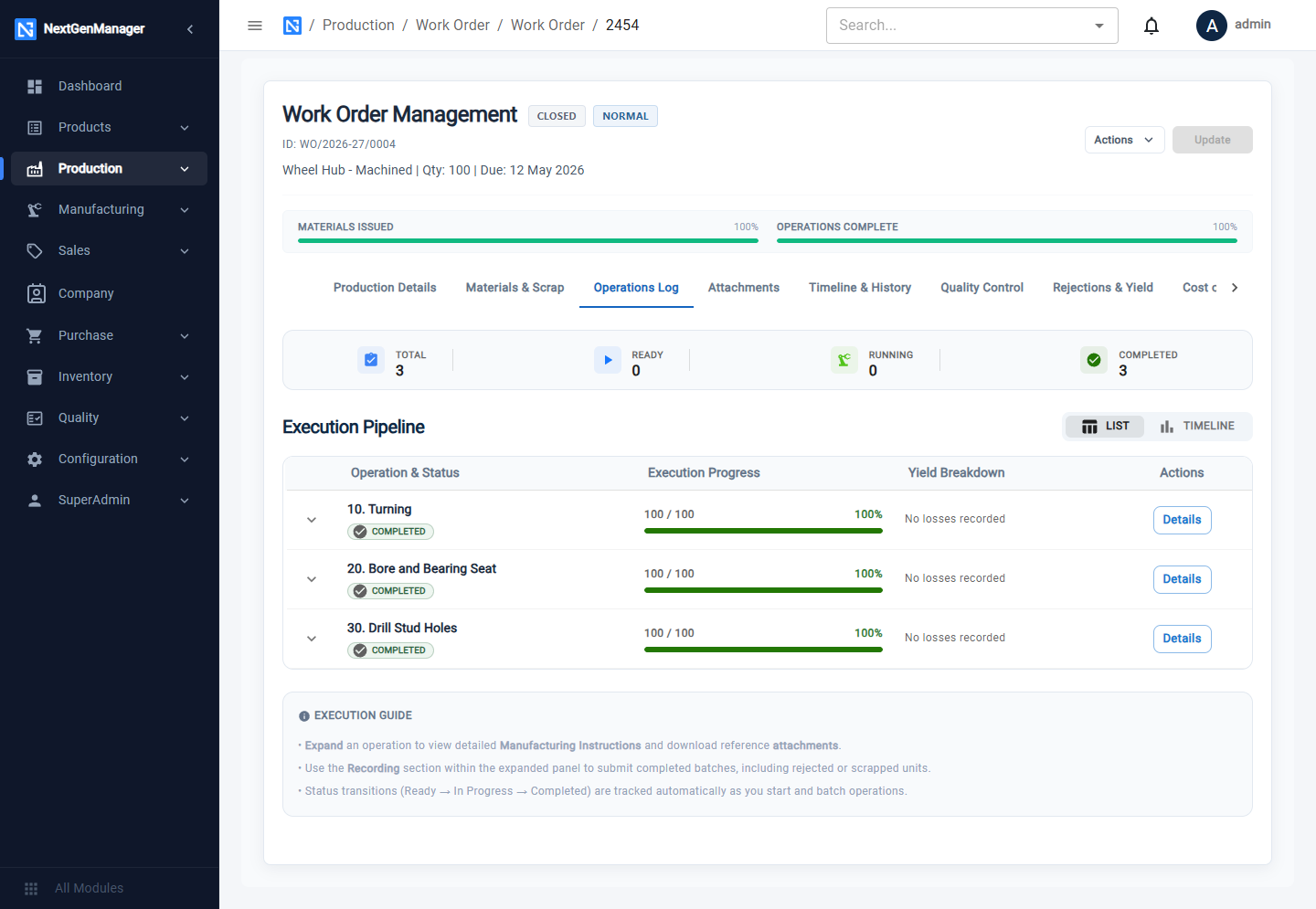
An operation that depends on another shows WAITING FOR DEPENDENCY until the earlier one has produced something.
Start the operation
Click Start on an operation that is ready. If the BOM allows it, a second operation can be started in parallel.
Record a batch
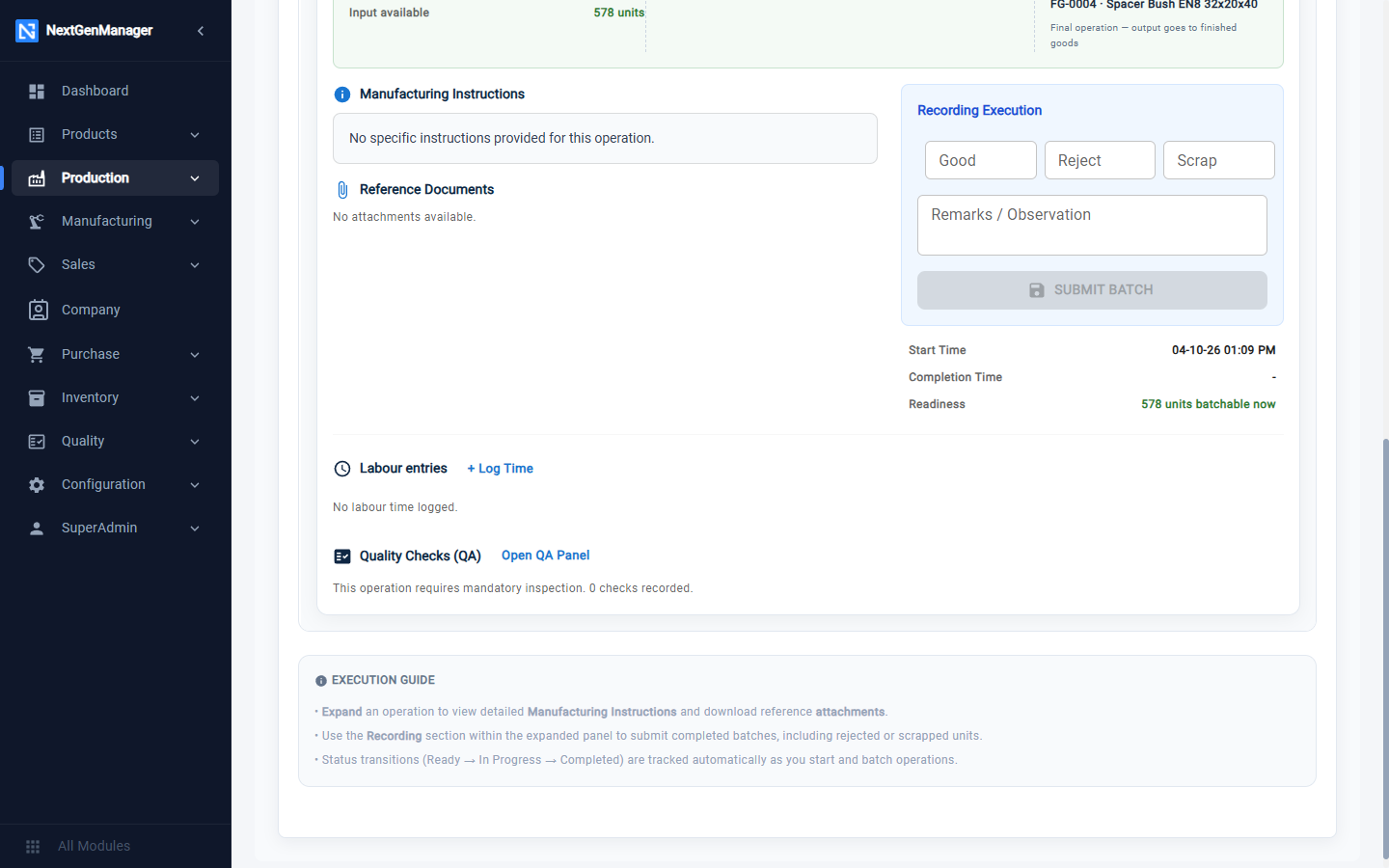
Click Details to open the operation. The panel shows what is needed to start, the work instructions, reference documents and the Recording Execution box.
- Enter the Good, Reject and Scrap quantities for this batch, and any Remarks.
- Click Submit Batch.
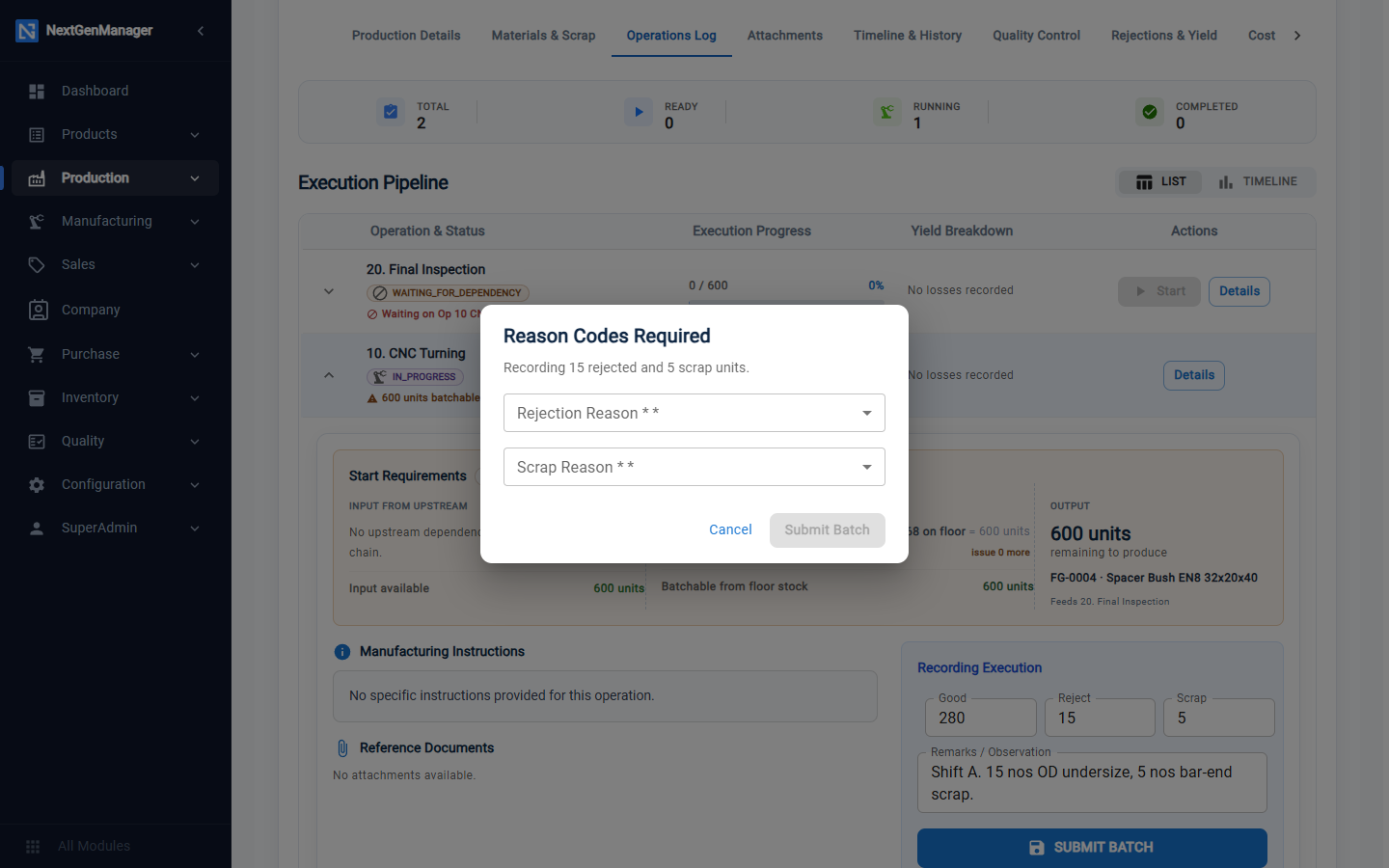
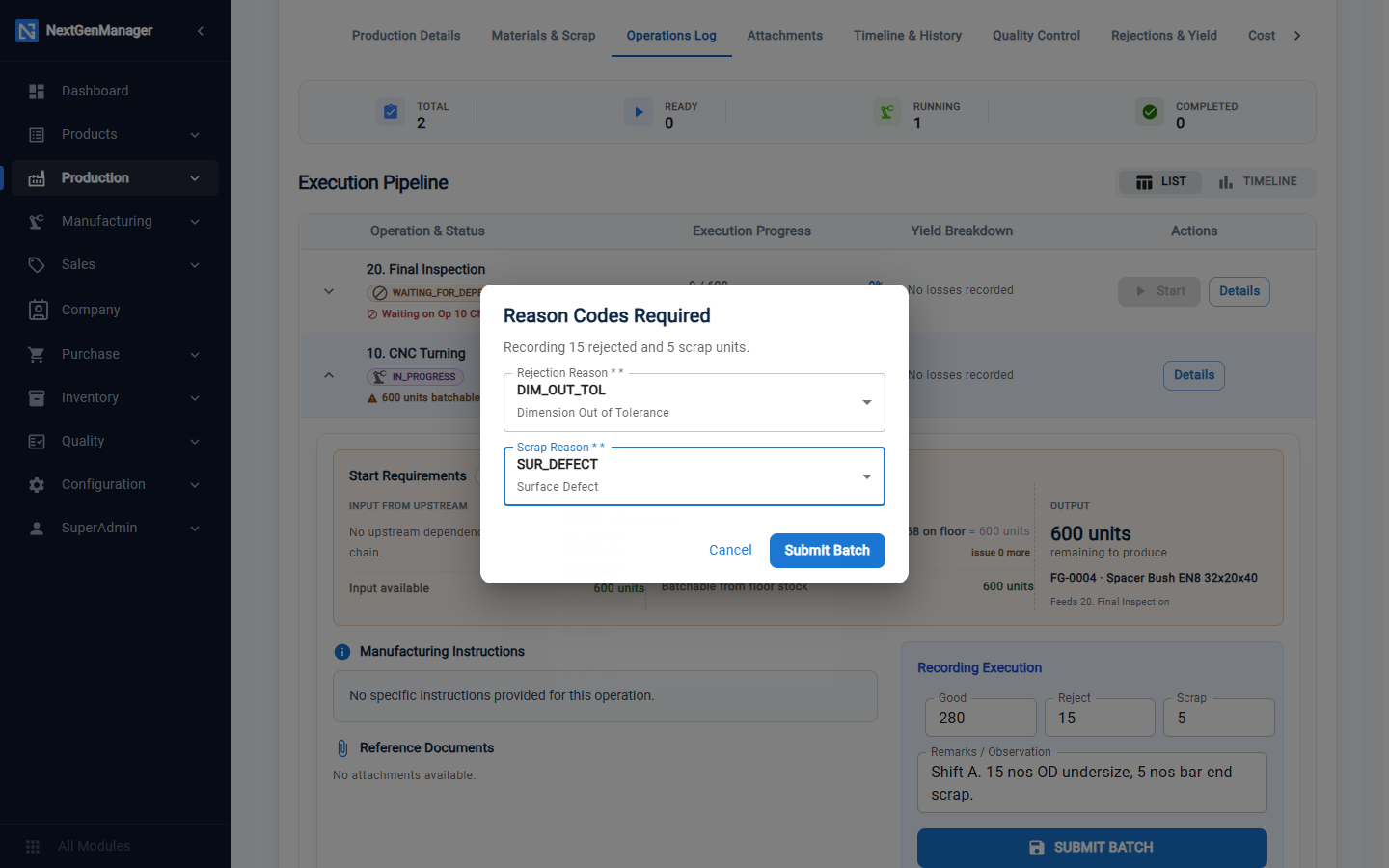
If there are rejects or scrap, you are asked for Reason Codes: Dimension Out of Tolerance, Surface Defect, Material Defect, Setup Error, Operator Error, Machine Malfunction, Wrong Revision Used, or Customer Drawing Change.
A batch is refused if it is larger than the material issued to the floor, or larger than the output of the operation before it.
Log the labour
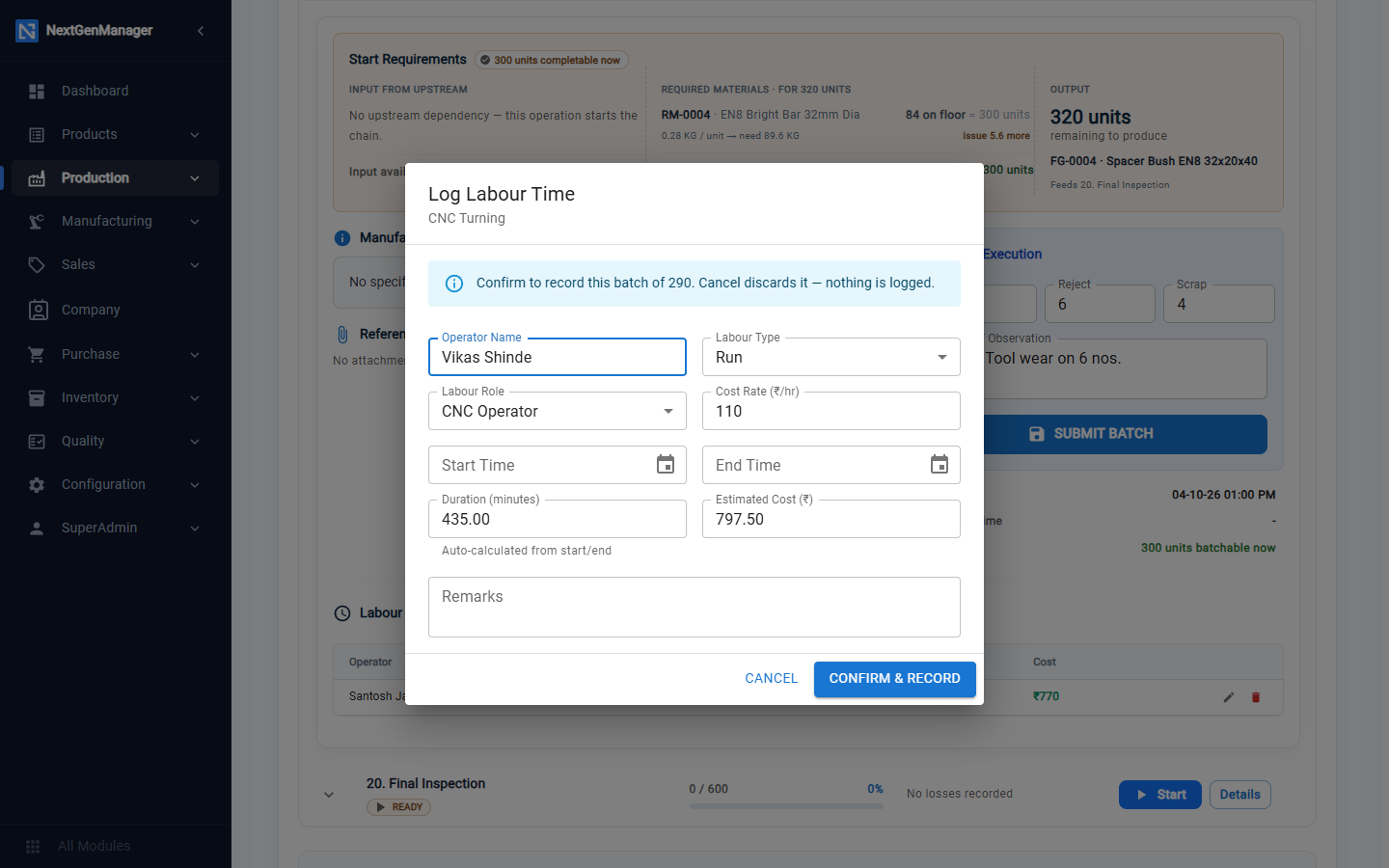
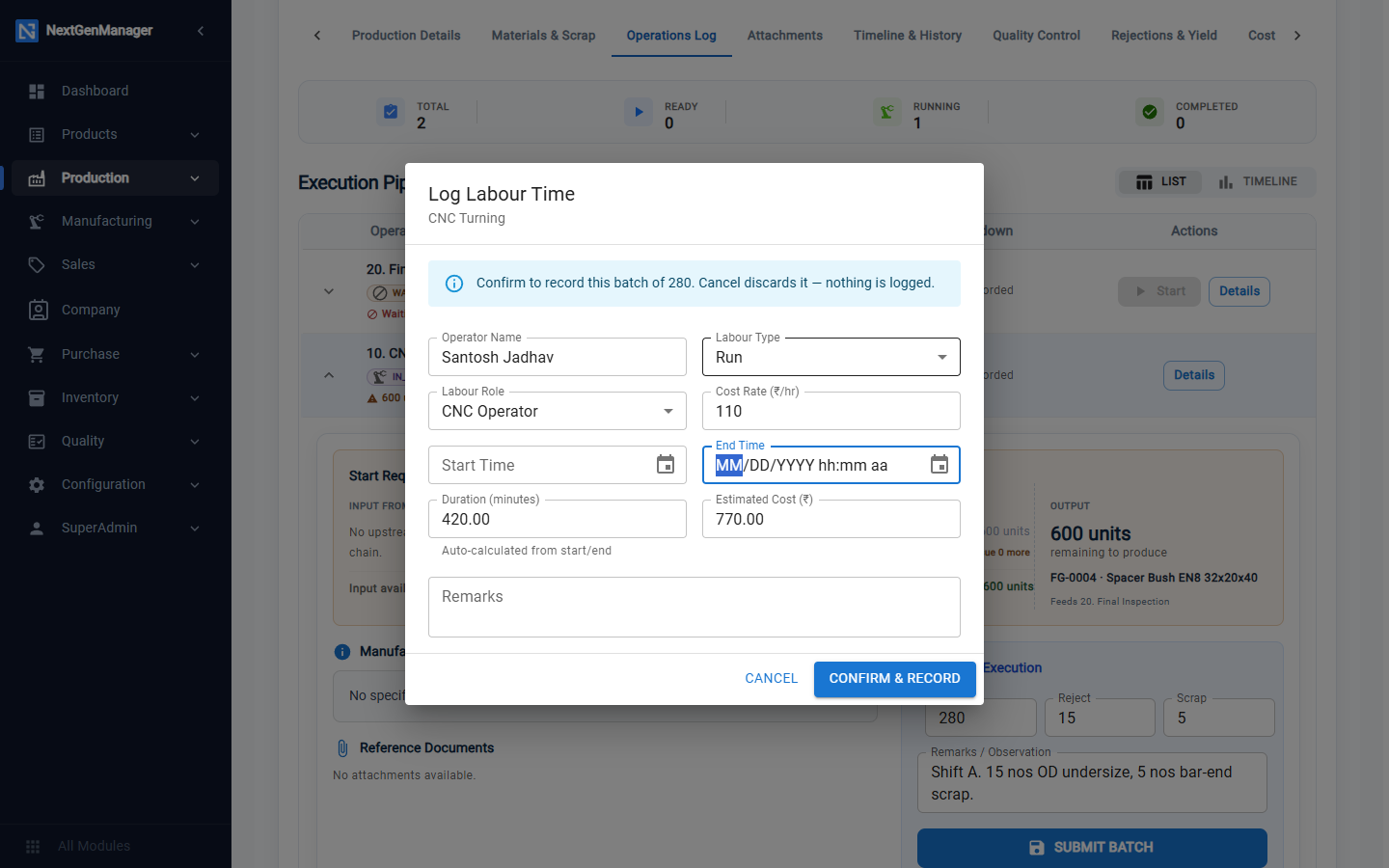
After the batch, Log Labour Time opens.
| Field | Notes |
|---|---|
| Operator Name | Who did the work |
| Labour Type | Setup or Run |
| Labour Role, Cost Rate | From the labor role |
| Start / End, Duration | The time taken |
Click Confirm & Record.
The entries are listed under Labour entries in the operation, where + Log Time adds more.
Quality checks
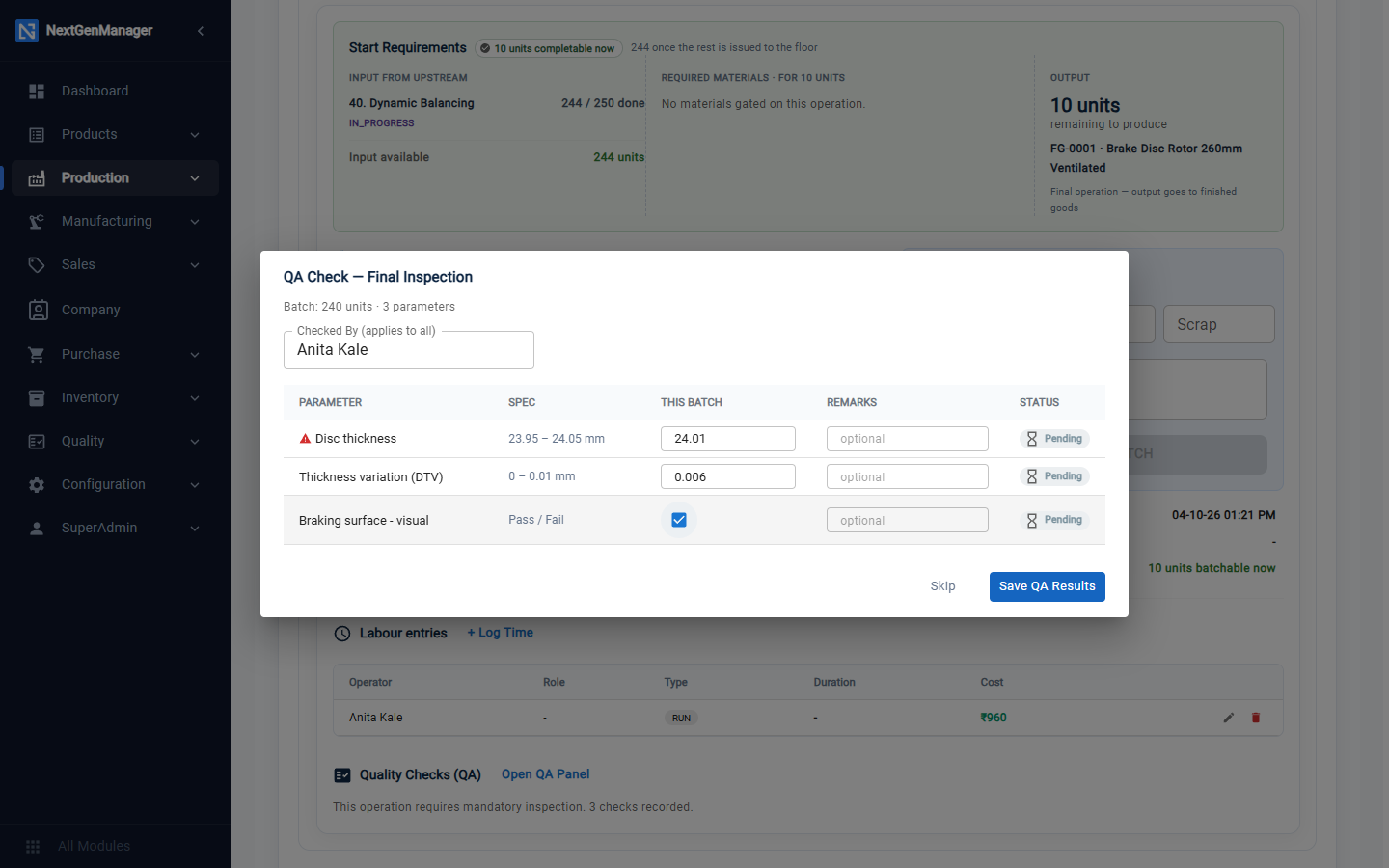
If the operation is marked Requires Inspection on the BOM, a QA Check box opens after the batch. It can also be opened with Open QA Panel.
Enter Checked By, then for each parameter the reading for this batch, any remarks and the status (Pending, Passed or Failed). Click Save QA Results, or Skip to do it later. History shows earlier readings.
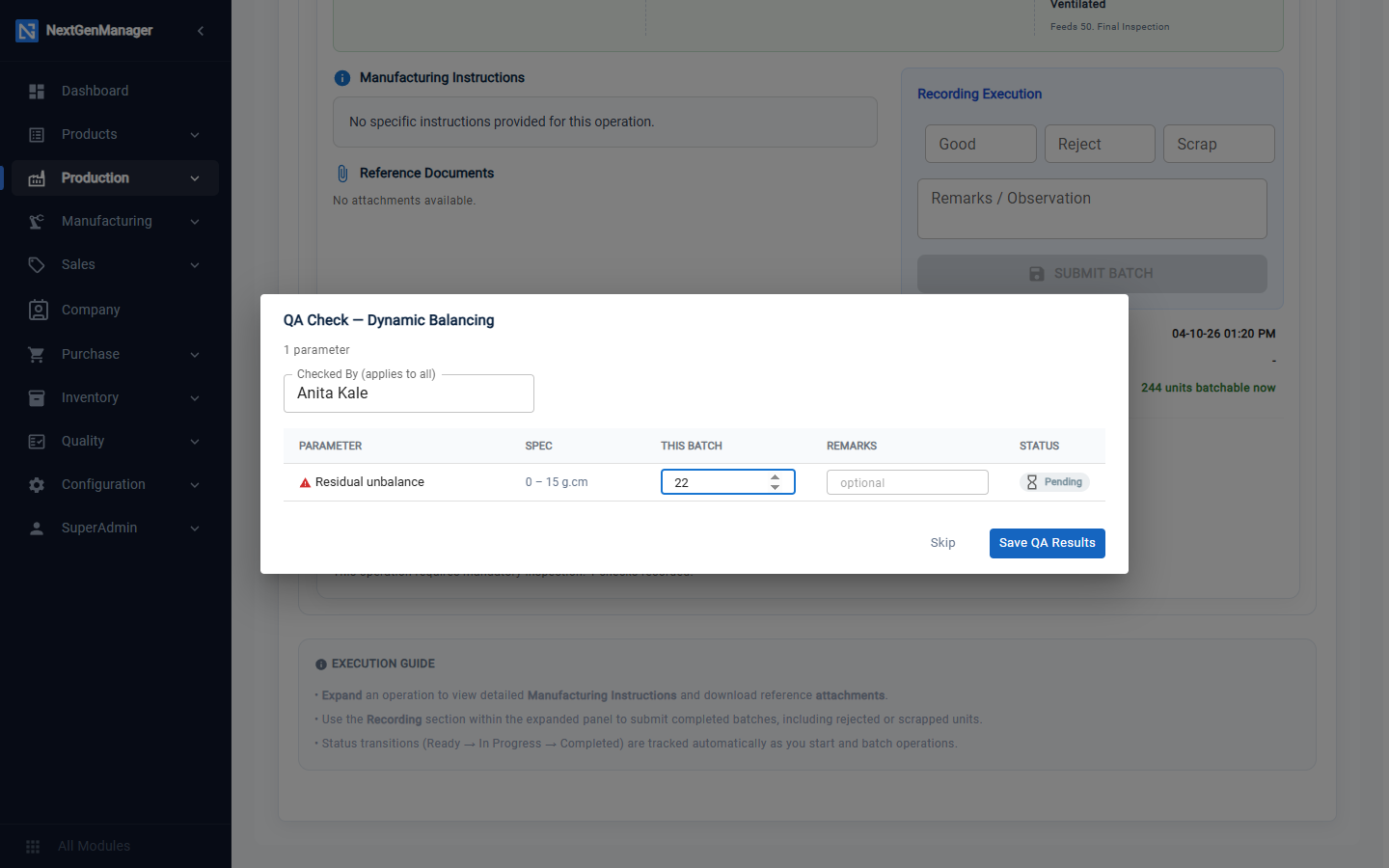
The parameters come from the BOM's QA Plan. For inspection lots that can hold up a work order, see Quality.
5. Deal with rejections
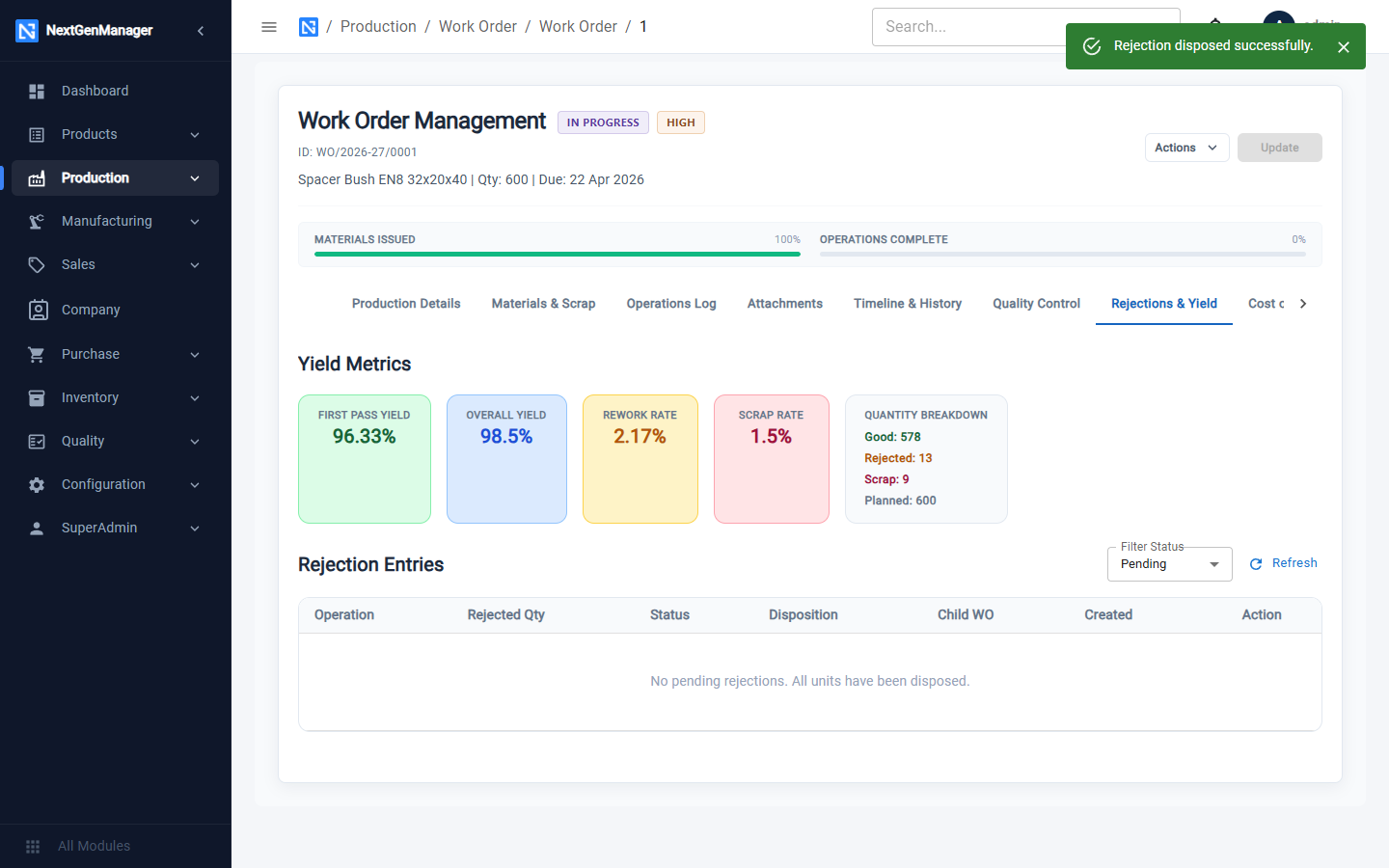
Open the Rejections & Yield tab. It shows First Pass Yield, Overall Yield, Rework Rate and Scrap Rate, and lists every rejection entry.
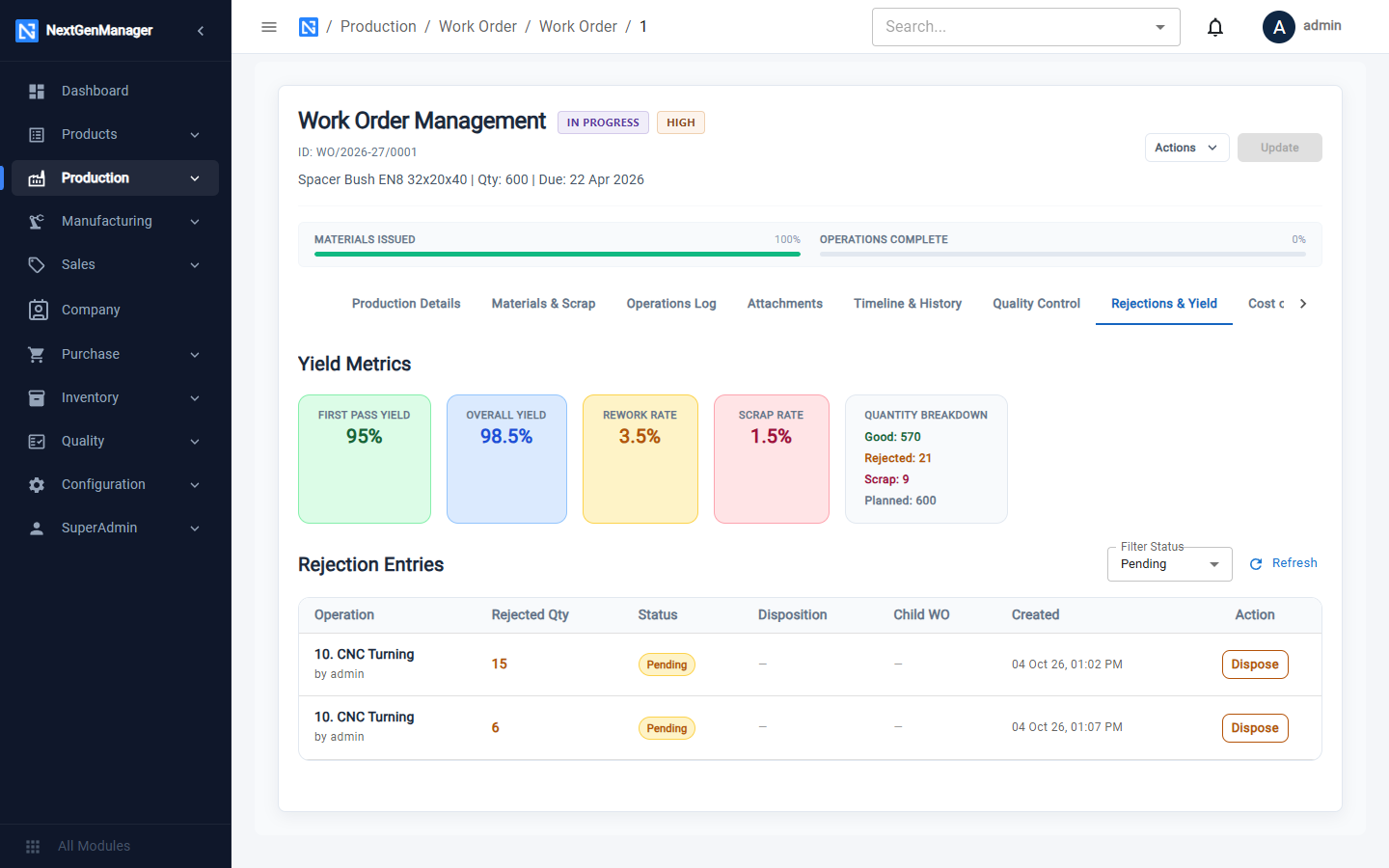
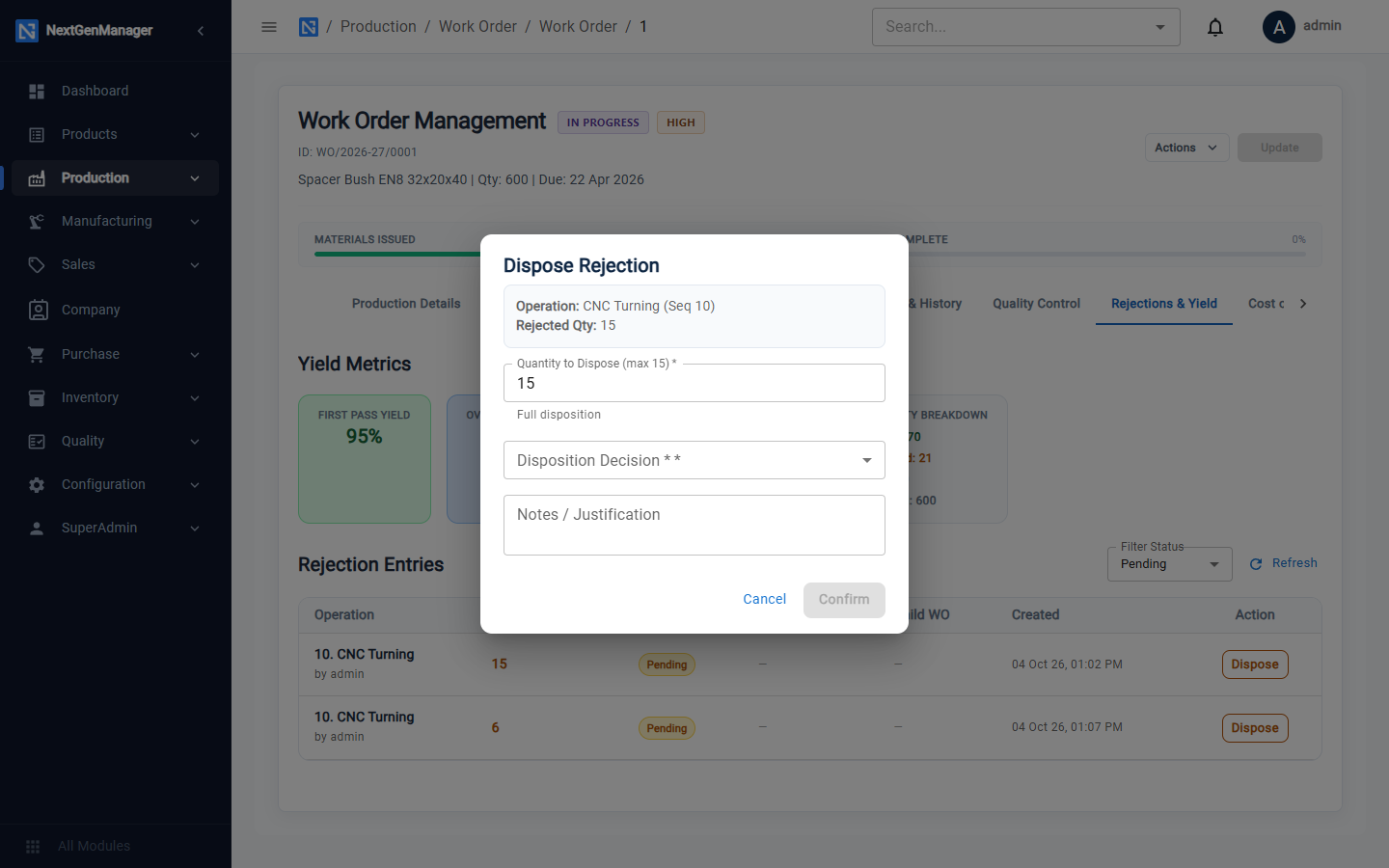
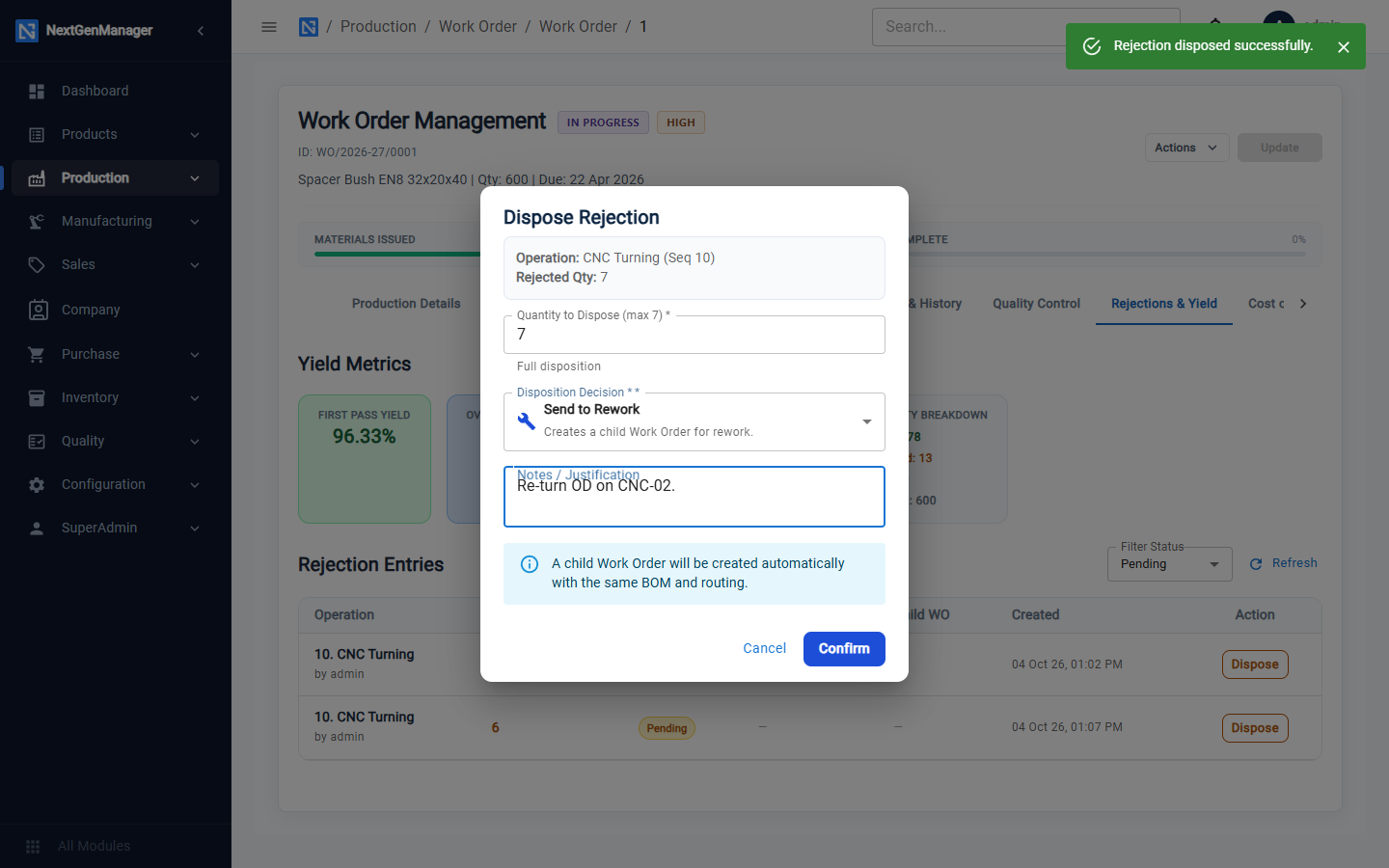
Click Dispose on an entry. You can dispose of all of it or only part.
| Disposition | Result |
|---|---|
| Accept (Concession) | The pieces are accepted as they are |
| Send to Rework | A child work order is created for those pieces |
| Scrap | The pieces are written off |
Each needs a justification.
6. Complete and close
Complete WO
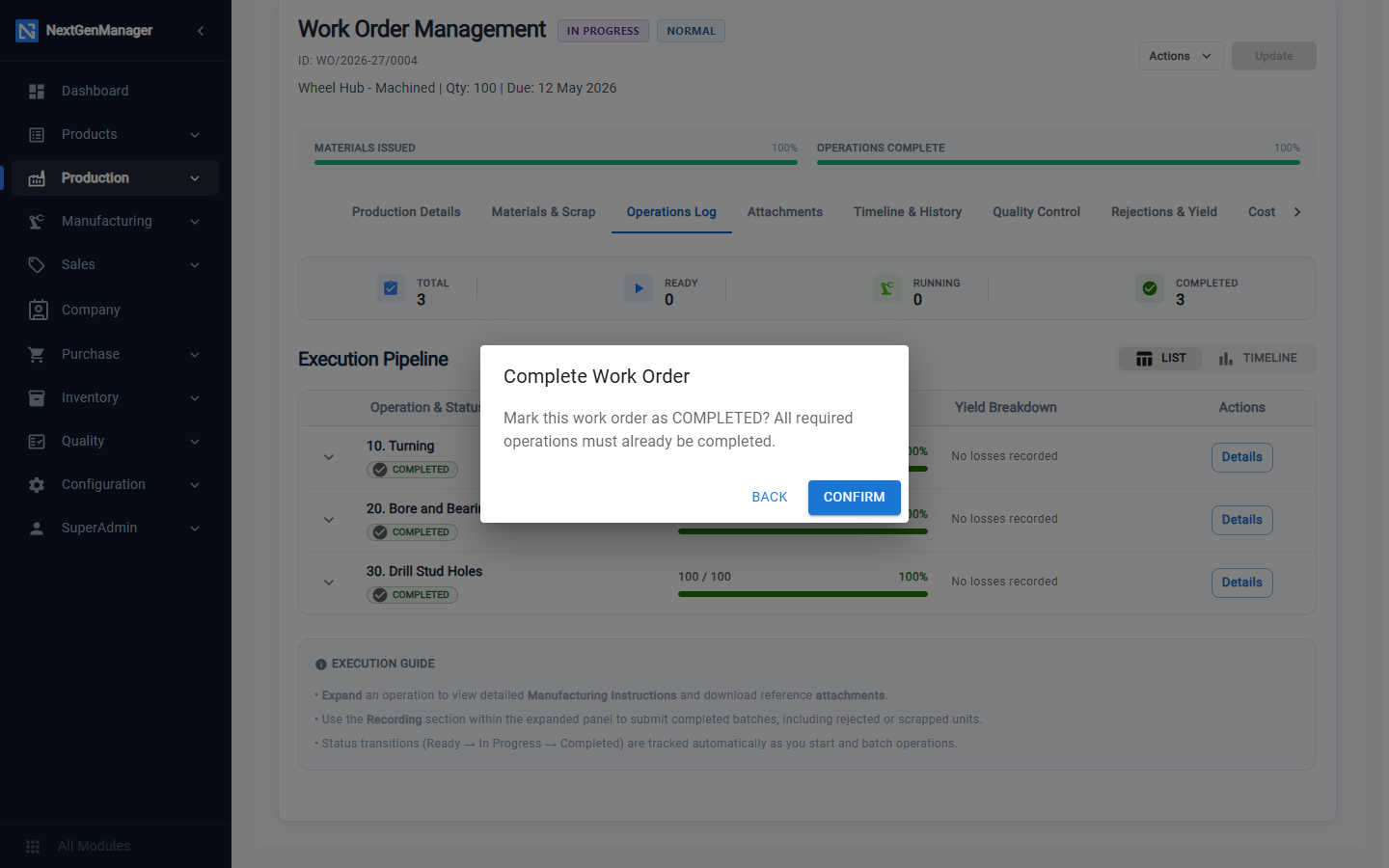
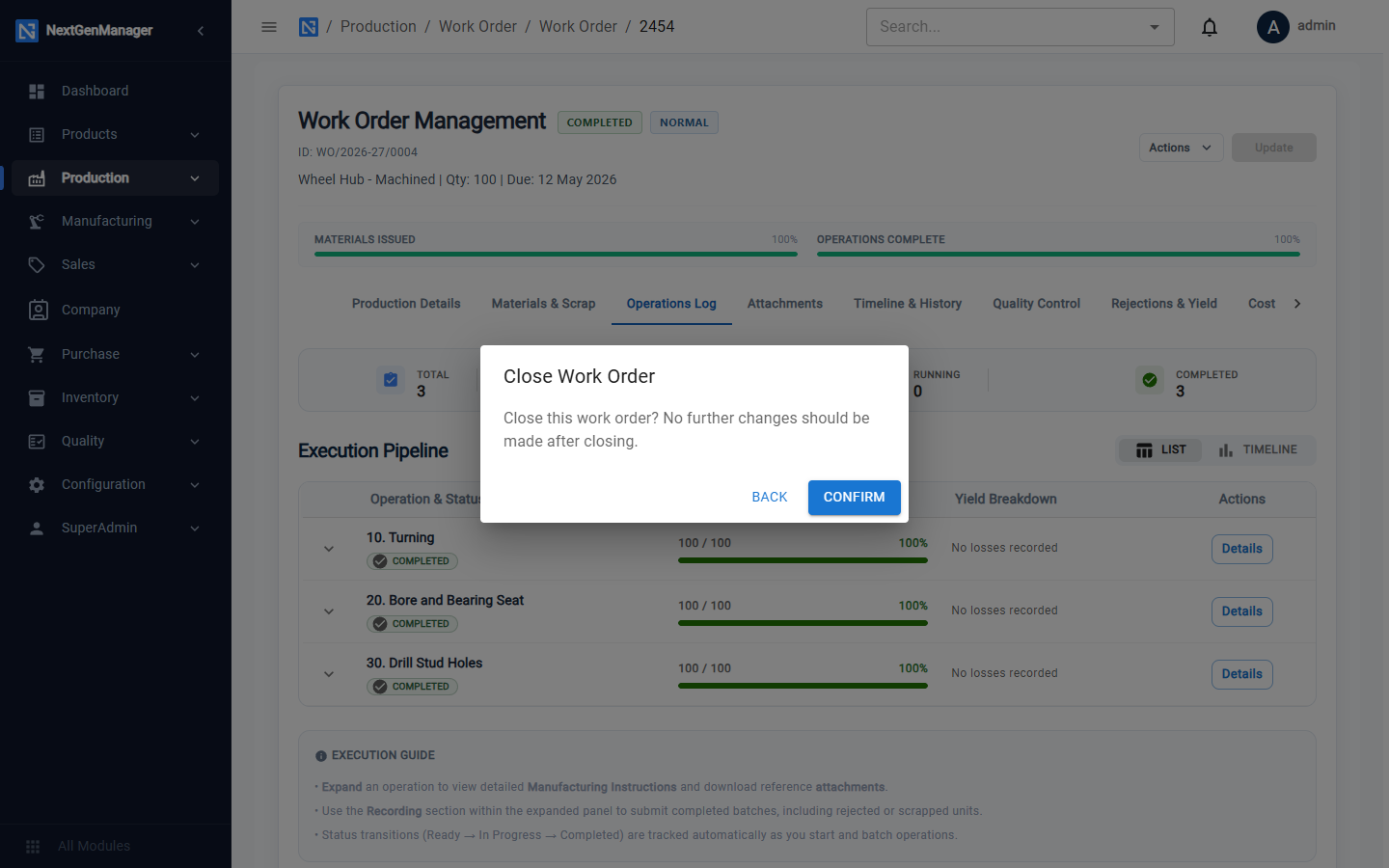
When every operation is COMPLETED, choose Actions → Complete WO.
Completing books the finished goods into stock, and Short Close does the same for what was made,
posting the same finished-goods and work-in-progress journal. Serial-tracked products are given their serial
numbers at this point (for example SN-FG-0002-202610-000001); you can see them under
Inventory → Stock Register → View Batches & Serials.
If an operation is not finished the system answers All operations must be COMPLETED before completing WorkOrder.
Close WO
Then choose Actions → Close WO. Closing only changes the status to CLOSED.
Short Close
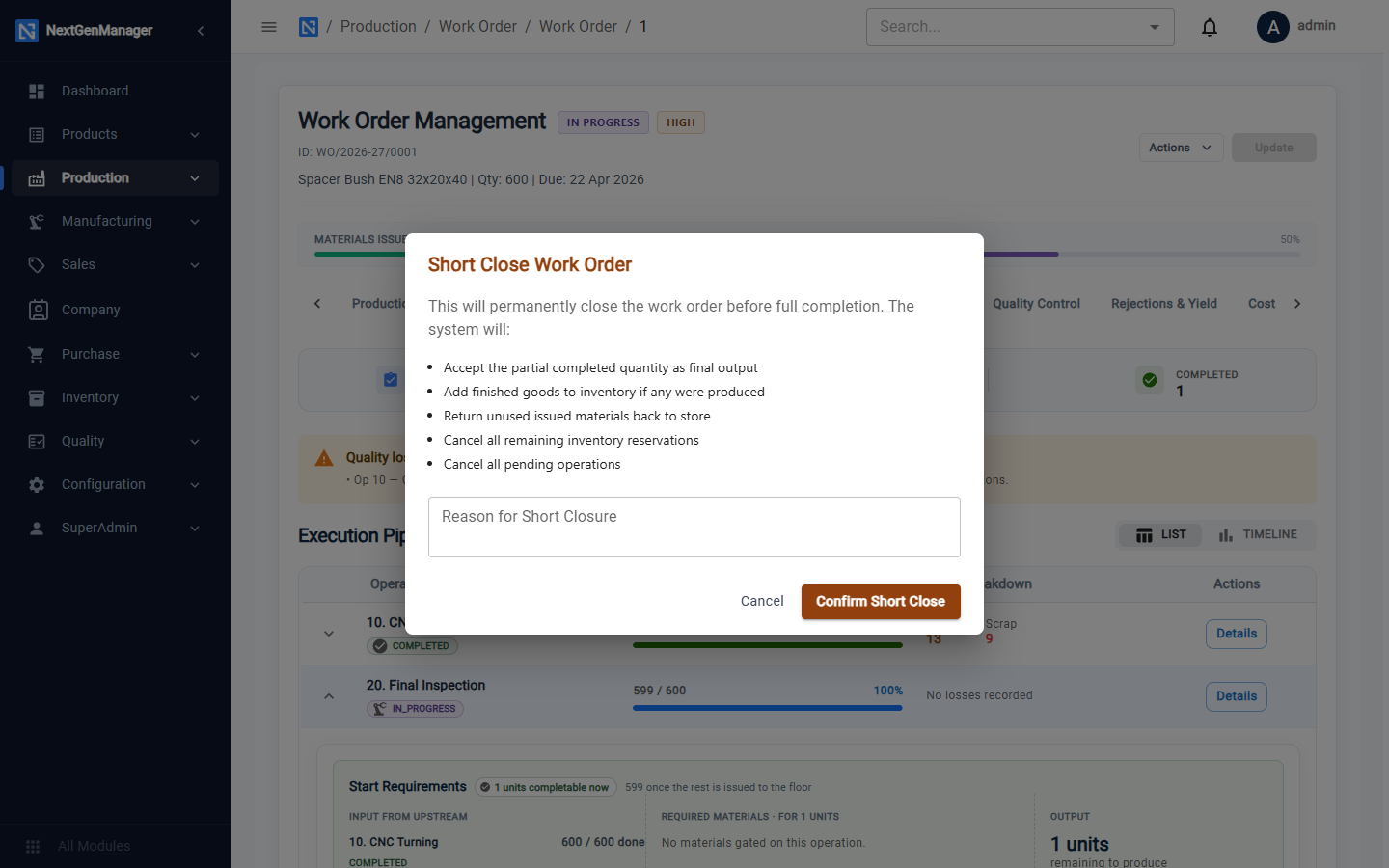
Actions → Short Close ends an order before the planned quantity is reached. It accepts the quantity made so far, books those finished goods into stock, returns unused material to stores and cancels what is still reserved.
:::note Rejects and scrap An operation is COMPLETED when every unit it was given has been dealt with: made good, rejected or scrapped. So a 600-piece order with 15 rejects and 5 scrap finishes its turning operation at 580 good pieces, and the next operation is given those 580. Complete WO then books the 580 finished pieces and the order shows COMPLETED. Pieces that were rejected can still be accepted back (with a concession) from Rejections & Yield; they then count as good. :::
Cost of production
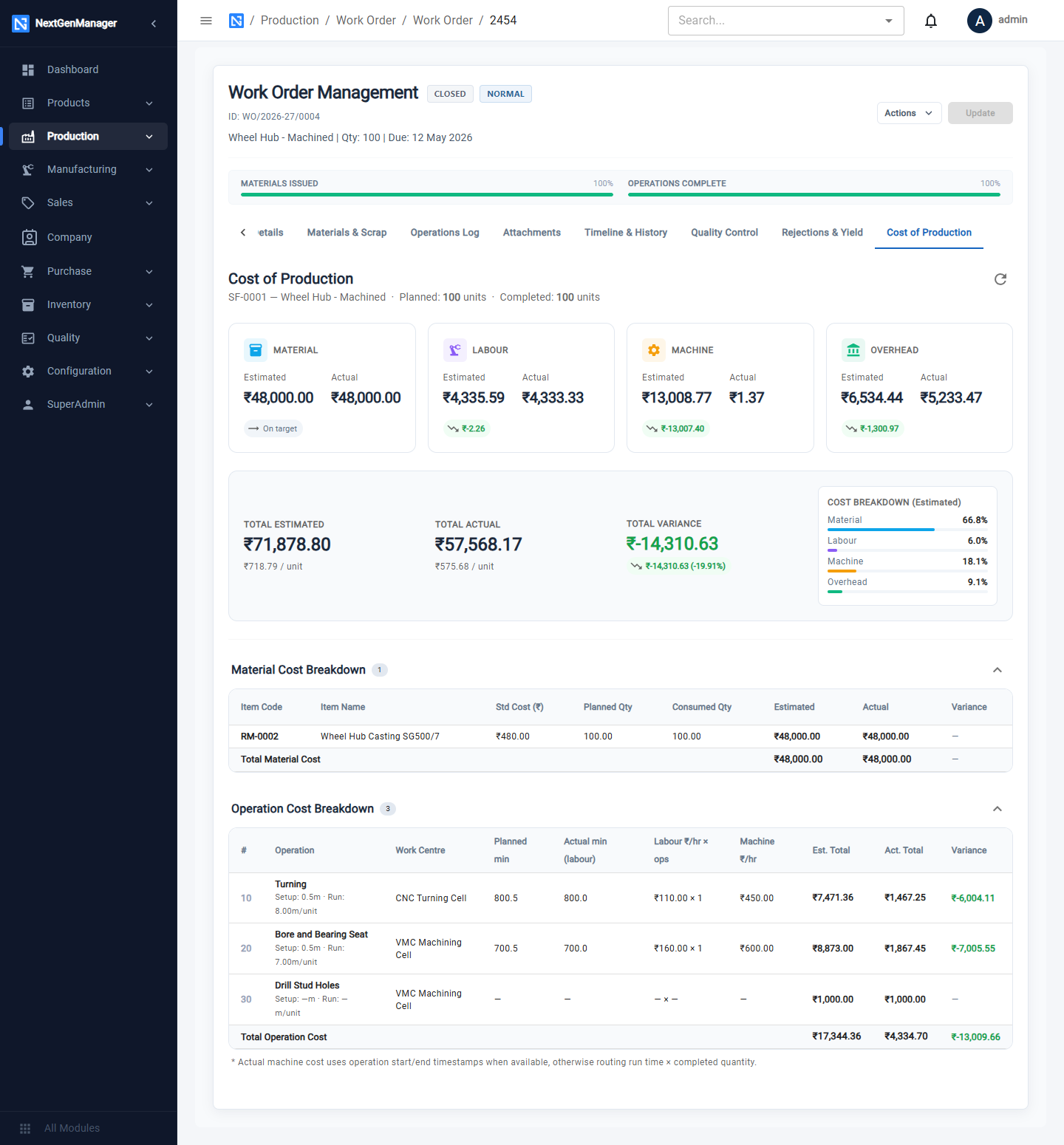
The Cost of Production tab compares the estimate from the BOM with what actually happened, for Material, Labour, Machine and Overhead, in total and per unit, with breakdowns by material and by operation.
History
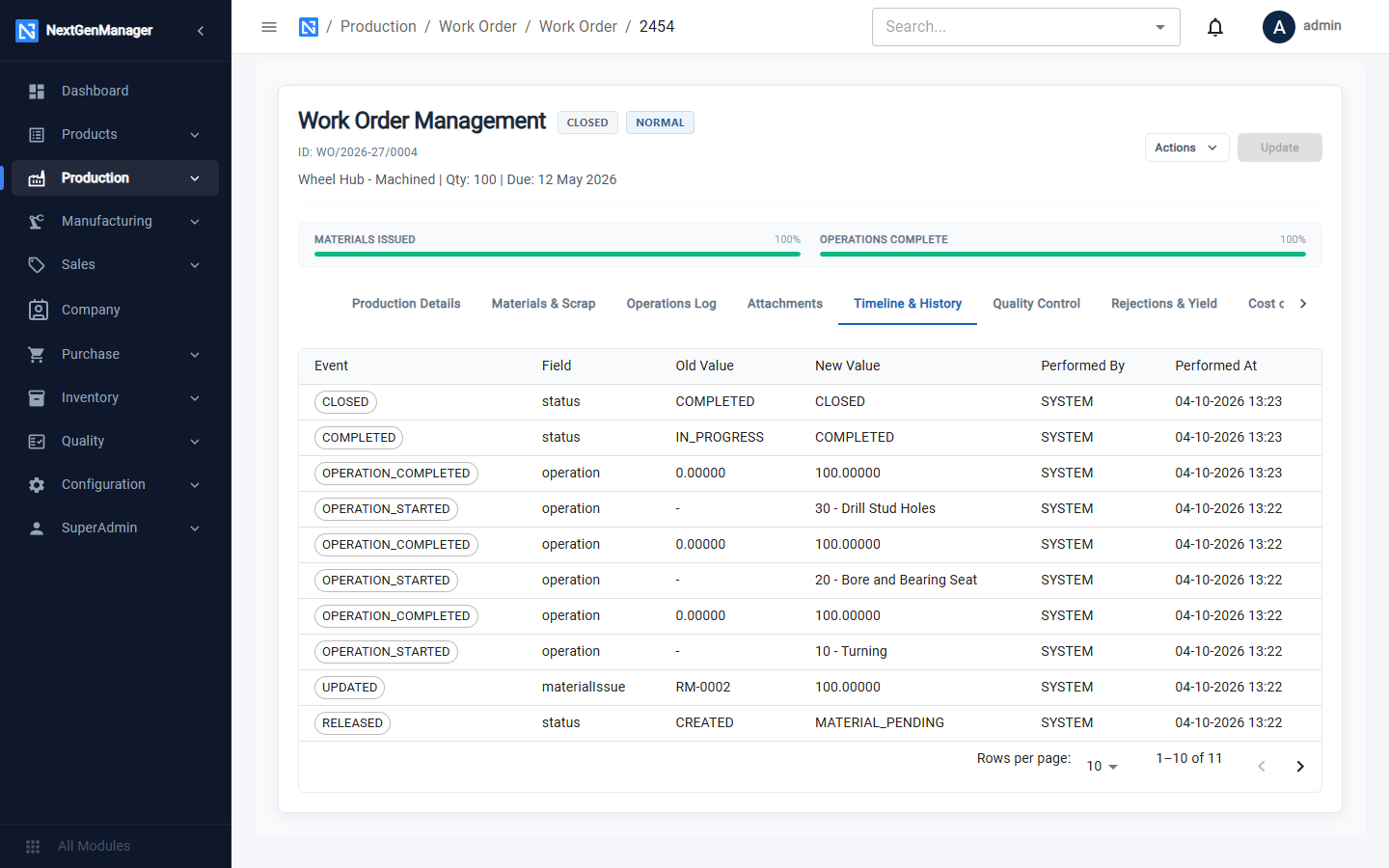
Timeline & History records every event on the order: released, material issued, each operation started and completed, completed, closed.