Products
Where: Operations → Products → Master.
The product master holds everything you buy, make, stock or sell: raw materials, bought-out parts, consumables, semi-finished parts and finished goods.
The Product Master list
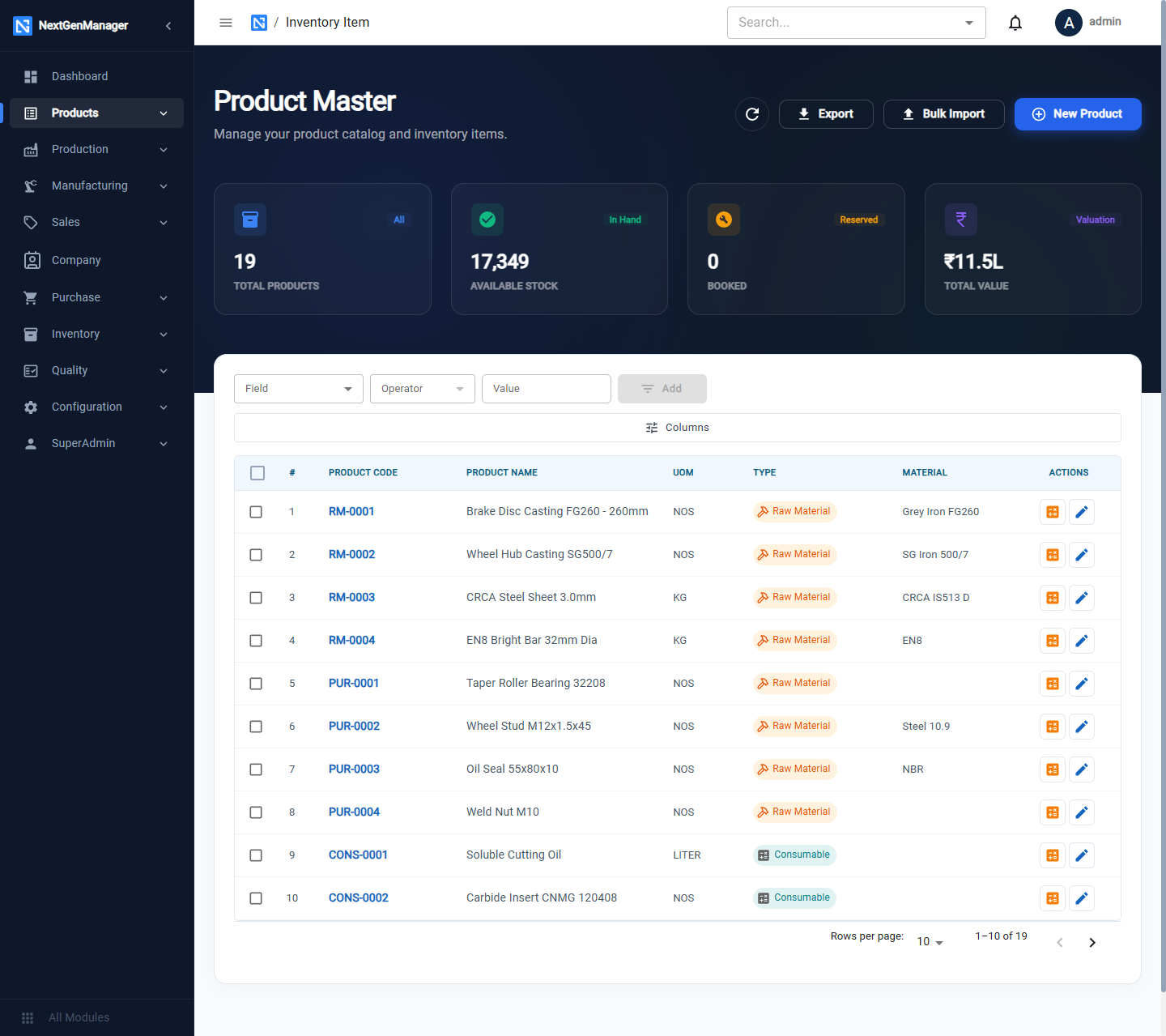
- Tiles: Total Products, Available Stock, Booked (reserved) and Total Value.
- The filter row builds filters from a Field, an Operator and a Value. Columns chooses which columns show.
- Export downloads catalogues and price lists (see Prints and exports). Bulk Import loads products from Excel.
- On each row, the orange button opens Make or Buy for that product and the pencil opens it for editing.
Add a product
Click New Product. The form has five tabs. Work through them and click Save; a confirmation box appears and Confirm Save creates the product.
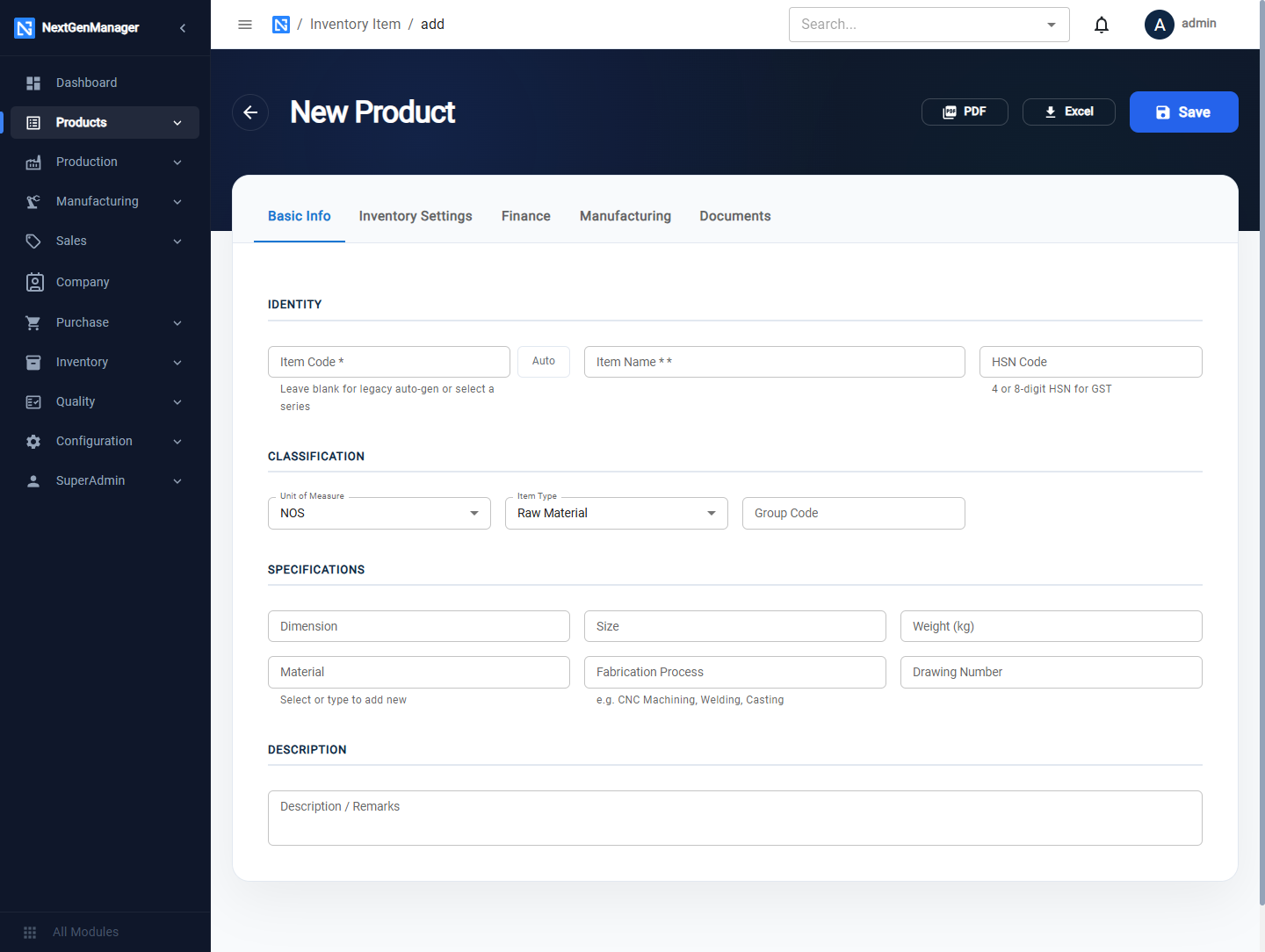
Basic Info
| Field | Notes |
|---|---|
| Item Code | Type your own code, or click Auto to take the next number from a series |
| Item Name | Required |
| HSN Code | 4, 6 or 8 digit HSN used on GST documents |
| Unit of Measure | NOS, KG, GRAM, TON, METER, CENTIMETER, INCH, LITER, SET, SQFT, SQM, SQIN |
| Item Type | Raw Material, Semi-Finished, Finished Good, Sub-Contracted, Consumable |
| Group Code | Your own grouping, for example BRAKE |
| Dimension, Size, Weight (kg) | Specifications |
| Material, Fabrication Process | Pick from the list, or type a new value and it is added to the list |
| Drawing Number | The drawing and its revision |
| Description | Free text |
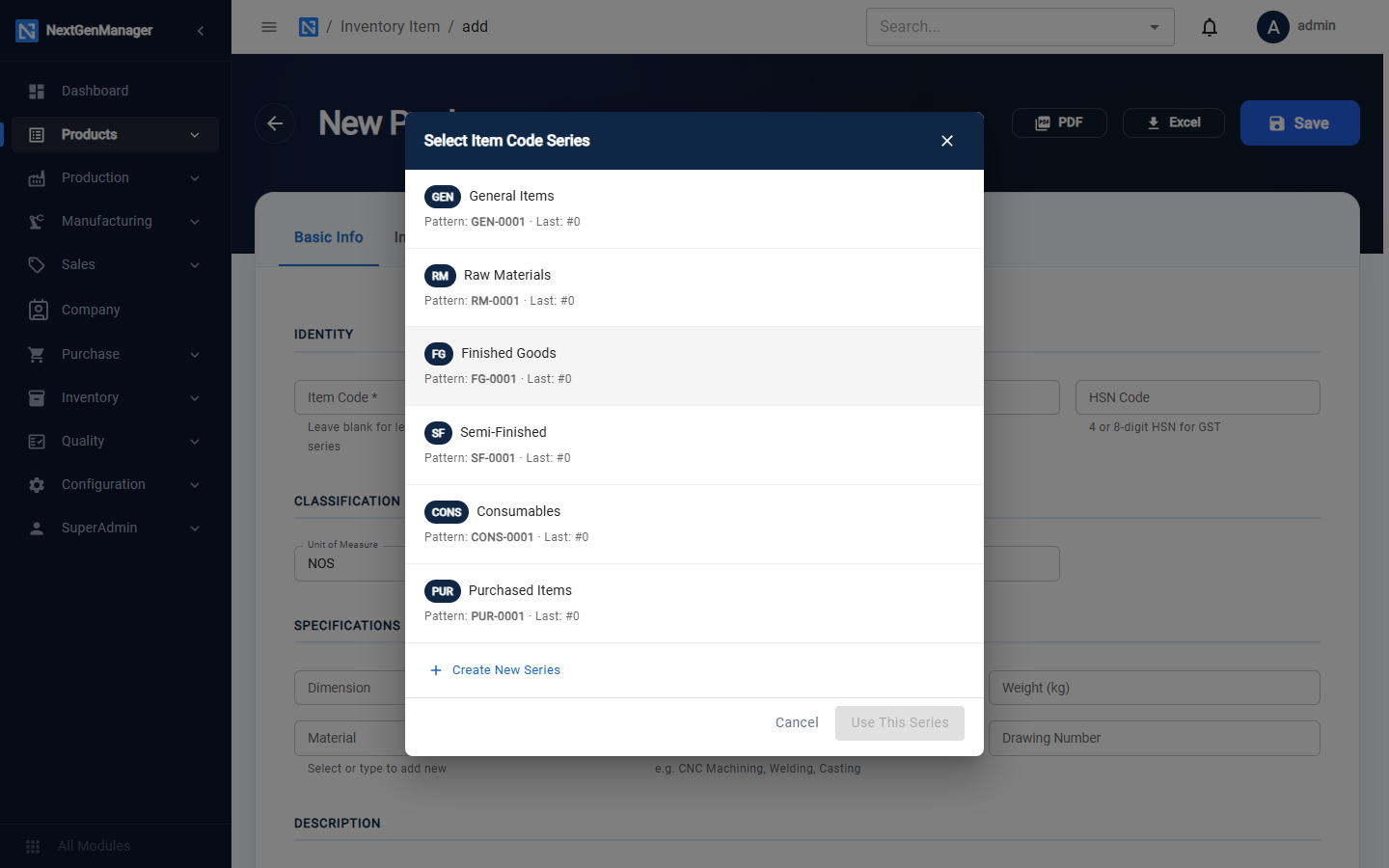
Auto opens the code series: General Items (GEN), Raw Materials (RM), Finished Goods (FG),
Semi-Finished (SF), Consumables (CONS), Purchased Items (PUR). You can also Create New Series.
Codes look like RM-0001.
Inventory Settings
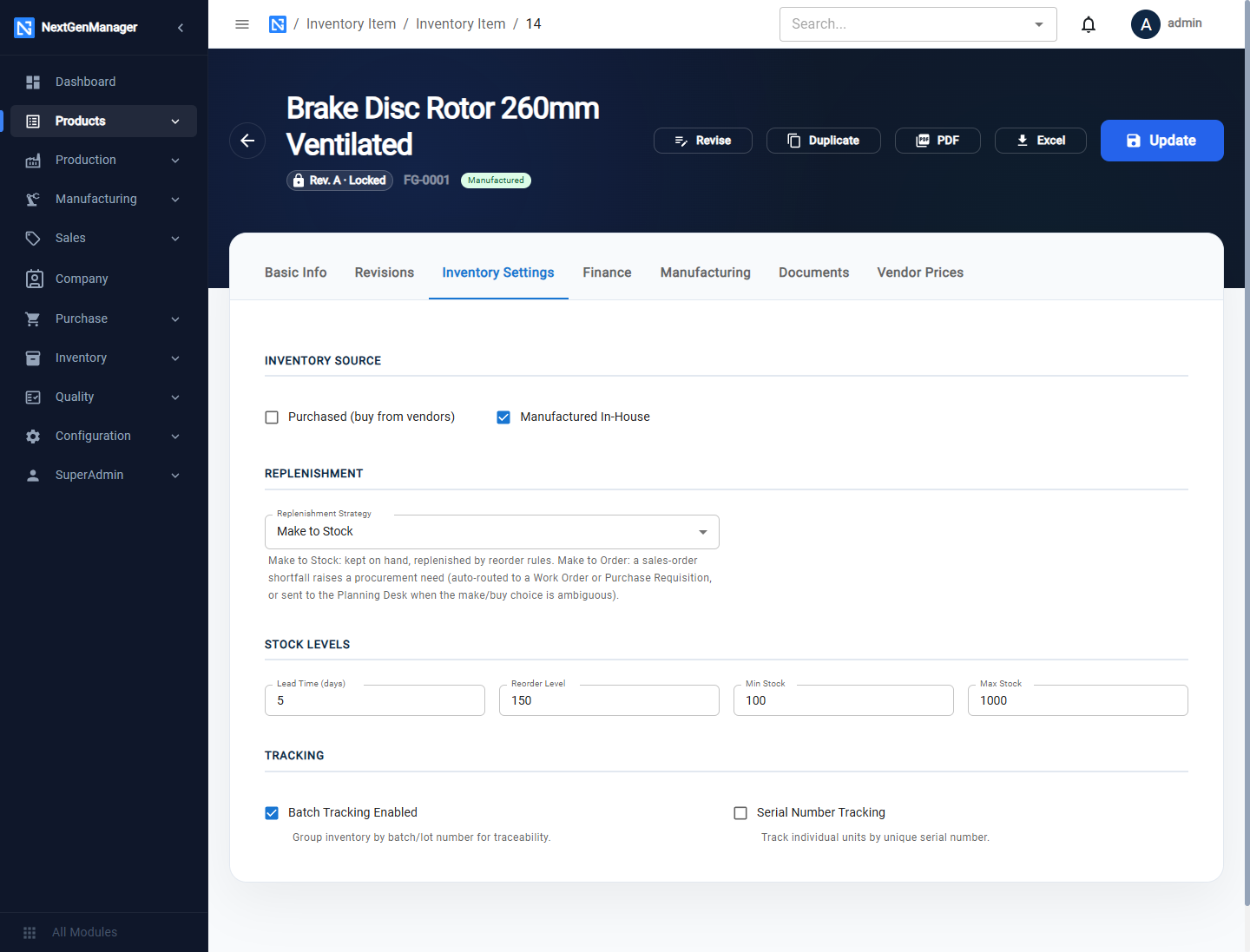
| Field | What it controls |
|---|---|
| Purchased / Manufactured In-House | How the product is supplied. Tick both if you sometimes make it and sometimes buy it |
| Replenishment Strategy | Make to Stock: kept on hand and topped up by reorder rules. Make to Order: a shortfall on a sales order raises a work order or a purchase requisition |
| Lead Time, Reorder Level, Min Stock, Max Stock | Used for low-stock alerts on the inventory dashboard |
| Batch Tracking | Stock is held in numbered batches |
| Serial Number Tracking | Every unit carries its own serial number |
These settings decide what the system does when a sales order cannot be filled from stock. See Planning.
Finance
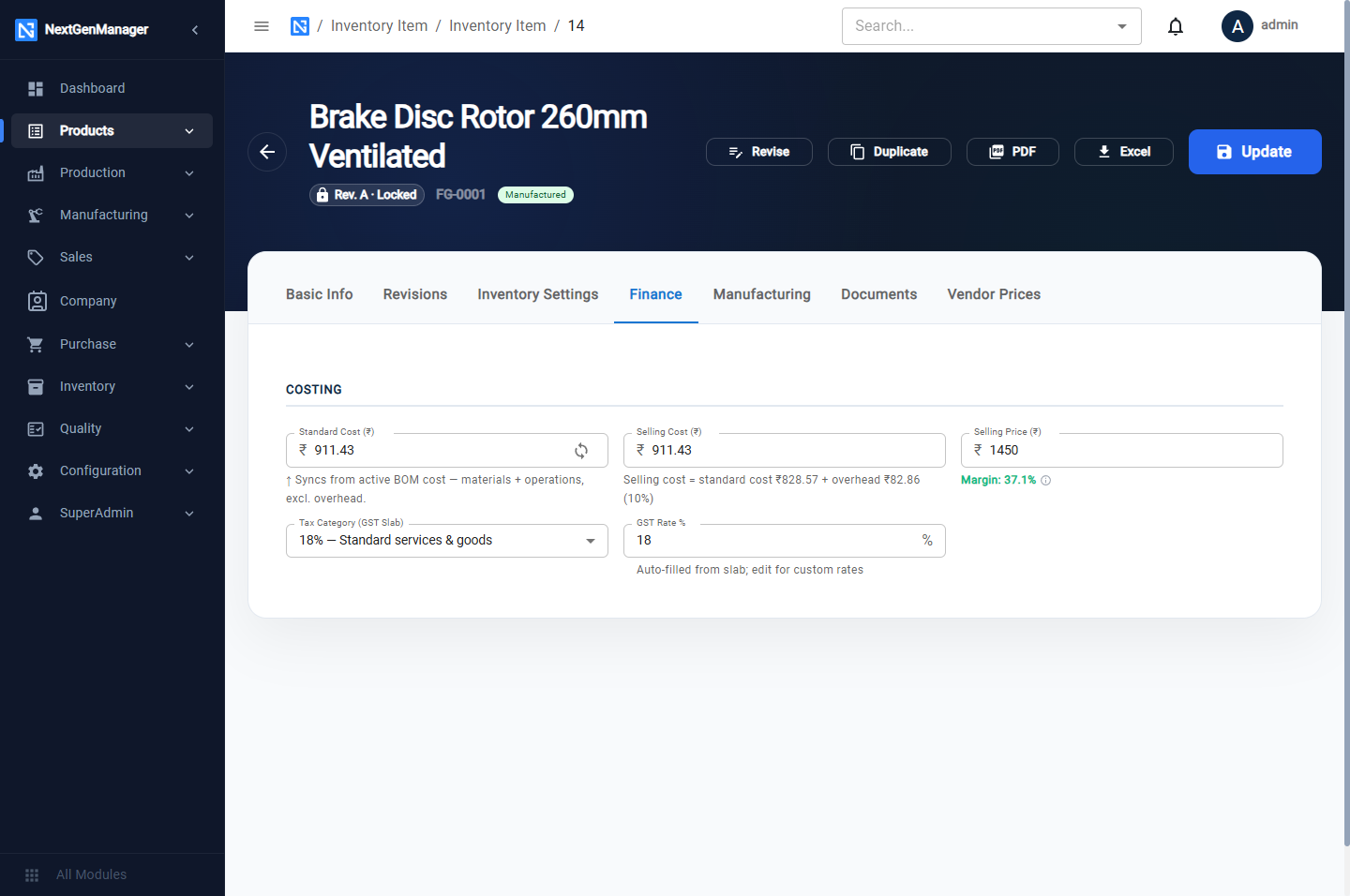
| Field | Notes |
|---|---|
| Standard Cost | The cost used to value stock movements |
| Selling Price | The price offered on quotations and sales orders |
| Tax Category | 0, 3, 5, 12, 18 or 28 % |
| GST Rate % | Filled in from the tax category; you can change it |
On a saved product this tab also shows the margin and offers Sync from preferred vendor price.
Manufacturing
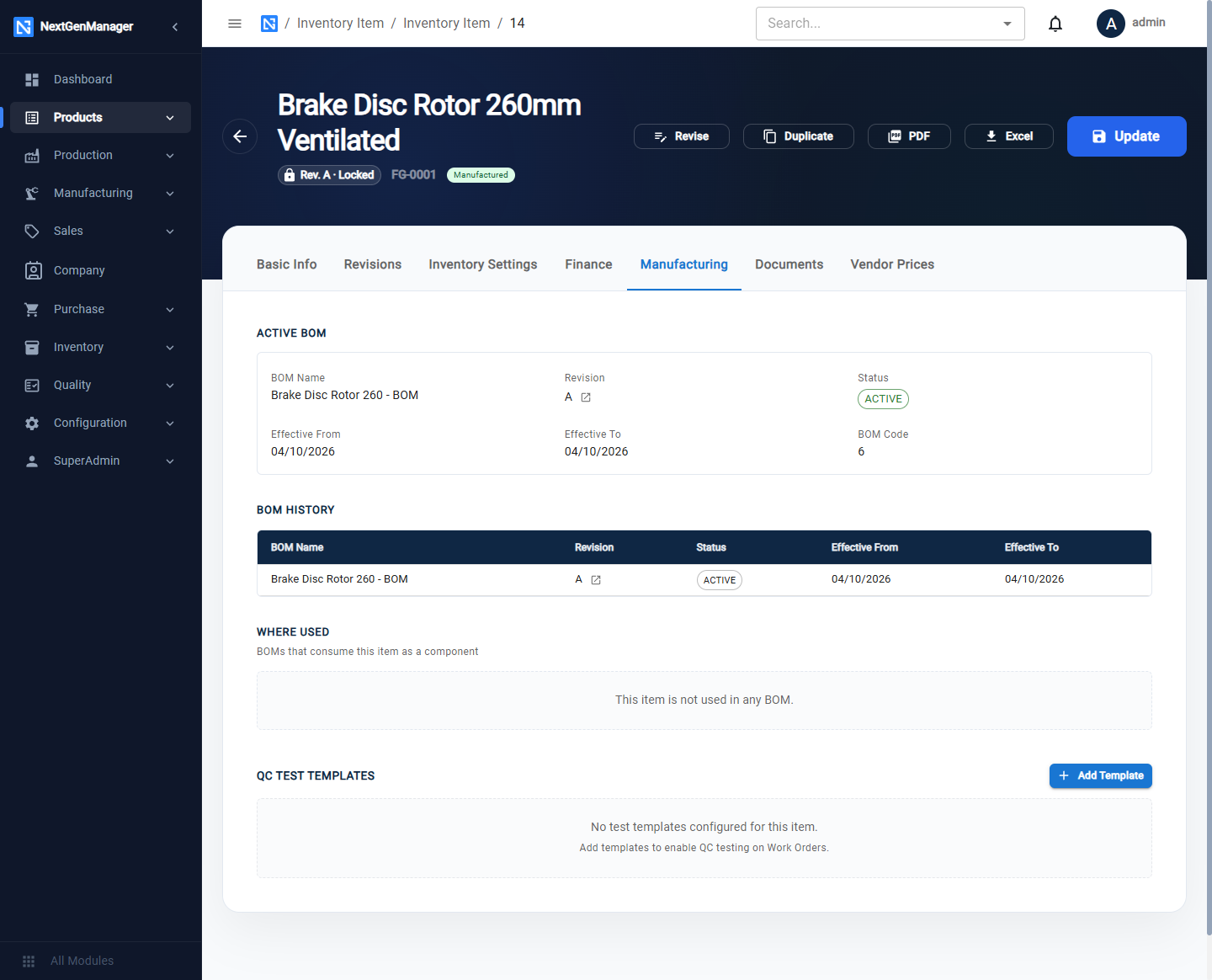
Shows the product's Active BOM, its BOM History, Where Used (the BOMs that consume it) and, once the product is saved, QC Test Templates.
Documents
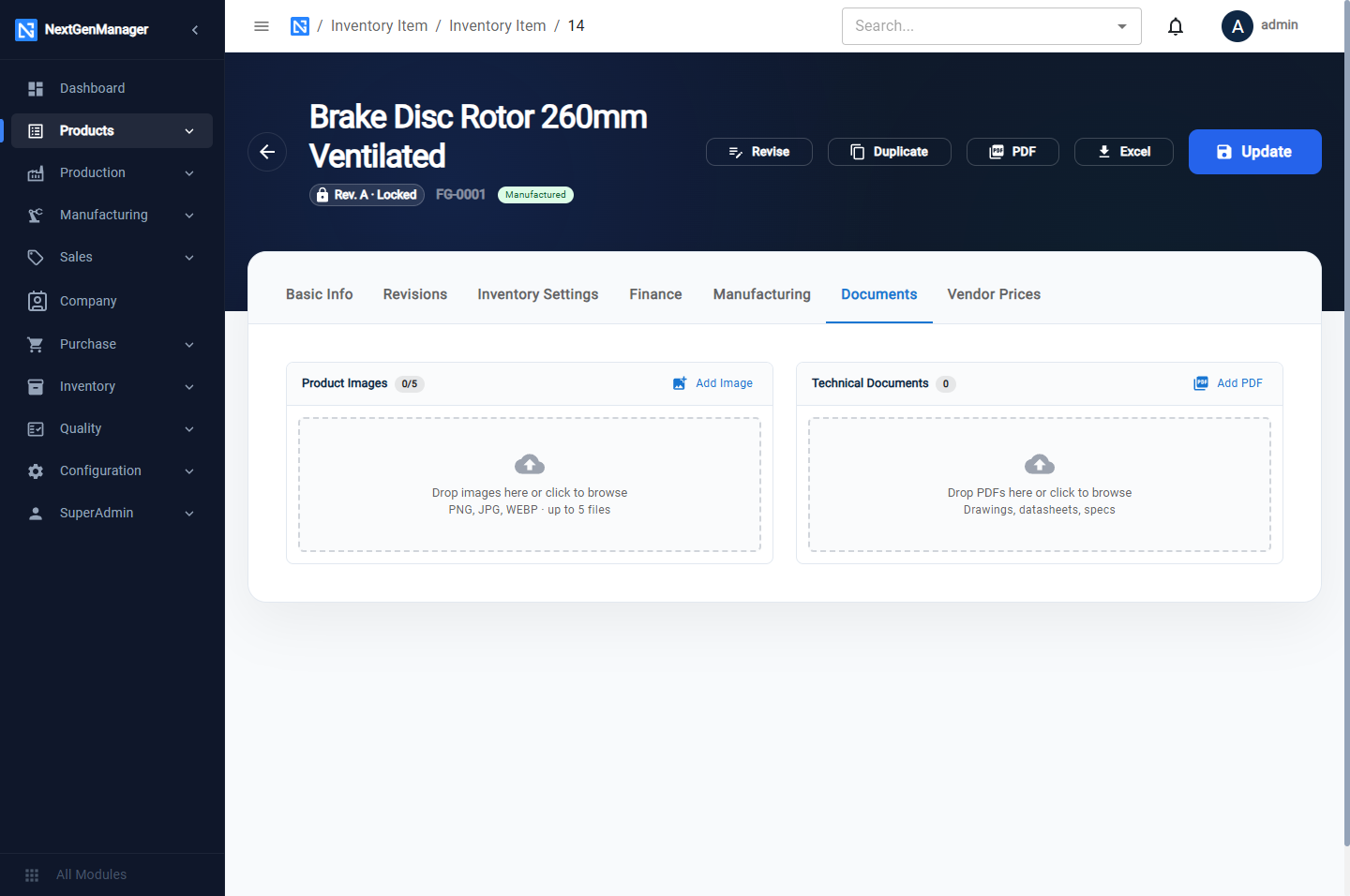
Up to five product images and technical PDFs such as drawings and data sheets.
Saving
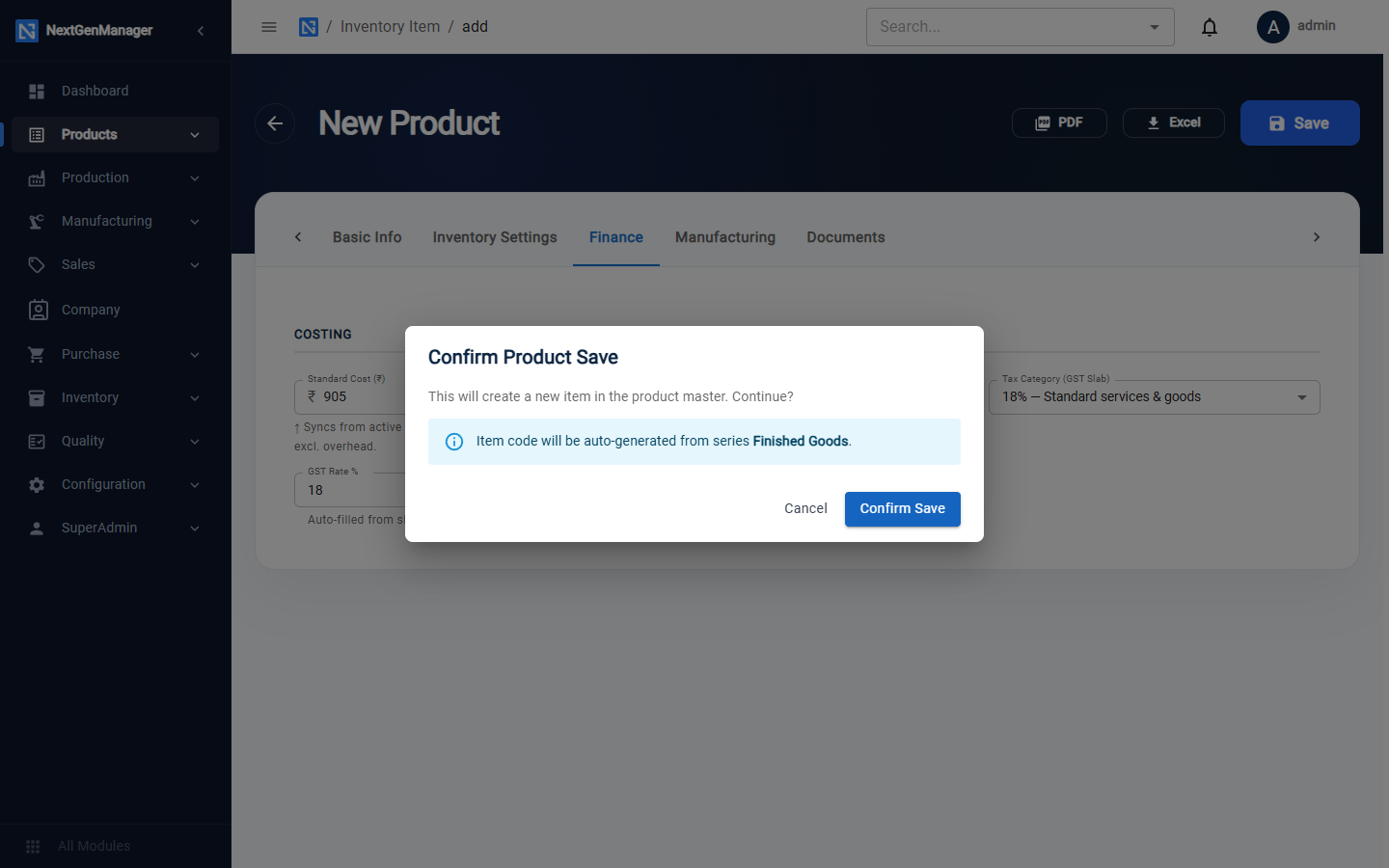
Edit a product
Open a product from the list. The header shows the revision (for example Rev. A · Locked) and the buttons Revise, Duplicate, PDF, Excel and Update.
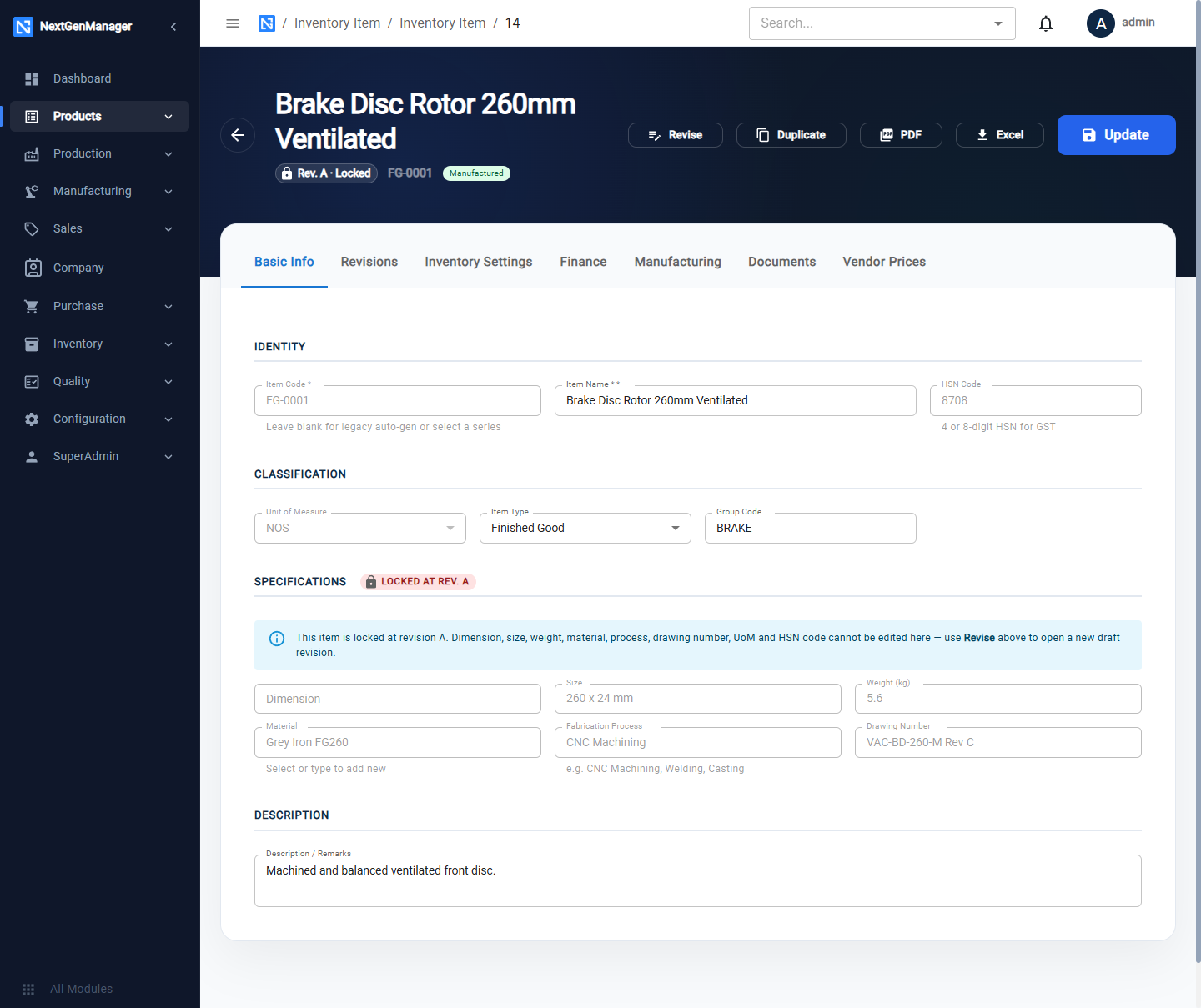
Two more tabs appear on a saved product:
- Revisions — see Product revisions.
- Vendor Prices — see below.
:::info Locked fields Once a product is saved, its engineering fields — Dimension, Size, Weight, Material, Process, Drawing Number, Unit of Measure and HSN — are locked at the current revision. To change them, open a new revision. Prices, stock levels and descriptions can be changed at any time with Update. :::
Vendor prices
Where: the product's Vendor Prices tab.
Record what each vendor charges, either to supply the product (Supplier Purchase Prices) or to process your material (Job Work / Subcontract Rates).
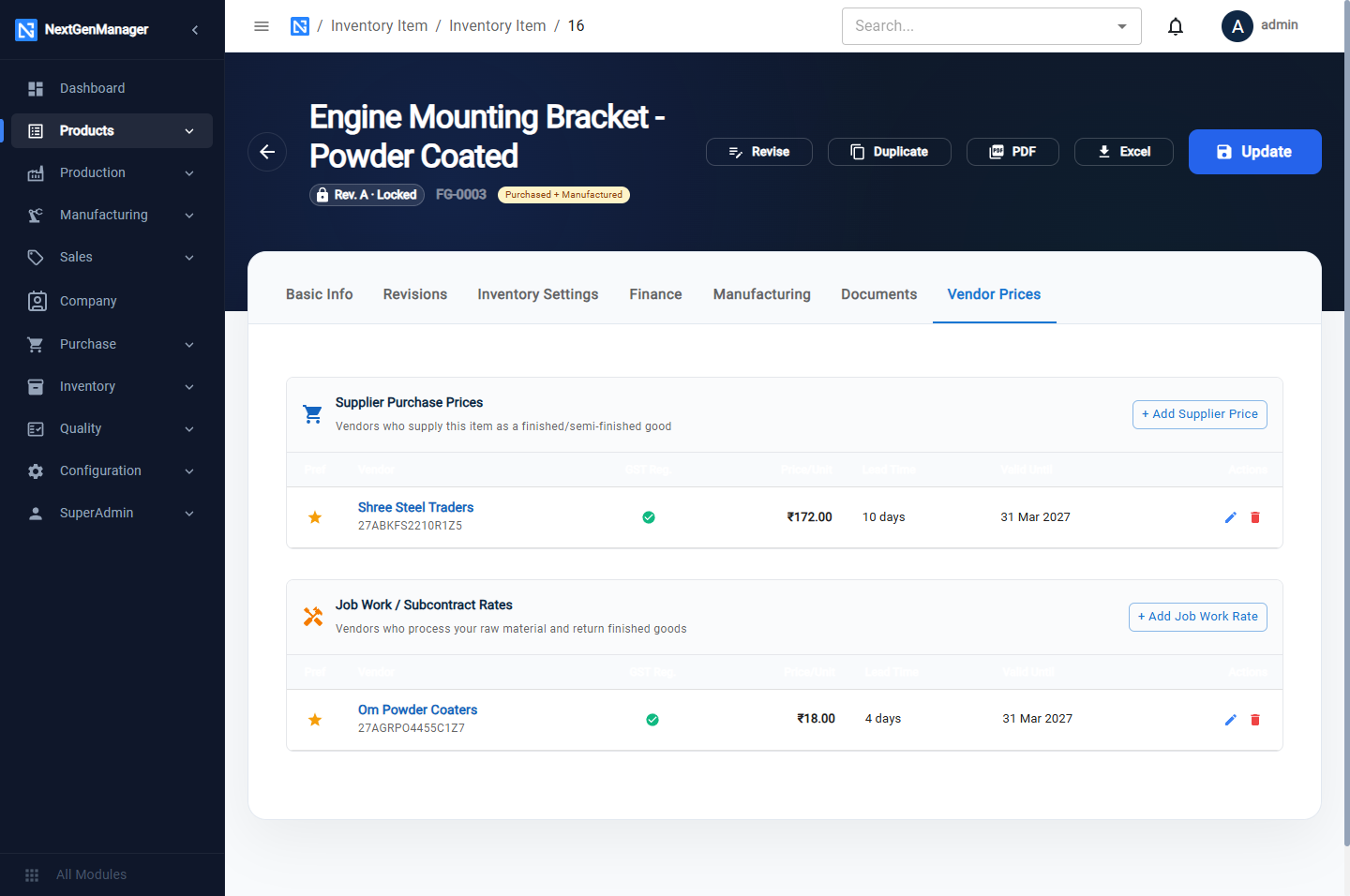
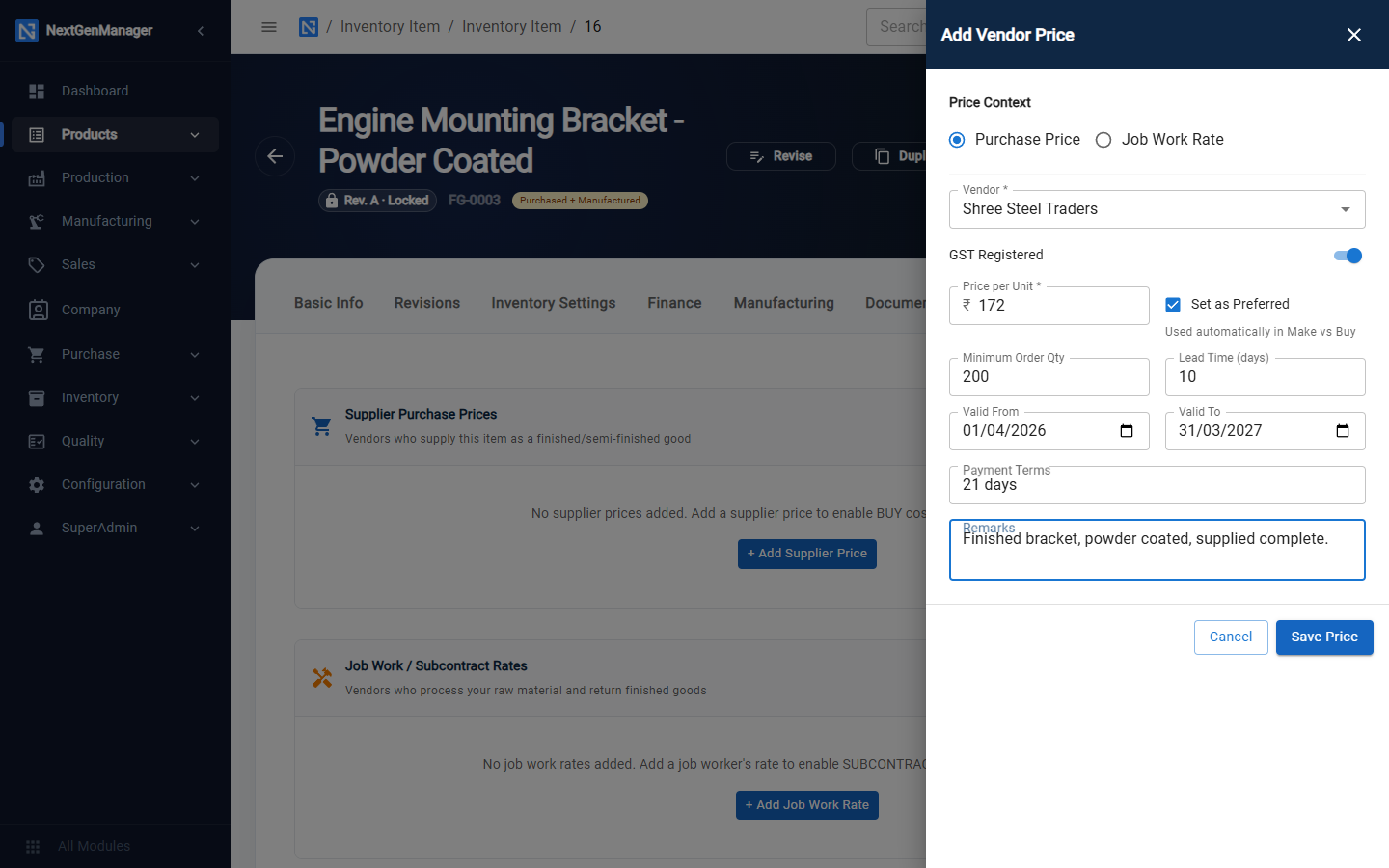
Click + Add Supplier Price or + Add Job Work Rate. A panel opens on the right:
| Field | Notes |
|---|---|
| Price Context | Purchase Price or Job Work Rate |
| Vendor | Required |
| Price per Unit | Required |
| Set as Preferred | The preferred price is the one used automatically in Make or Buy |
| Minimum Order Qty, Lead Time | Optional |
| Valid From / Valid To | The period the price holds |
| Payment Terms, Remarks | Optional |
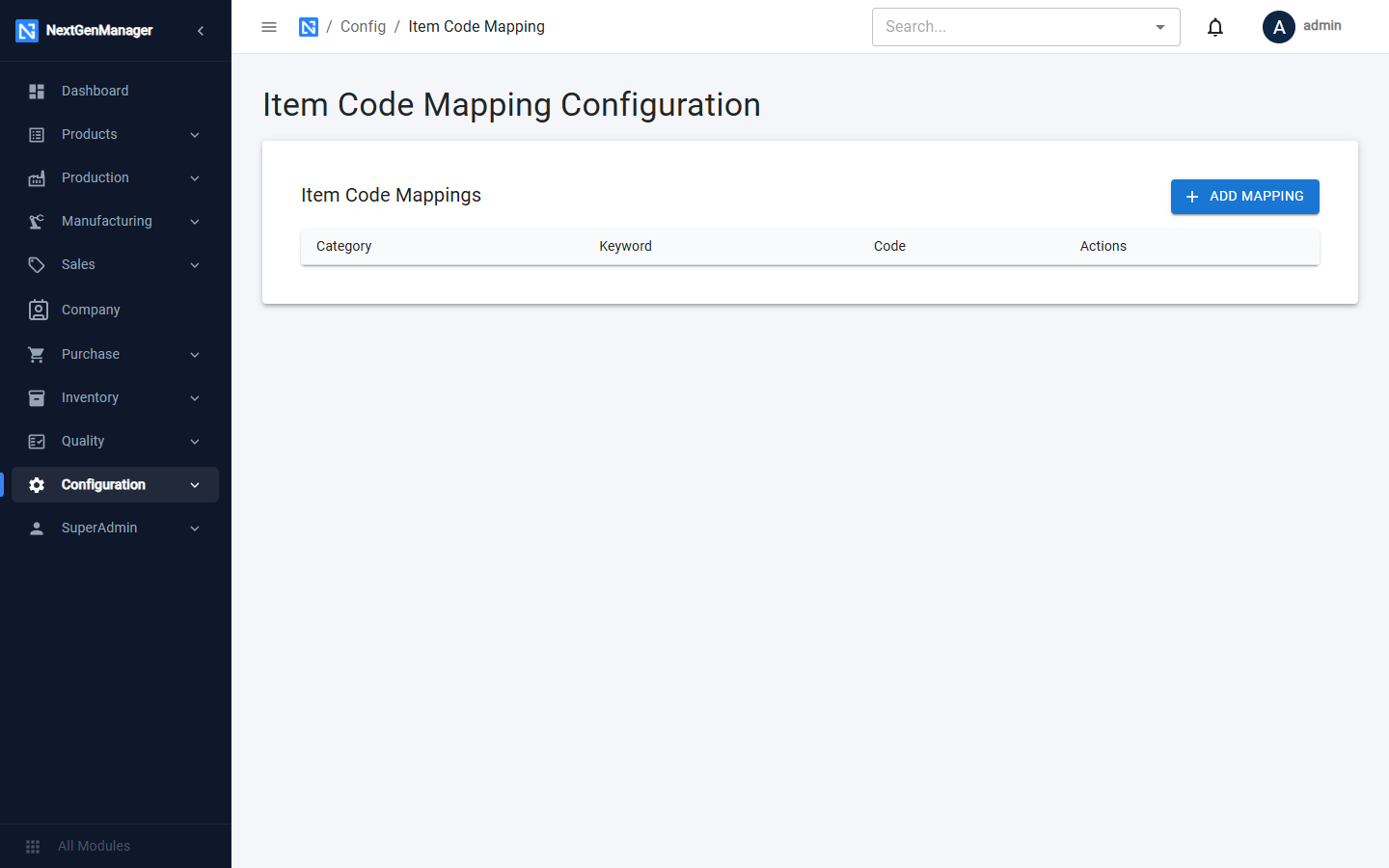
Item code mapping
Where: Operations → Configuration → Item Code.
Here you map a category and keyword to a code. Click Add Mapping to add a row.