Contacts: customers and vendors
Where: Operations → Company.
A contact is any company you sell to or buy from. One contact can be a customer, a vendor or both.
The Contact Registry
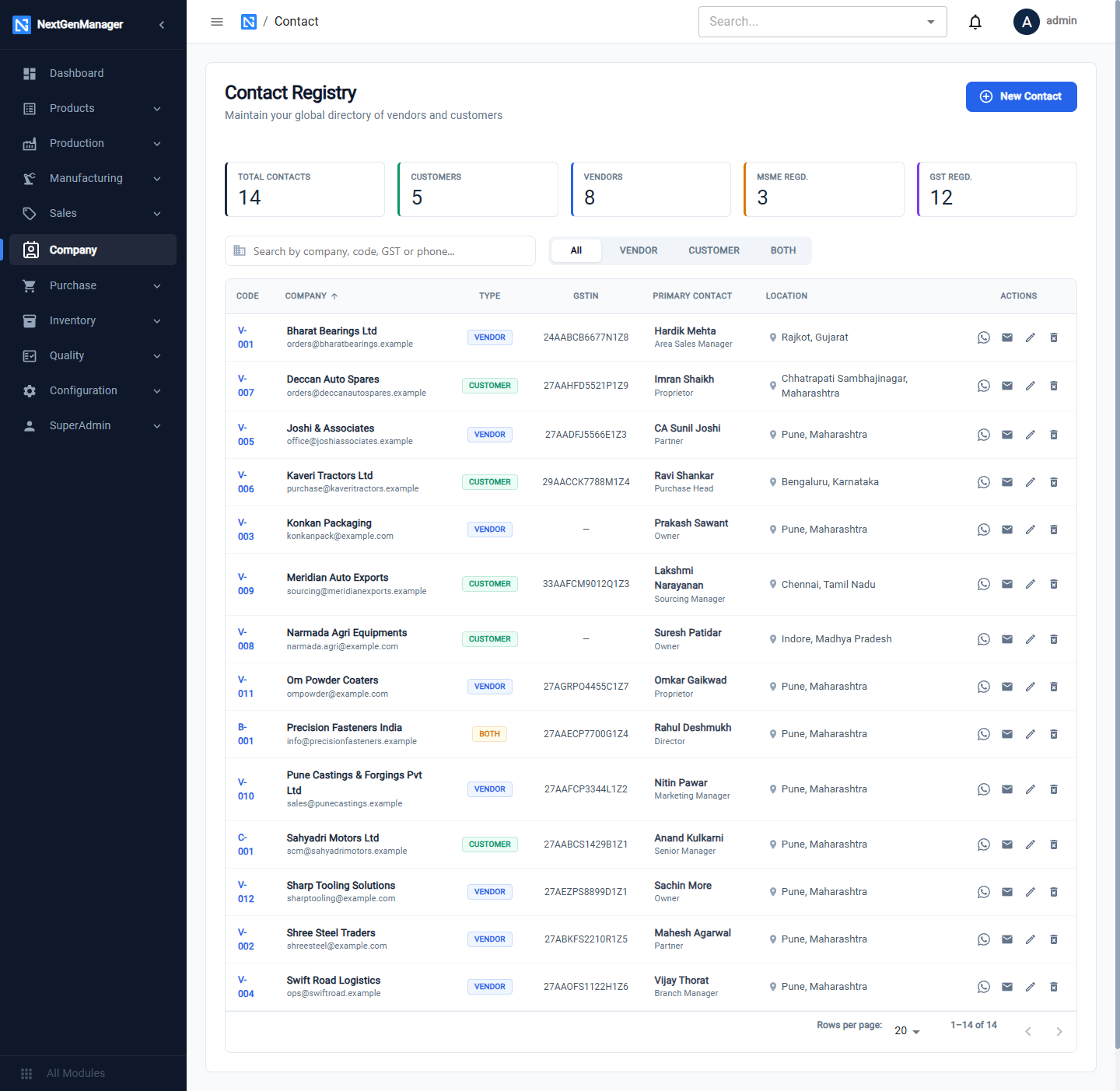
- The tiles count Total Contacts, Customers, Vendors, MSME Regd. and GST Regd.
- The chips All / VENDOR / CUSTOMER / BOTH filter the list. A contact of type Both appears under Vendor and under Customer.
- The search box finds a contact by company name, code, GSTIN or phone.
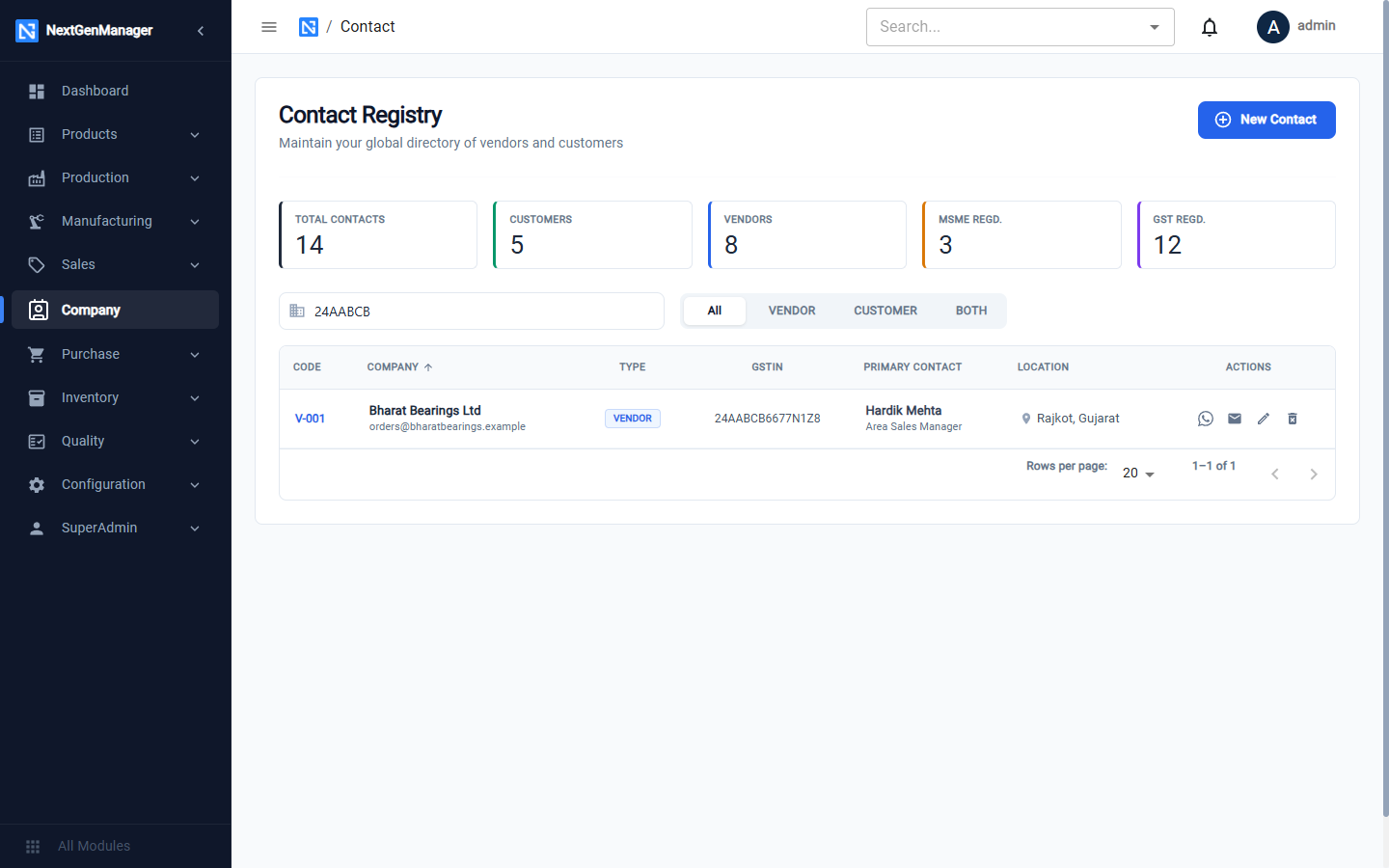
Each row shows the code, company, type, GSTIN, primary contact person and location, with buttons to message, e-mail, edit and delete.
Add a contact
Click New Contact, fill in the form and click Create Contact.
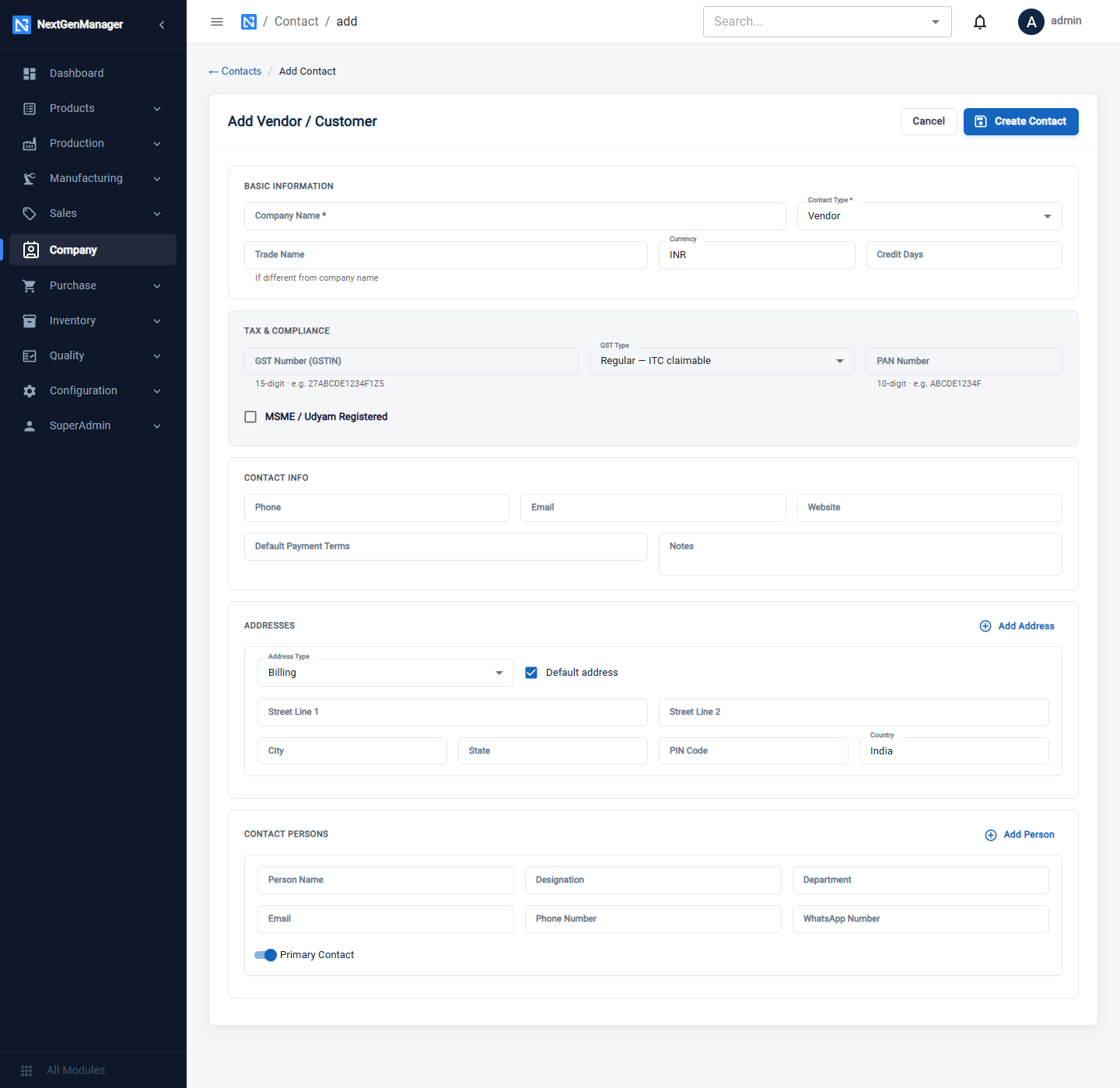
Basic Information
| Field | Notes |
|---|---|
| Company Name | Required |
| Contact Type | Required: Vendor, Customer or Both |
| Trade Name | Only if different from the company name |
| Currency | Defaults to INR |
| Credit Days | Leave blank for none, or enter a whole number; 0 means payment in advance |
Tax & Compliance
| Field | Notes |
|---|---|
| GST Number (GSTIN) | The format is checked; a wrong one shows Invalid GSTIN format |
| GST Type | Regular — ITC claimable, Composition — No ITC, Unregistered, SEZ Unit, Exporter (LUT/Bond) |
| PAN Number | The format is checked |
| MSME / Udyam Registered | Tick it and the Udyam Registration Number box appears and becomes required |
Contact Info
Phone, Email, Website, Default Payment Terms and Notes.
Addresses
Click Add Address for each address. Choose the type (Billing, Shipping, Factory or Both), tick Default address on the one to use first, and enter Street Line 1 and 2, City, State, PIN Code and Country.
:::info Why the state matters The state on the contact's address decides the tax on documents. If it is the same as your company's state, CGST + SGST are charged; if it is a different state, IGST is charged. :::
Contact Persons
Click Add Person for each person: Name, Designation, Department, Email, Phone, WhatsApp. Switch on Primary Contact for the main one. That person's name and phone are filled in automatically on enquiries.
Contact codes
The code is given automatically when you save: C-001 for a customer, V-001 for a vendor,
B-001 for a contact that is both.
Edit a contact
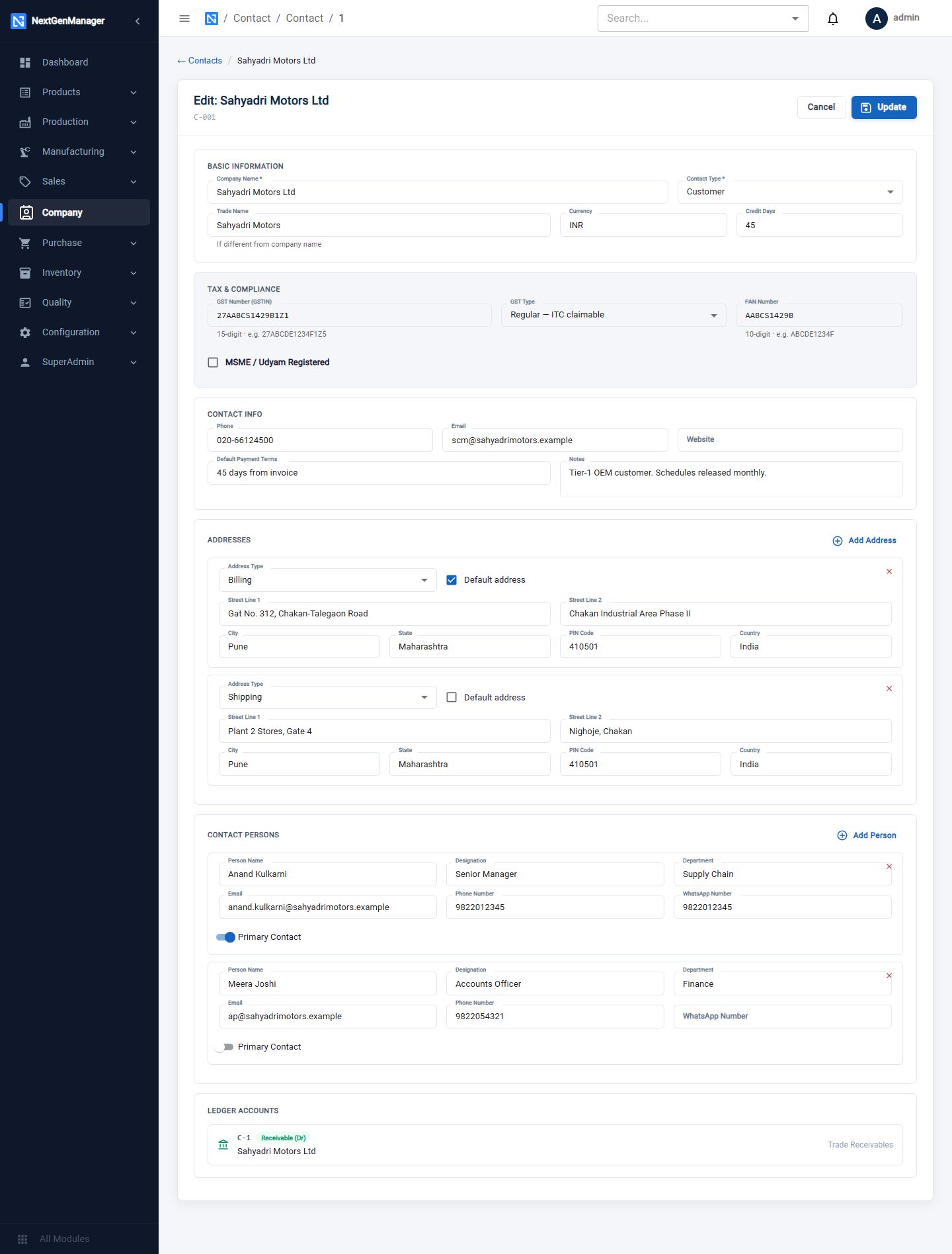
Click the pencil on the row. The edit form is the same, with two buttons:
- Update saves your changes.
- Ensure Ledger creates the contact's own account in the books (its party sub-ledger) if it does not have one yet.
Delete a contact
Click the bin on the row and confirm.
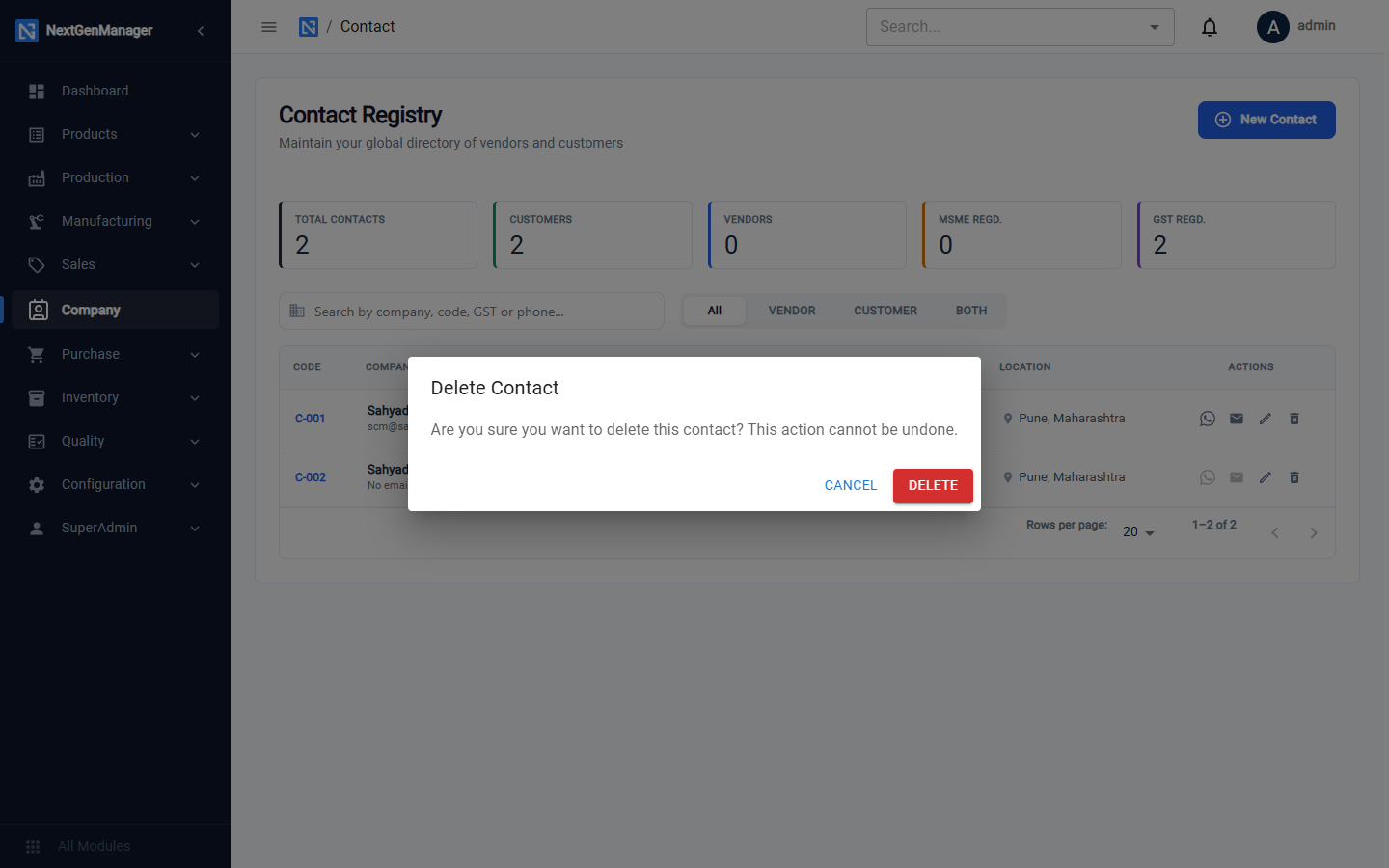
Deleting cannot be undone. If a company has simply stopped trading with you, leave the contact in place so its past documents still read correctly.
Saving a new contact with the same company name and the same GSTIN as an existing one is refused, so one registered company cannot end up with two records.