Bill of materials
Where: Operations → Products → Bill Of Material.
A bill of material (BOM) says what a product is made from and how: the components, the operations in order, and the cost that results.
The BOM list
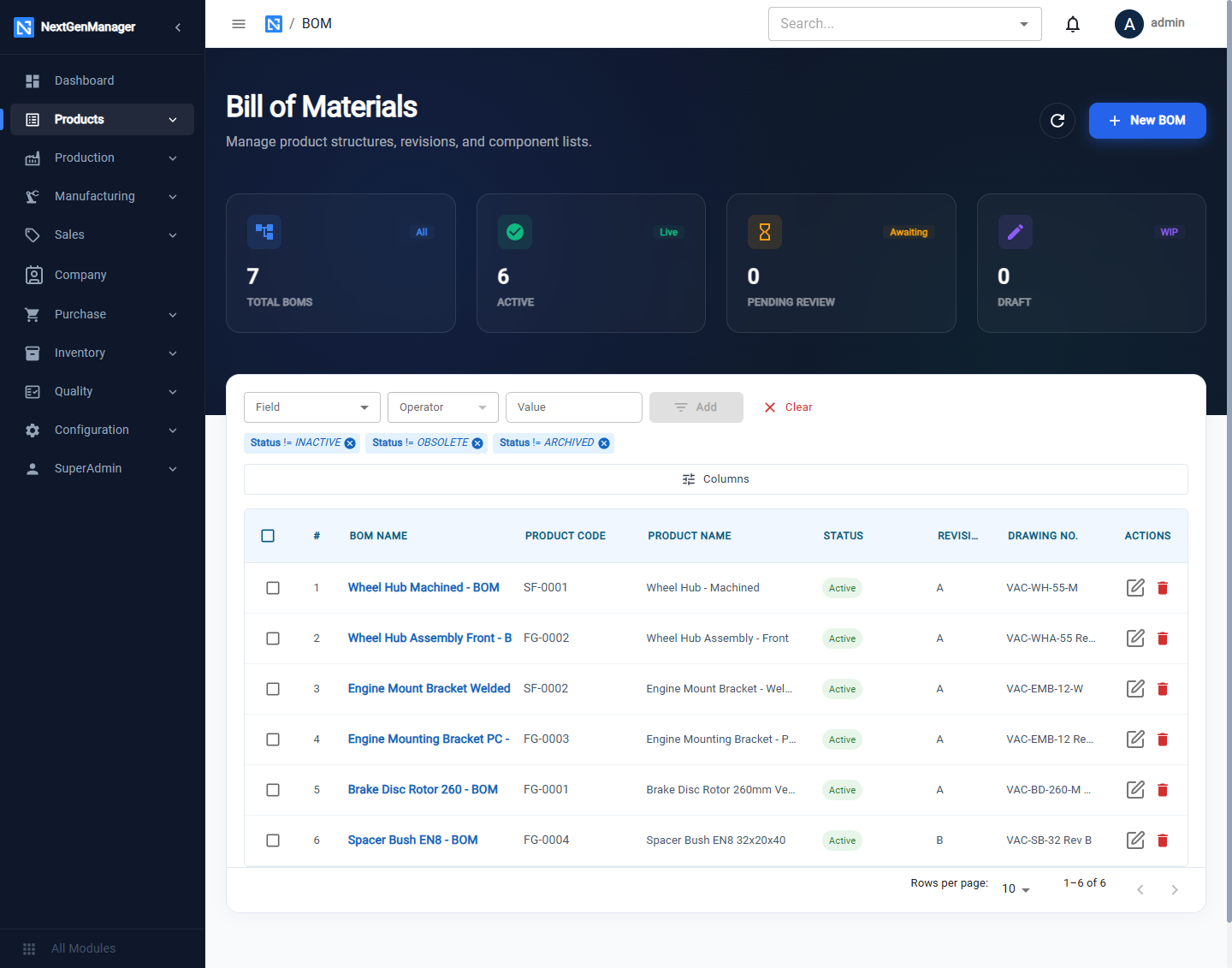
Tiles count Total BOMs, Active, Pending Review and Draft. The list starts with filters that hide Inactive, Obsolete and Archived BOMs; remove a chip to see them. Each row has Edit and Delete.
Create a BOM
Click New BOM.
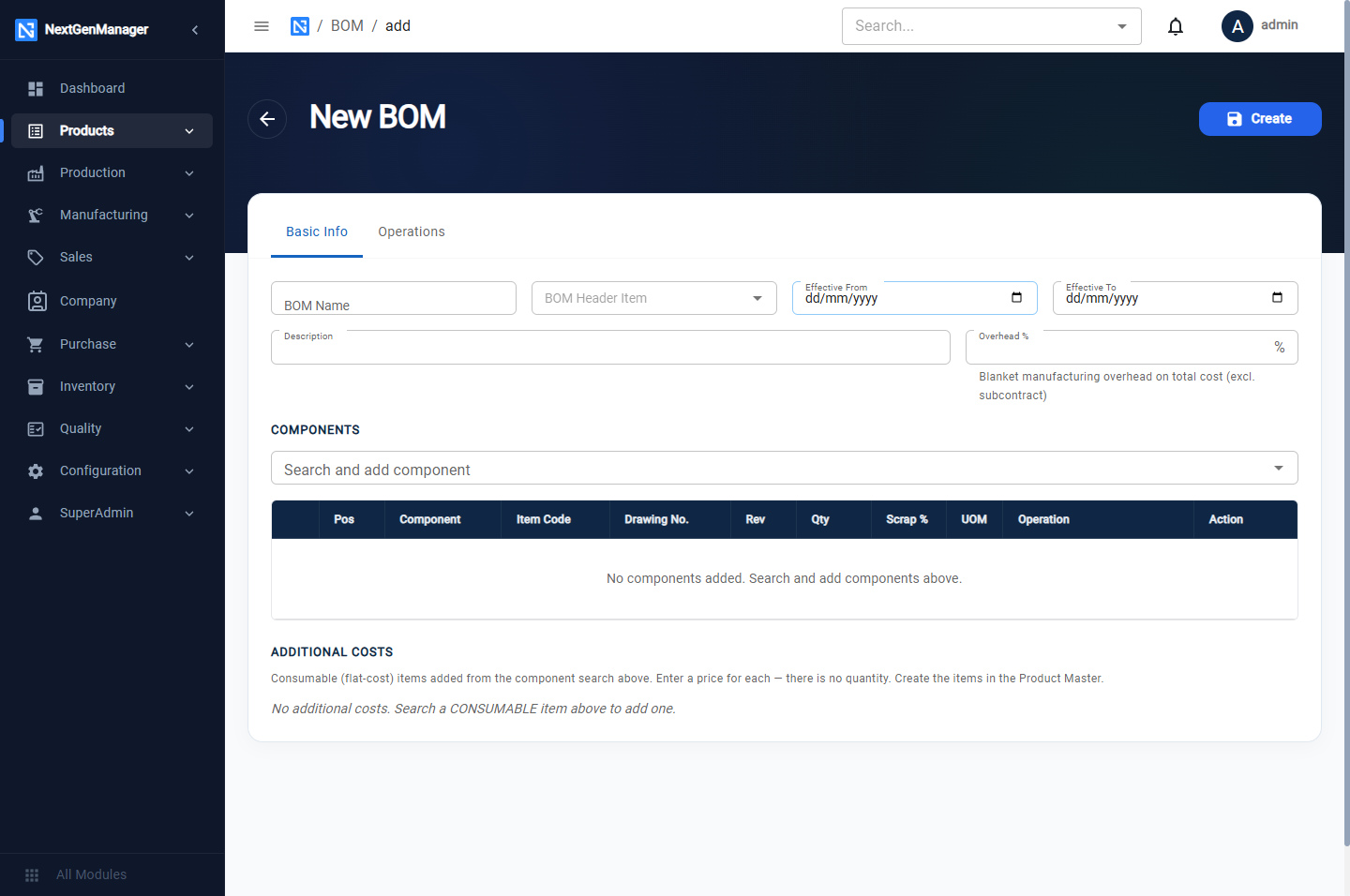
Basic Info tab
| Field | Notes |
|---|---|
| BOM Name | For example Brake Disc Rotor 260 - BOM |
| BOM Header Item | The product this BOM makes |
| Effective From / To | The dates the BOM applies |
| Description | Free text |
| Overhead % | A blanket manufacturing overhead added on total cost, excluding subcontract charges |
Components. Use Search and add component to add each material or part. Every row has:
| Column | Notes |
|---|---|
| Pos | Position number: 10, 20, 30… |
| Qty | Quantity needed to make one unit |
| Scrap % | Expected loss; the requirement is raised by this percentage |
| UOM | From the product |
| Operation | WO Level, or the operation that consumes this component |
| Arrows, bin | Move the row up or down, or remove it |
A component that has its own BOM makes this a multi-level BOM. The arrow at the left of the row opens its structure.
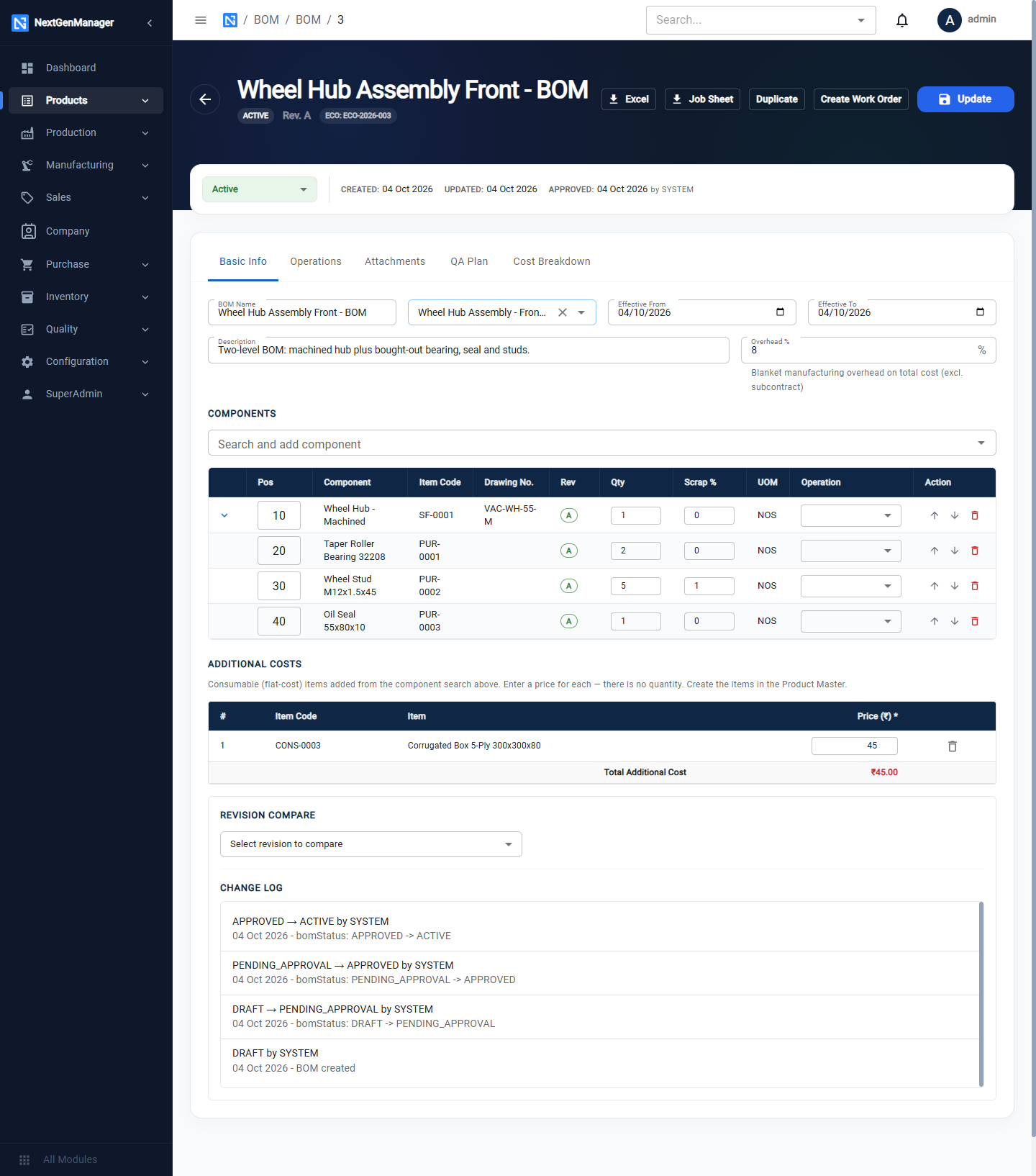
Additional Costs. When you add a Consumable product it goes into this section, not the component table. Enter a flat Price per unit made — there is no quantity.
Operations tab
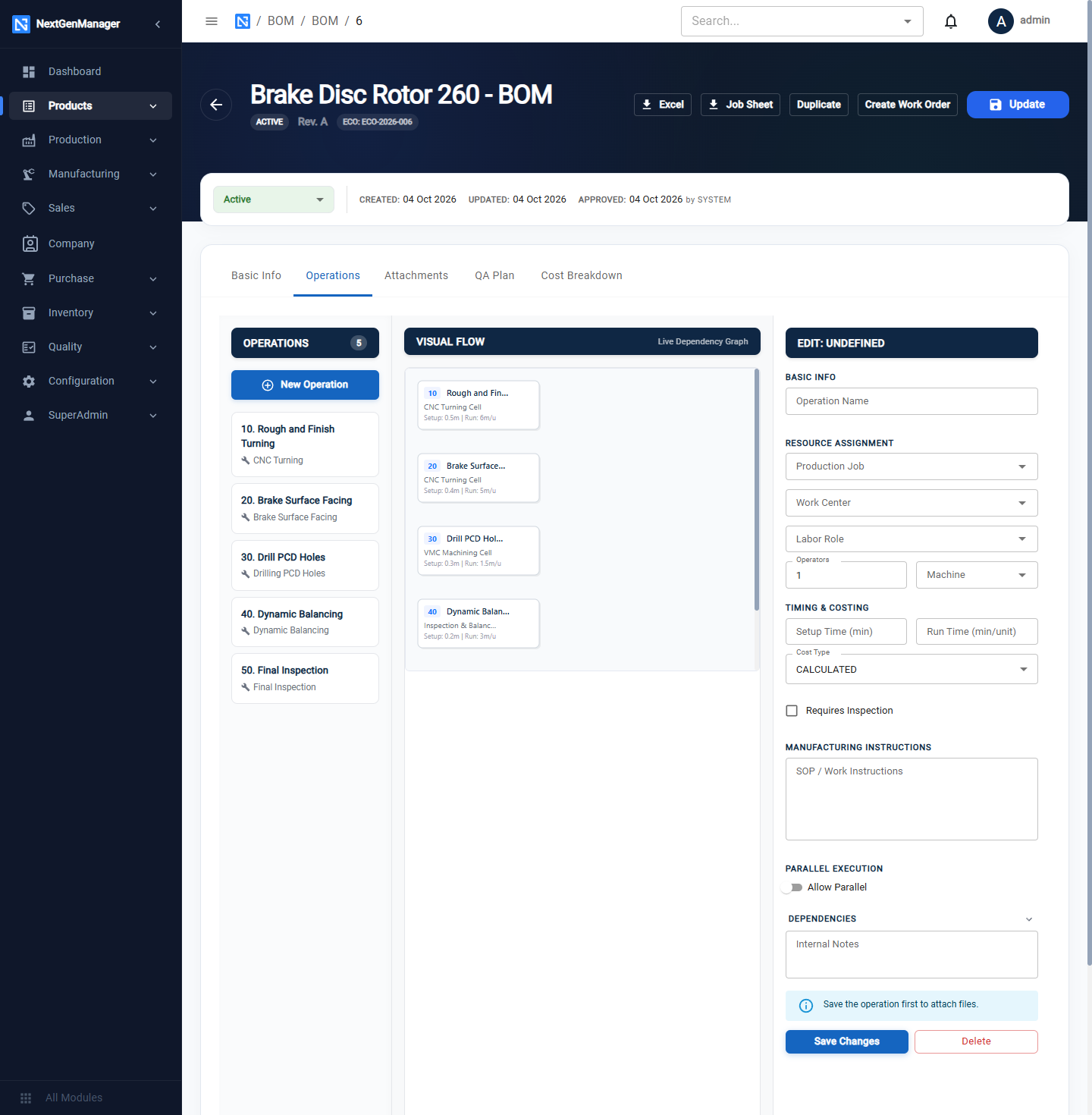
- Click New Operation. A step is added to the list on the left.
- Click the step in the list to edit it on the right.
- Fill in the fields and click Save Changes.
| Field | Notes |
|---|---|
| Operation Name | For example Rough and Finish Turning |
| Production Job, Work Center, Labor Role, Operators, Machine | From the manufacturing setup |
| Setup Time (min), Run Time (min/unit) | Filled from the production job; you can change them |
| Cost Type | See below |
| Requires Inspection | Tick to make this operation a quality checkpoint |
| SOP / Work Instructions | Shown to the operator on the work order |
| Allow Parallel, Dependencies | Which operations must finish first, and whether this one may run alongside another |
| Internal Notes | Not printed |
The Live Dependency Graph in the middle draws the flow as you build it.
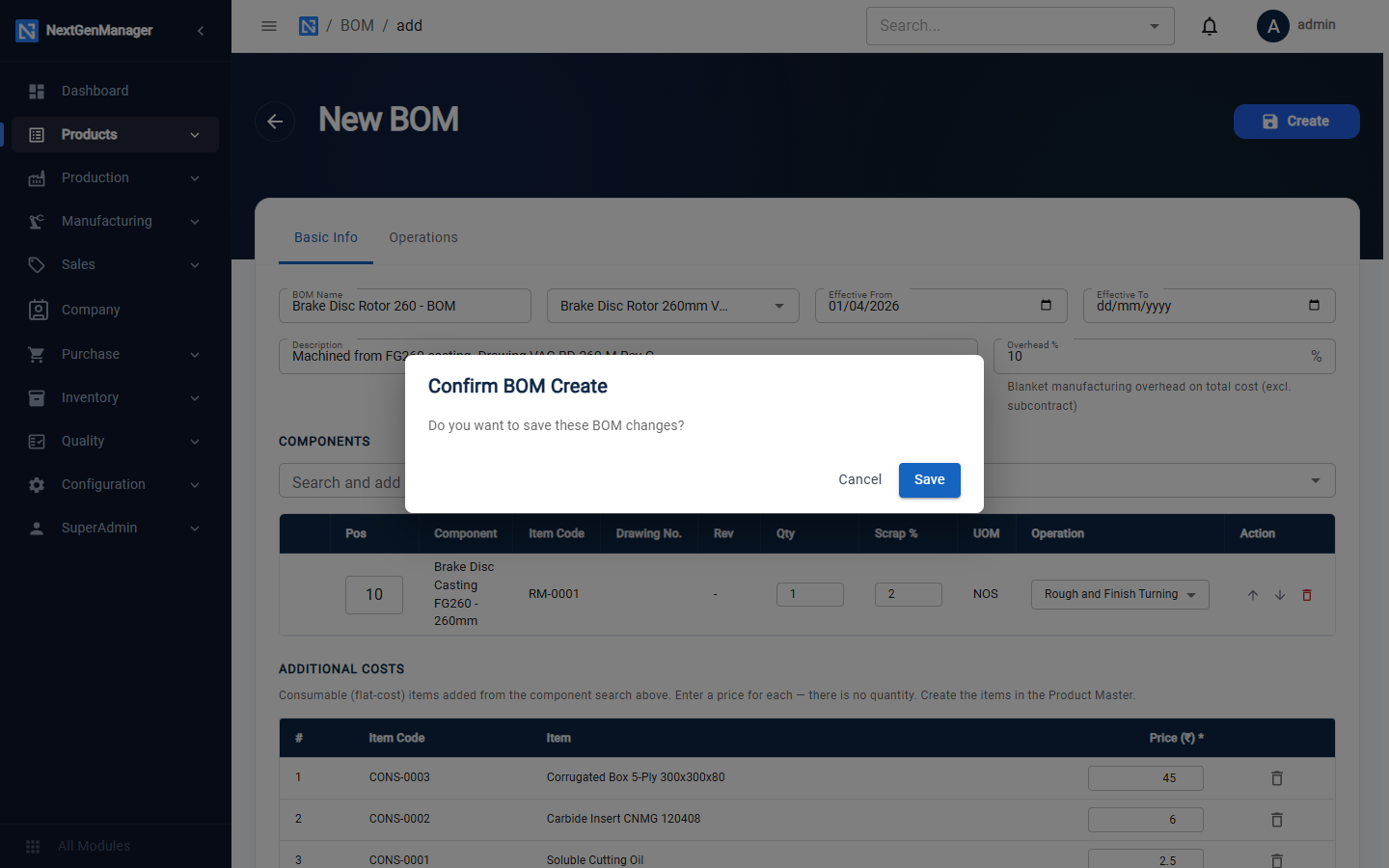
:::caution Save Changes is not the final save Save Changes keeps the operation in the form only. Nothing is stored until you click Create (or Update) at the top of the page and confirm. :::
Cost types
| Cost type | How the operation is costed |
|---|---|
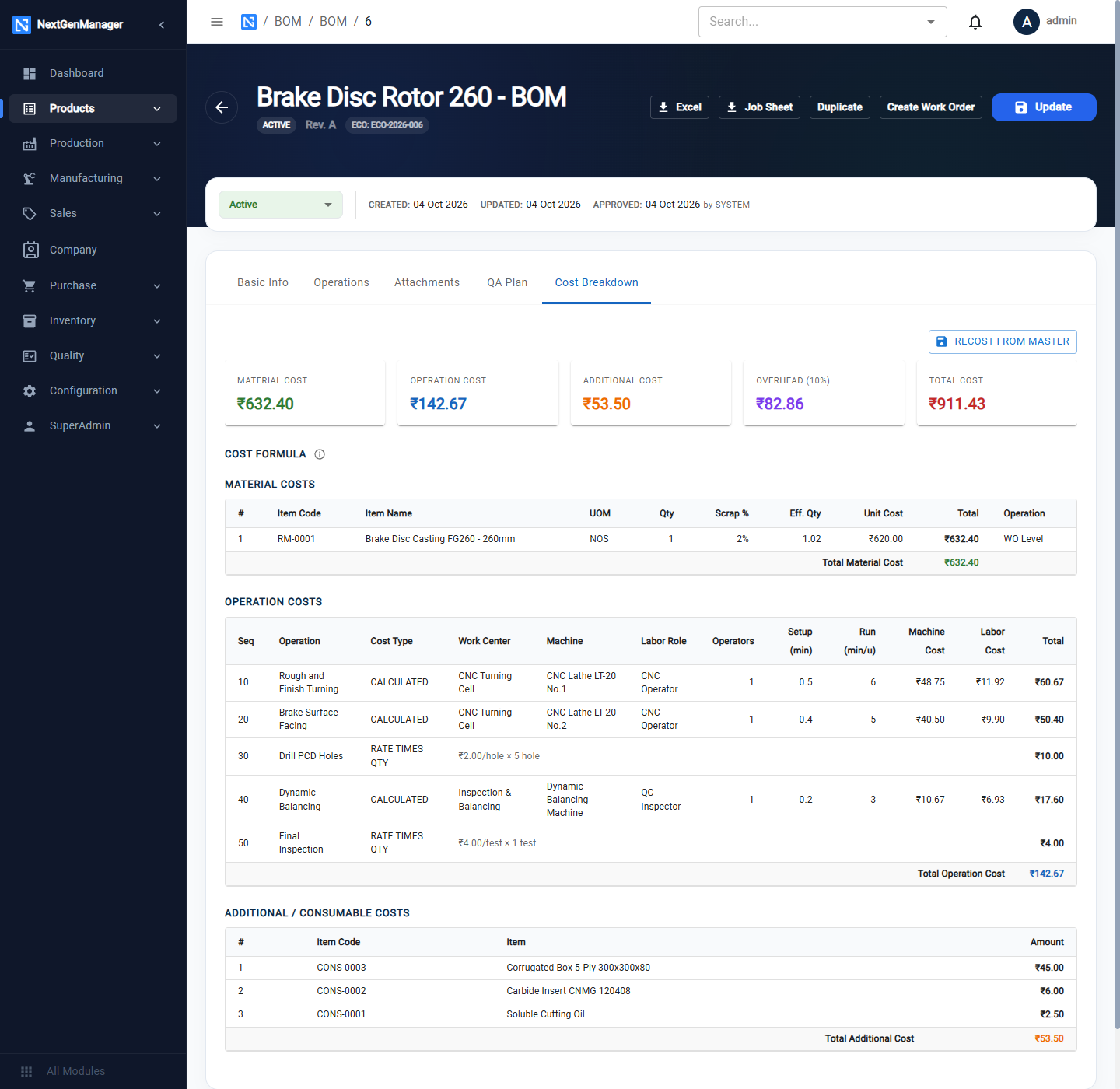
| CALCULATED | (setup + run minutes) × (machine ₹/hour + labour ₹/hour × operators) |
| FIXED RATE | A Fixed Cost Per Unit that you enter |
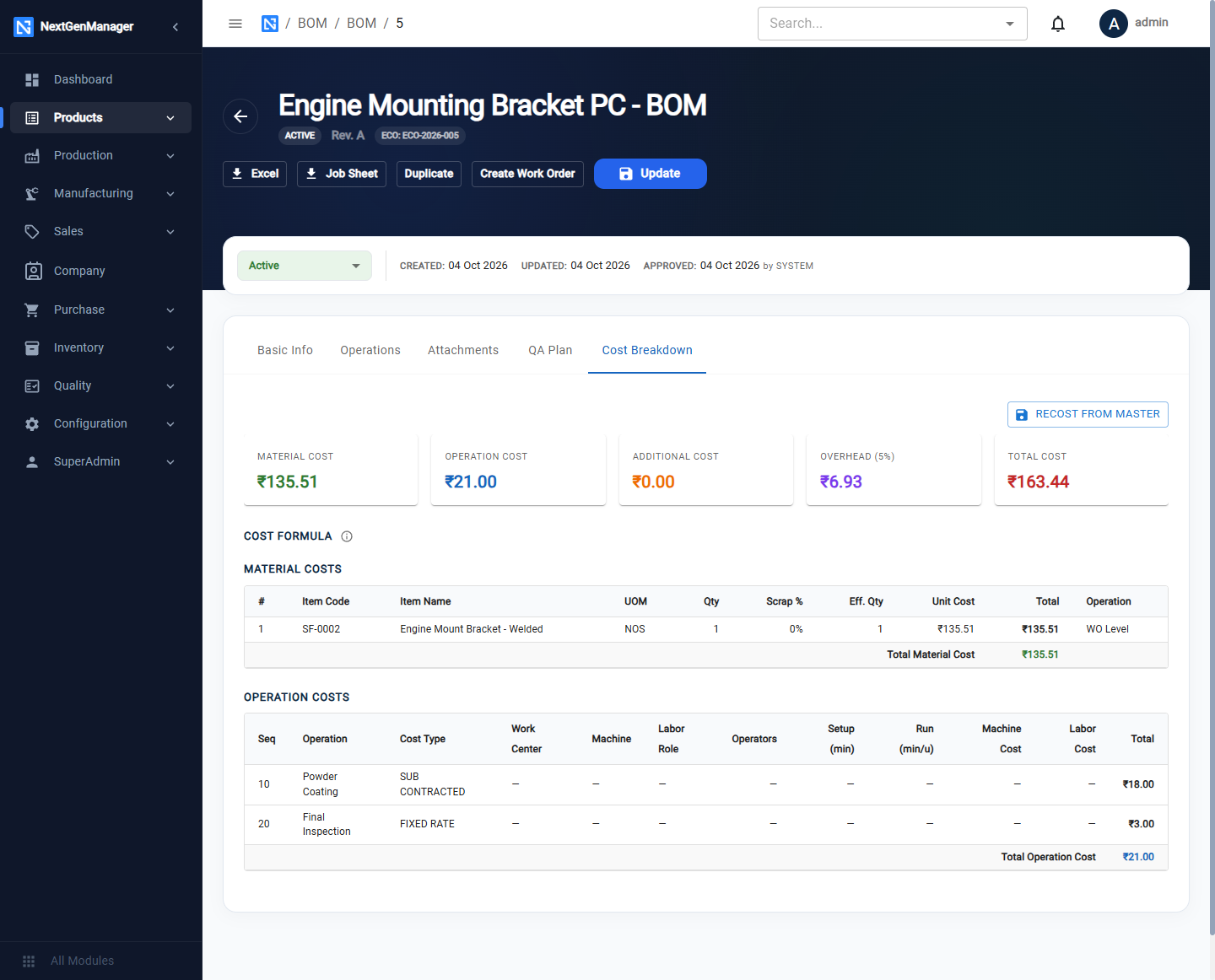
| SUB CONTRACTED | A Fixed Cost Per Unit paid to an outside processor; left out of the overhead calculation |
| RATE TIMES QTY | Quantity × the piece rate of the production job, or a Rate Override |
After the BOM is saved
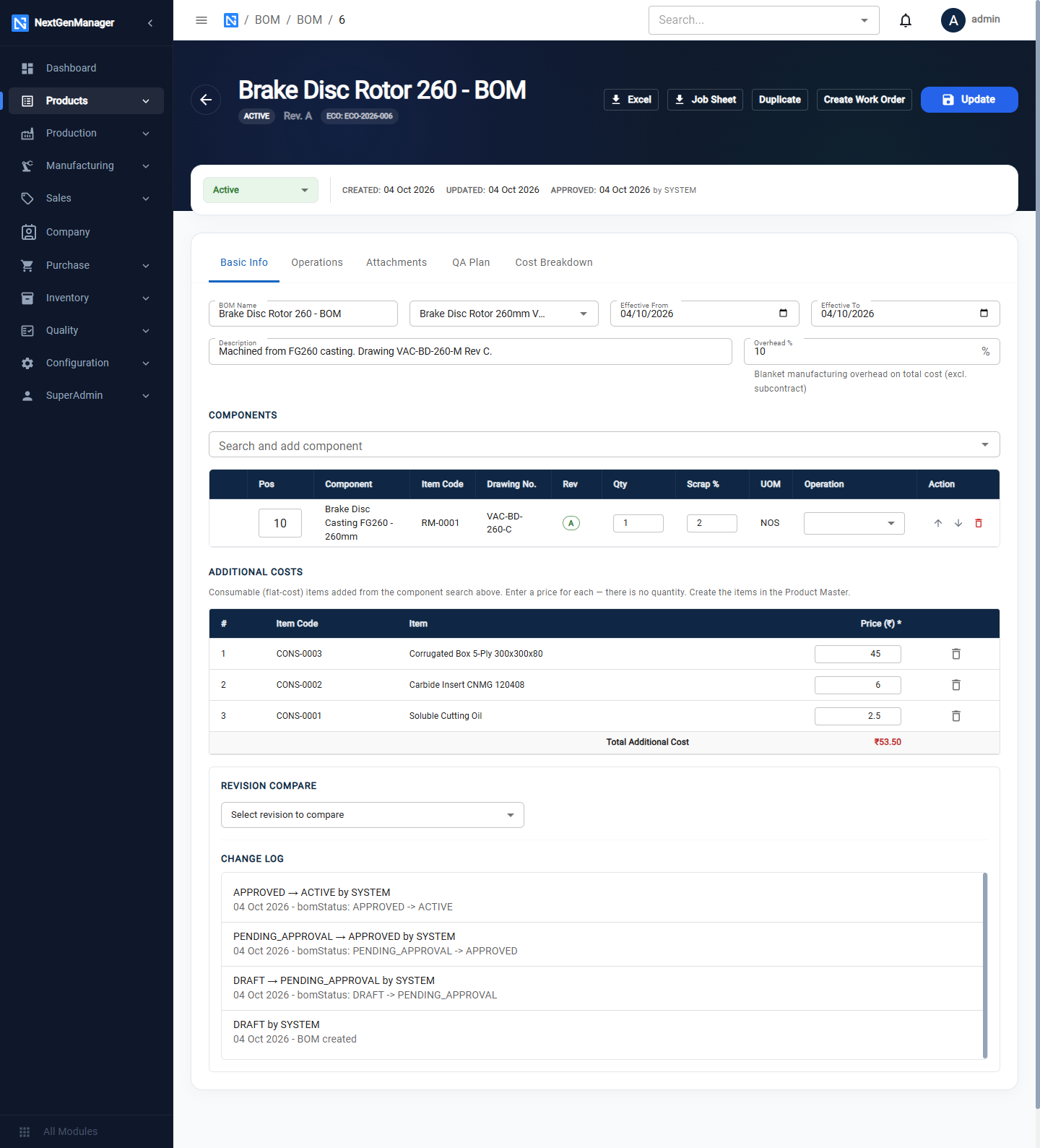
The header gains Excel, Job Sheet, Duplicate, Create Work Order and Update, a status dropdown, and three more tabs.
Attachments
Drawings and documents for the BOM and its operations.
QA Plan
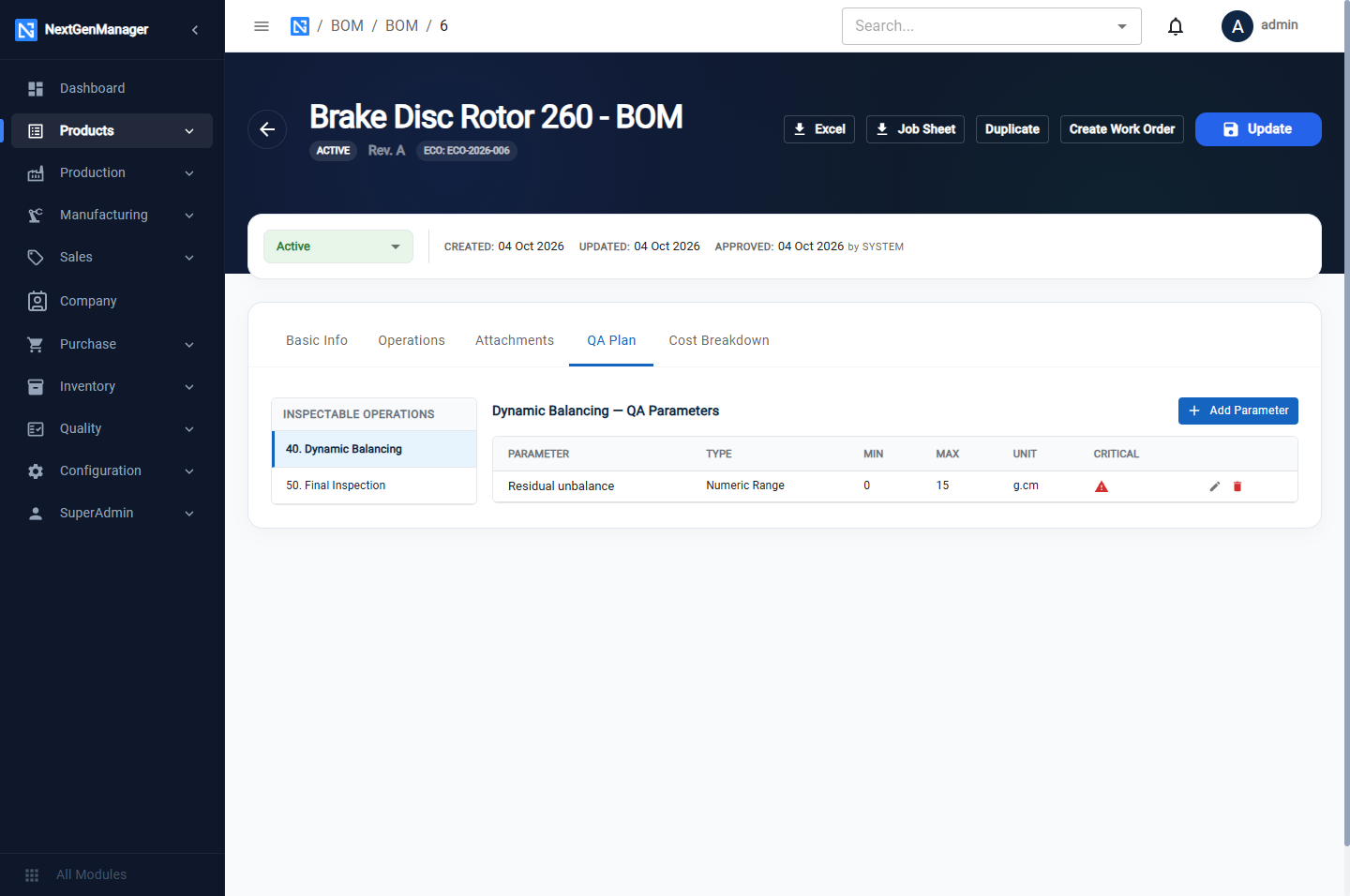
Lists the operations marked Requires Inspection. Select one and click Add Parameter.
| Field | Notes |
|---|---|
| Parameter Name | For example Residual unbalance |
| Type | Numeric Range (Min, Max and Unit) or Pass / Fail |
| Critical | A failure on a critical parameter rejects the whole batch |
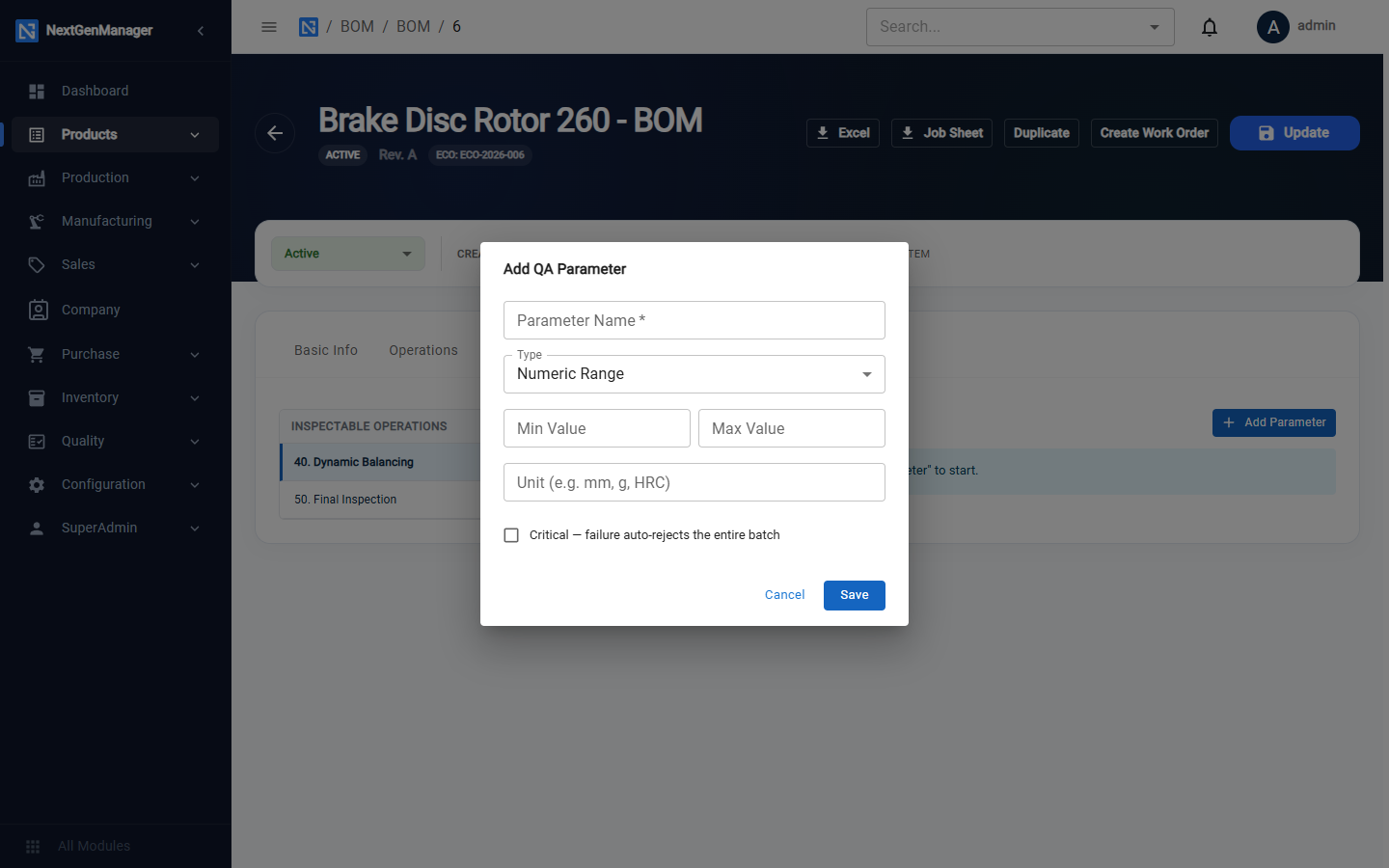
Parameters can be added to an Active BOM without creating a new revision. Operators are asked for these readings on the shop floor; see Running a work order.
Cost Breakdown
Shows Material, Operation, Additional, Overhead and Total cost per unit, with a table for each. Recost from Master recalculates using the current product costs and rates.
A subcontracted operation shows its fixed charge and is left out of overhead:
At the bottom of the Basic Info tab, Revision Compare sets two revisions side by side and Change Log lists every status change.
Status: from Draft to Active
A BOM must be Active before a work order can use it.
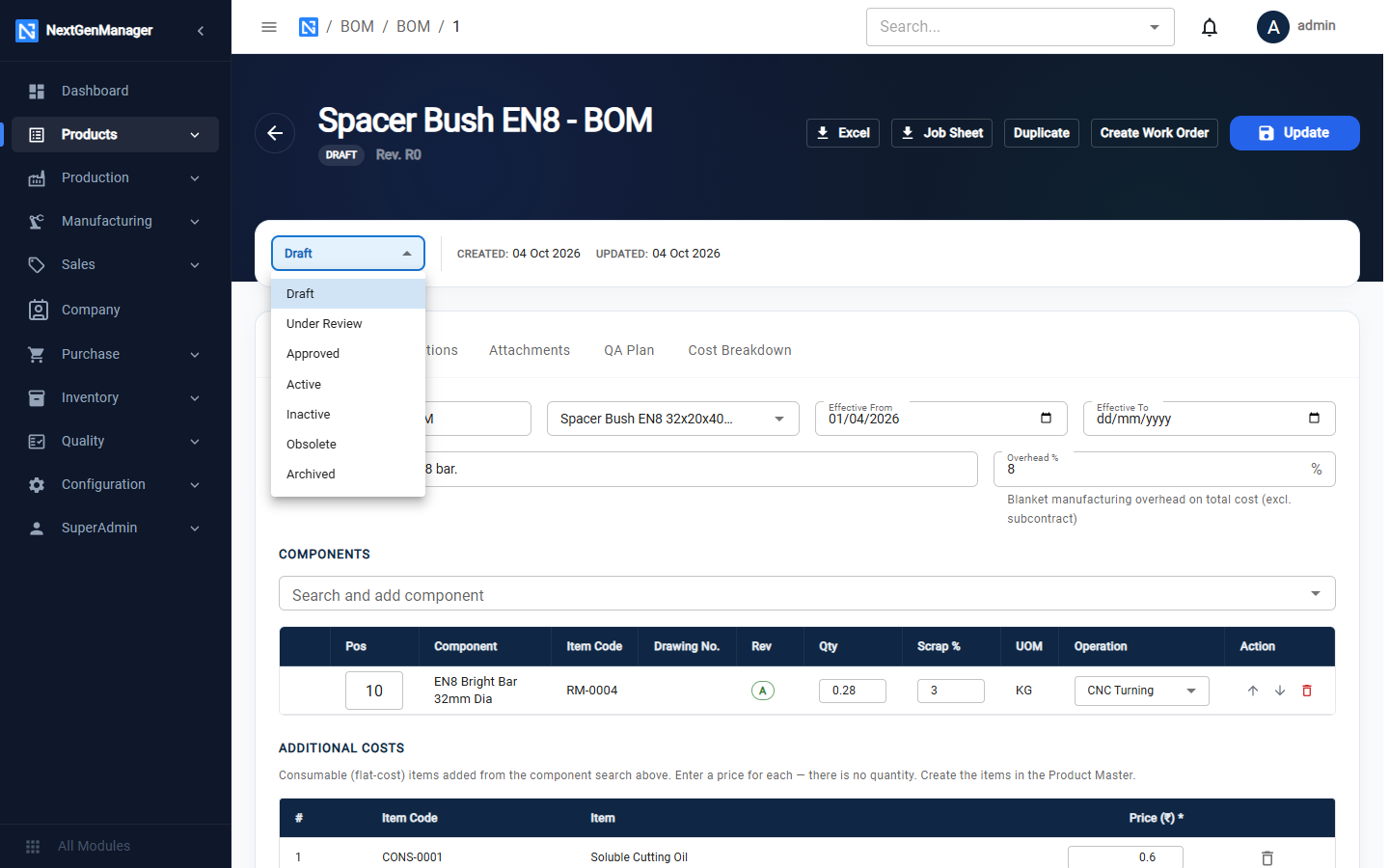
Draft → Under Review → Approved → Active
Other statuses are Inactive, Obsolete and Archived.
Choose the next status from the dropdown under the header.
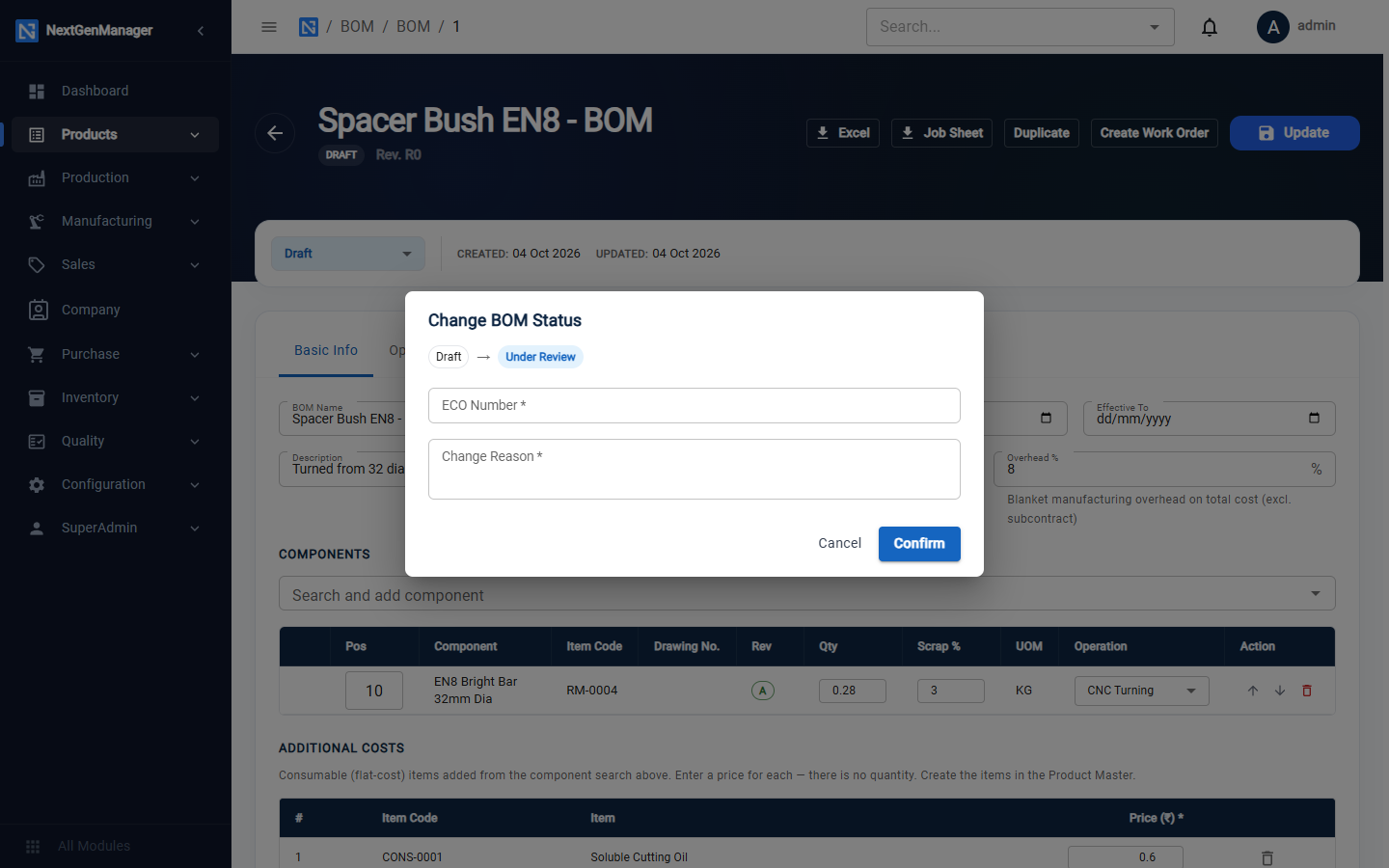
Every change opens Change BOM Status and asks for an ECO Number and a Change Reason. The ECO number is fixed after the first step.
While a BOM is a draft its revision reads R0. When it becomes Active it is given a letter: A.
Change an Active BOM
If you click Update on an Active BOM, the system offers to Create Revision.
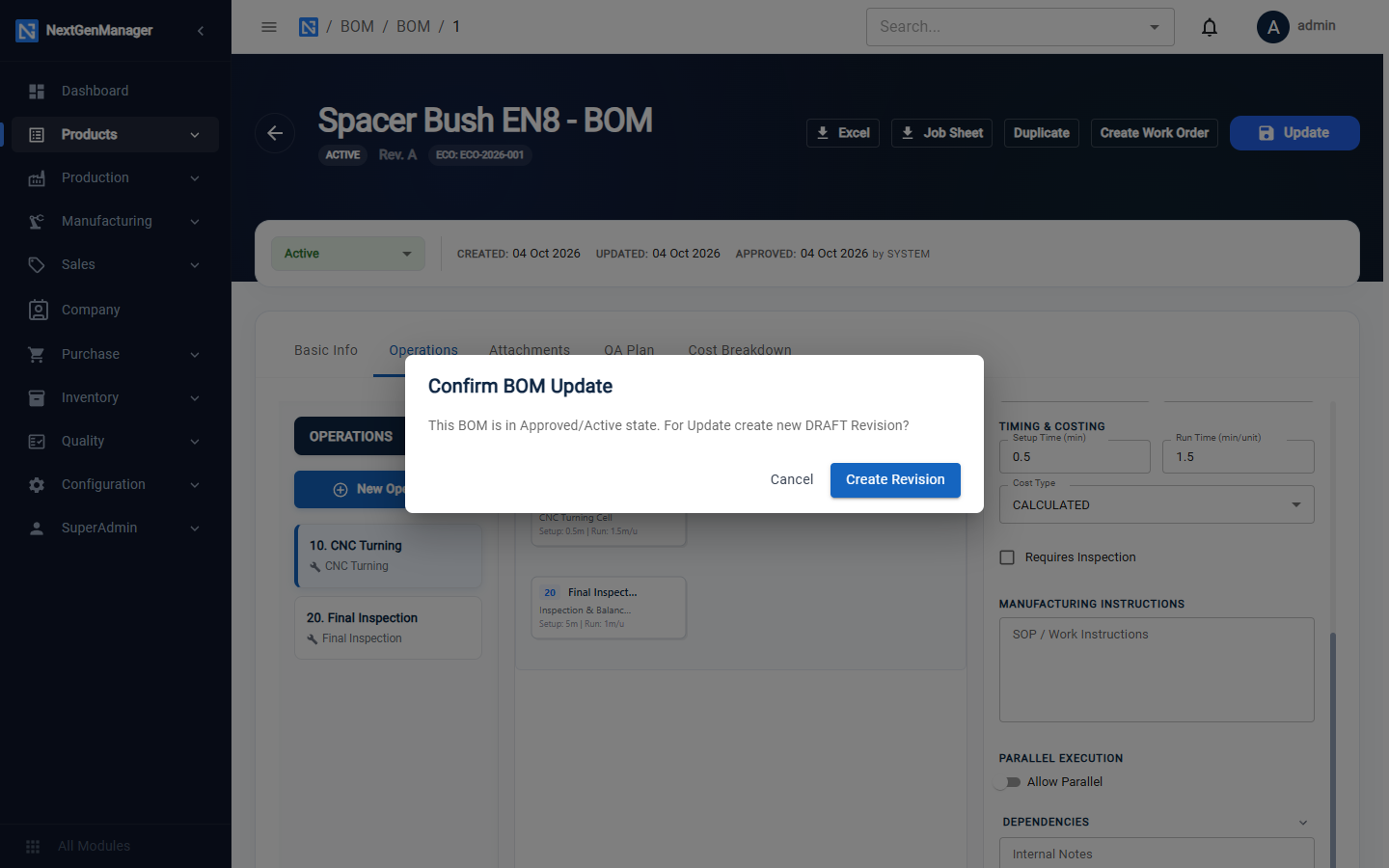
The revision is a new Draft copy. Take it through the same statuses. When it becomes Active it is
revision B and the previous revision becomes Inactive. On an older revision a Go to Active
BOM button takes you to the current one.
Make a work order from a BOM
Click Create Work Order in the header. See Work orders.