Users and roles
Where: Operations → SuperAdmin → User List and Role Management. You need the administrator role.
The user list
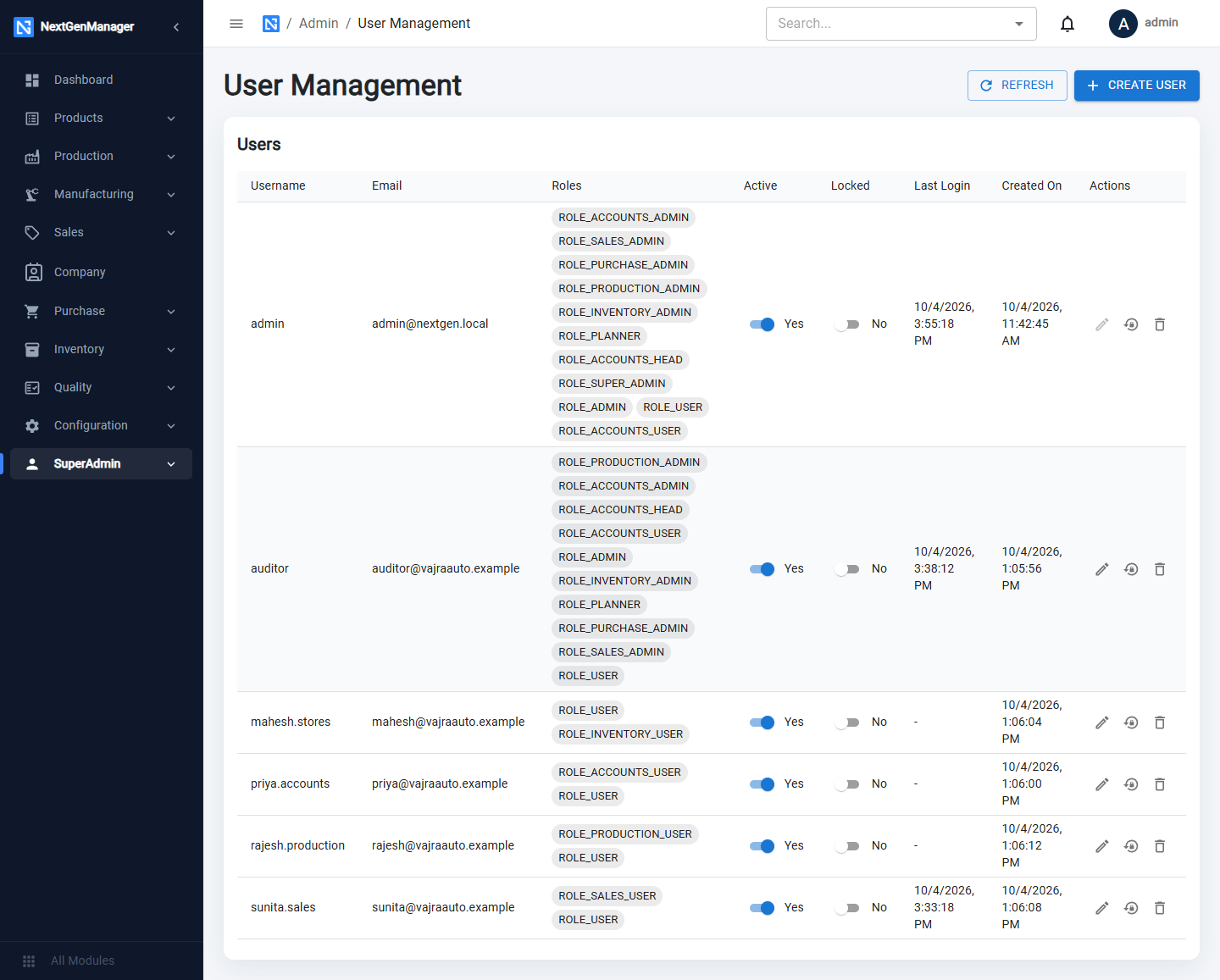
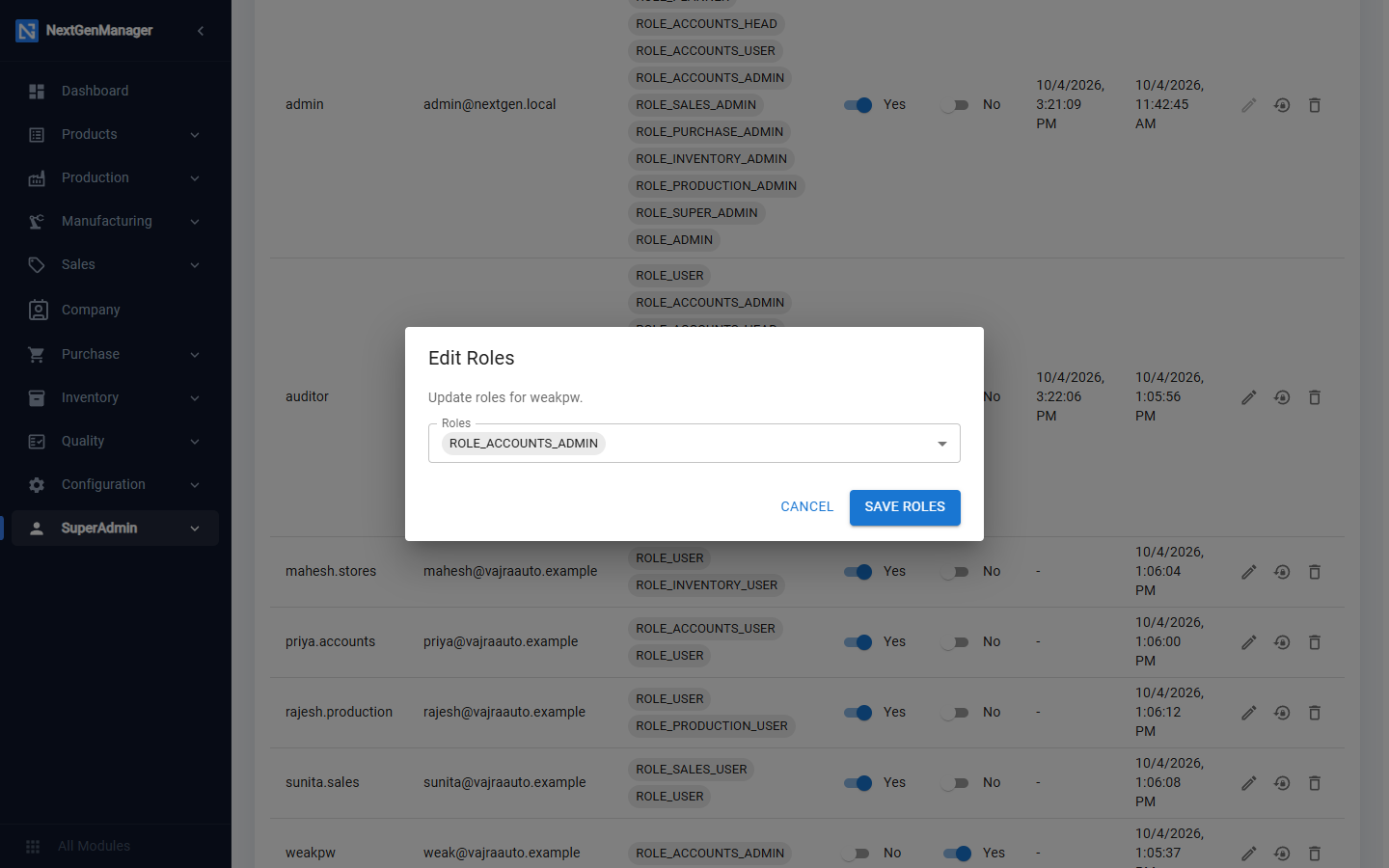
Each row shows the username, e-mail, roles, whether the user is Active and Locked, the last login and when the user was created.
| Control | What it does |
|---|---|
| Active switch | Turn off to stop a user signing in without deleting them |
| Locked switch | Lock or unlock an account |
| Pencil | Edit Roles |
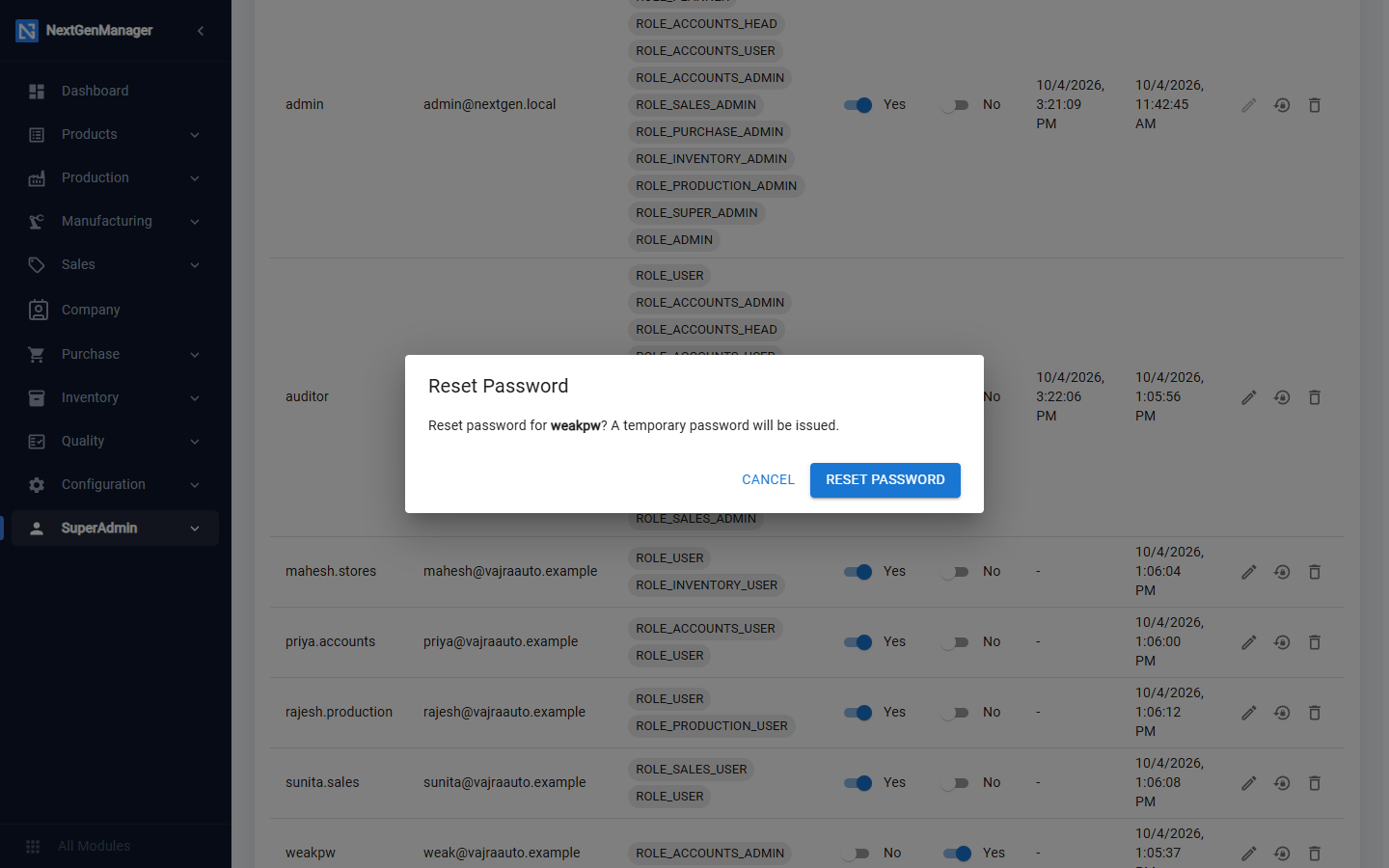
| Key | Reset Password |
| Bin | Delete User |
Create a user
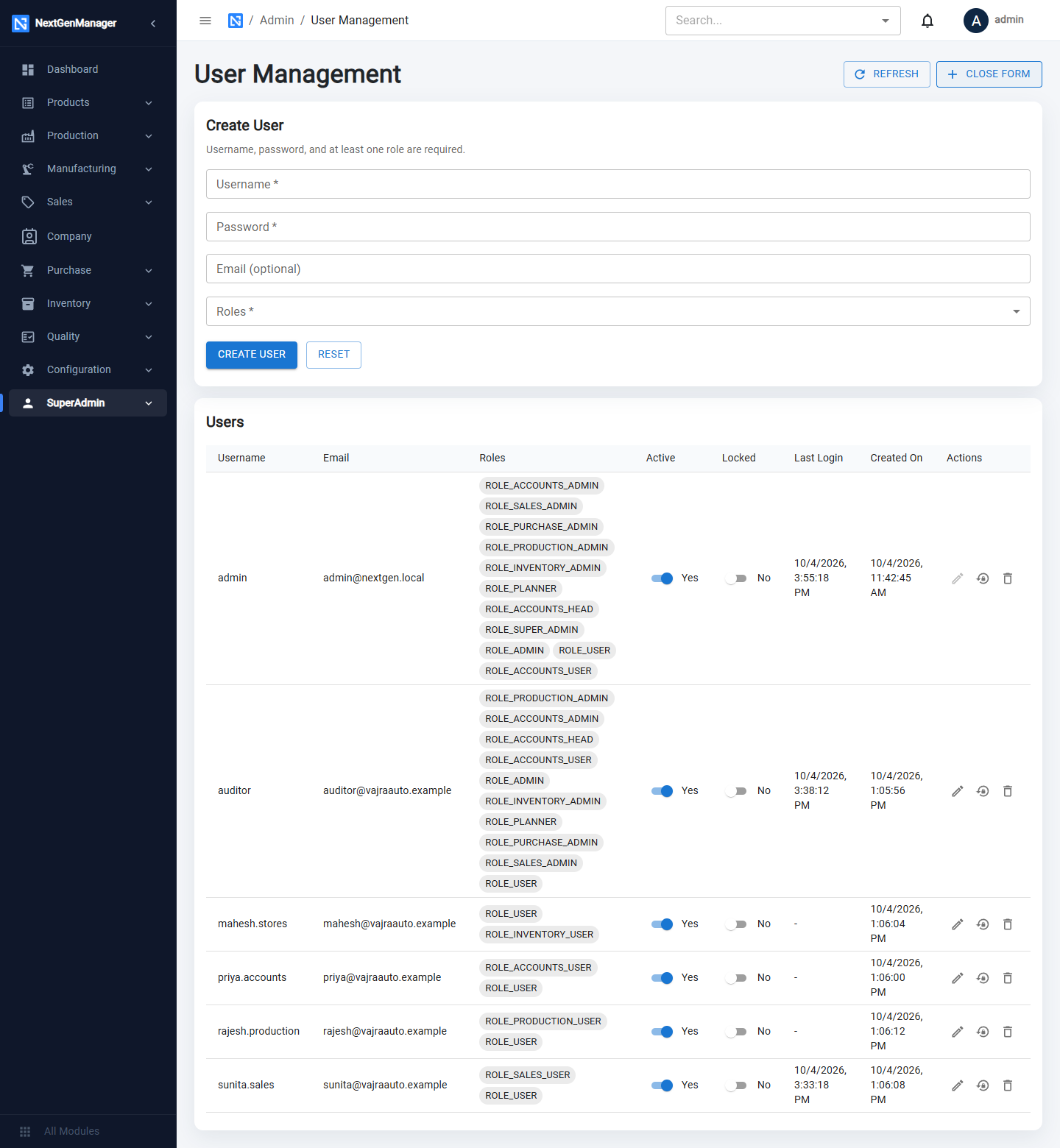
- Click CREATE USER. A form opens above the list and the button changes to CLOSE FORM.
- Fill in Username and Password (both required) and, if you wish, Email.
- Open Roles and tick every role the person needs. At least one is required.
- Click CREATE USER. RESET clears the form.
Roles
| Role | Gives access to |
|---|---|
ROLE_USER | Signing in (opens no module on its own) |
ROLE_ADMIN | The SuperAdmin menu: company details, users, roles |
ROLE_ACCOUNTS_USER, ROLE_ACCOUNTS_HEAD, ROLE_ACCOUNTS_ADMIN | The Accounting module |
ROLE_PLANNER | The Planning module |
ROLE_INVENTORY_USER / _ADMIN | Inventory work |
ROLE_PRODUCTION_USER / _ADMIN | Production work |
ROLE_PURCHASE_USER / _ADMIN | Purchase work |
ROLE_SALES_USER / _ADMIN | Sales work |
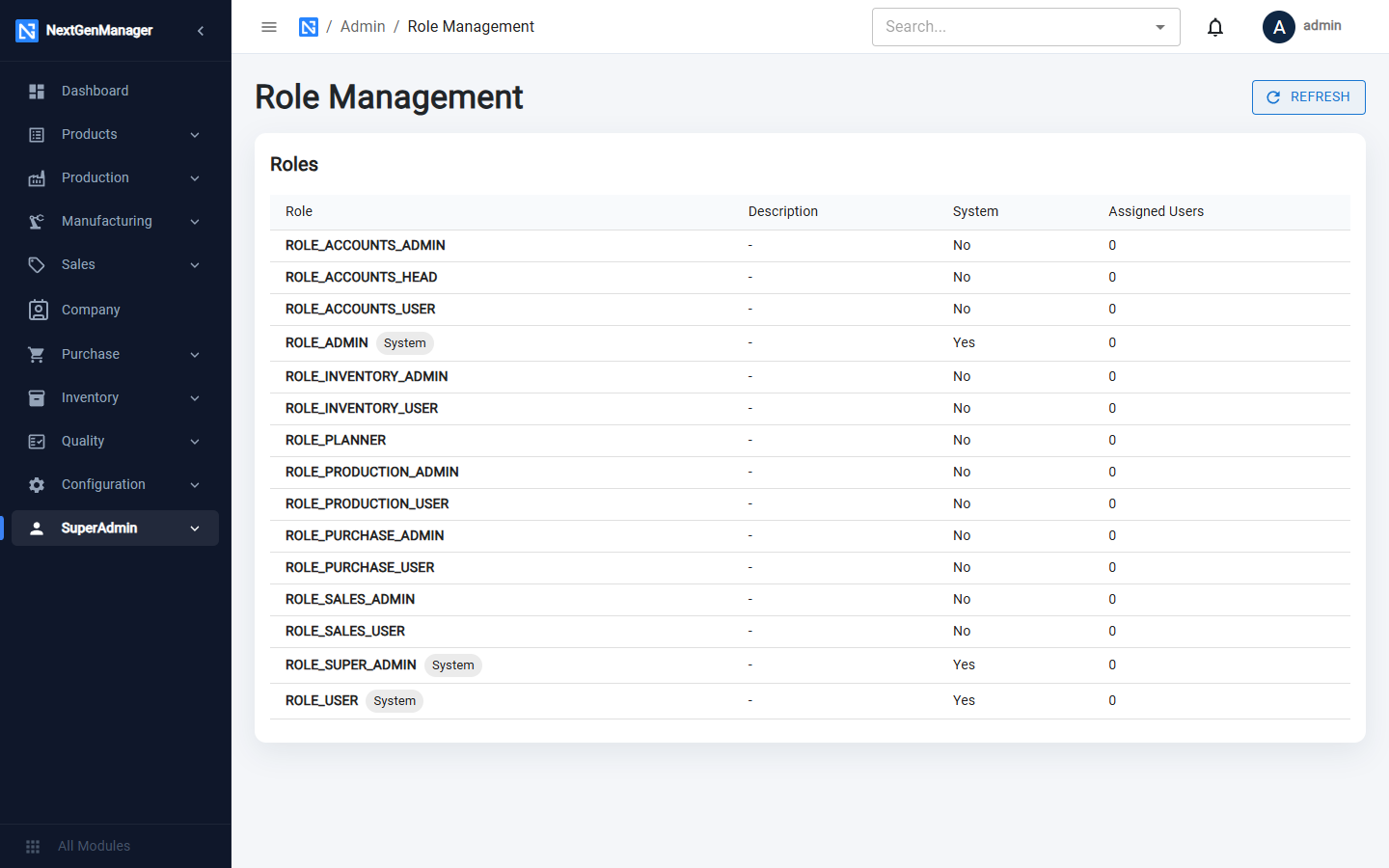
Roles marked System on the Role Management page are built in. The page also shows how many users hold each role.
:::note What each role opens
ROLE_USER only means "can sign in" and opens no module. Access comes from the module roles: a user
with only ROLE_SALES_USER sees Sales (and the shared masters such as contacts and products) but not
Purchase, Inventory or Production, and the server refuses the matching requests too. The
Accounting module, the Planning module and the SuperAdmin menu each need their own role.
Give every user at least one module role; a user holding only ROLE_USER can sign in but sees no
module.
:::
Change a user's roles
Click the pencil on the user's row, tick or untick roles and save.
Reset a password
Click the key on the user's row. A temporary password is issued and shown once. Copy it and give it to the user, who should then change it under Account Settings (see Signing in).